
Blurry images create annoying problems. A photo looks soft. Text becomes difficult to read. Faces lose detail. And many people search online for a quick fix, then suddenly they hear people talking about using ChatGPT to “unblur” images. That creates hope, but also a lot of confusion because people think ChatGPT directly repairs photos by itself like some magic editor tool.
The truth is a little different. ChatGPT helps guide the process, explain the blur problem, suggest AI image tools, and give prompts or workflows that improve the result, but the actual image enhancement normally happens through separate AI software working alongside the guidance ChatGPT provides.
I remember seeing someone upload a blurry screenshot expecting ChatGPT to fully restore it in one click, and honestly that misunderstanding happens a lot now.
This guide keeps everything beginner friendly. No complicated technical language. No weird editing terms everywhere. You will learn what image unblurring actually means, how ChatGPT fits into the workflow, which prompts work best, how to follow a simple step-by-step process, common errors people face, and when the free plan works okay versus when a paid plan feels smoother.
What Does “Unblur Image” Mean?
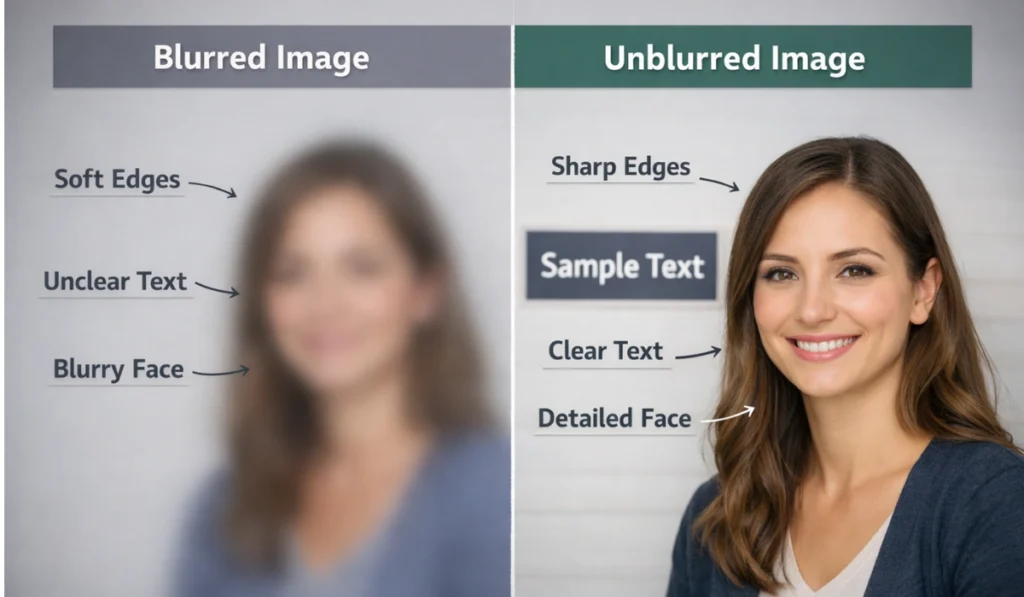
Unblurring an image means making the image clearer so important details become easier to see again. That can include sharper text, clearer edges, improved face visibility, or objects becoming easier to recognize. Images usually become blurry because of camera movement, poor focus, compression, low lighting, or quality loss after saving and sharing too many times. And honestly, blurry screenshots from messaging apps are super common now too.
Blur does not always mean the image data is fully destroyed forever. Sometimes enough visual information still exists inside the image for AI software to estimate missing detail and improve clarity, and modern AI image systems study shapes, colors, contrast, edges, and patterns to predict what the sharper version should probably look like. It does not perfectly recreate the original moment though. That part is important to understand.
A lot of people mix up ChatGPT and image editing software together. ChatGPT itself does not directly sharpen or repair images like Photoshop or dedicated AI upscalers do. Instead, it explains the blur type, suggests the right AI tools, creates prompts, and guides users step by step through the fixing process.
Best Prompts to Unblur Images Using ChatGPT
ChatGPT works much better when your prompt explains the problem clearly. If you type one tiny sentence like “fix my blurry image,” the reply often stays shallow and generic, but when you describe what you want in simple natural language the AI understands the situation better and gives more useful help. You do not need fancy technical words either. Simple explanations work surprisingly well.
Below are three detailed prompts beginners can copy directly into ChatGPT.
Prompt 1: Image Blur Analysis Prompt
Copy and paste this:
Analyze the uploaded image carefully. Explain in simple words why this image looks blurry. Tell me what type of blur it has, such as motion blur, focus blur, or low resolution. Describe what details are unclear, like text, faces, or edges. Then explain what kind of AI image tools can help improve this image and why they would work. Keep the explanation beginner friendly and avoid technical terms.
This prompt helps ChatGPT behave more like an image reviewer instead of instantly jumping into random fixes, and that usually leads to better guidance later because understanding the blur type first prevents people from using the wrong tool immediately.
Prompt 2: Image Improvement Guidance Prompt
Copy and paste this:
I have a blurry image and I want to improve its clarity without changing how it looks. Guide me step by step on how to fix this image using AI image tools. Explain what settings or options I should focus on, like sharpness, noise reduction, or resolution. If more than one tool can help, explain the difference in simple words. Do not assume I have technical knowledge. Explain everything as if I am using AI tools for the first time.
This prompt tells ChatGPT to slow down and teach instead of rushing through technical explanations. And honestly, that makes a big difference for beginners who already feel lost around editing software menus.
Prompt 3: Beginner-Friendly Full Workflow Prompt
Copy and paste this:
Walk me through a complete beginner friendly process to improve this blurred image. Start from image analysis and end with a clearer final result. Tell me what to do inside ChatGPT and what to do outside ChatGPT using AI image software. Explain common mistakes people make when trying to unblur images and how to avoid them. If the image cannot be fully fixed, explain the limits honestly. Use simple language and short steps.
This prompt works well when you want a full workflow instead of scattered advice, and it keeps the process connected from beginning to end so the guidance feels less messy and confusing.
These prompts work because they focus on clarity, realistic expectations, and beginner guidance. ChatGPT handles explanation and planning. The actual sharpening still happens through AI image software outside ChatGPT.
If these prompts help you, share this section with someone else struggling with blurry images. People search this problem a lot honestly.
How to Unblur Images from ChatGPT?
ChatGPT works best as a guide instead of a direct image editor. It helps identify the blur problem, explain possible fixes, and suggest useful AI image tools based on the image condition. That sounds less exciting than “one-click magic repair,” yeah, but it is the more realistic explanation.
Follow this simple workflow:
- Open ChatGPT and upload the blurry image if uploads are available.
- Ask ChatGPT to explain the blur type.
- Use one of the detailed prompts above.
- Follow the recommended AI image tool outside ChatGPT.
- Apply the suggested sharpening or resolution settings.
- Review the result carefully.
- Ask ChatGPT follow-up questions if the image still looks unclear.
Each step connects naturally into the next one. No advanced editing skills needed. You mostly follow instructions and compare results.
Troubleshooting Errors While Unblurring Images from ChatGPT
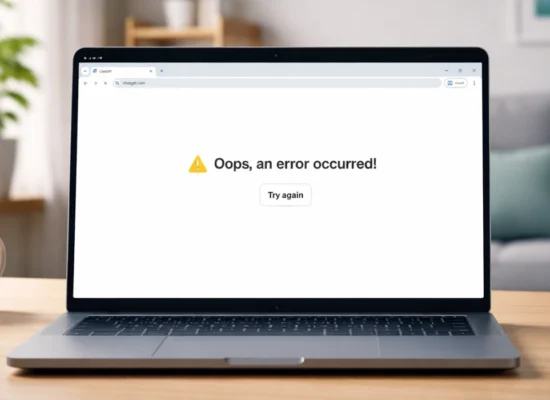
Sometimes things fail during the process. That does not automatically mean you did something wrong. Many image upload or analysis problems happen because of system traffic, browser issues, internet instability, or temporary AI service problems happening in the background. AI tools can feel surprisingly fragile during busy hours honestly.
Common problems include image upload failure, slow replies, incomplete image analysis, or broken responses during processing. One error users often report is:
“ChatGPT failed to get status”.
That message usually points toward a temporary system issue instead of a broken account problem.
You can try these fixes:
- Refresh the browser page
- Upload the image again
- Check your internet connection
- Wait a few minutes before retrying
- Try a different browser if uploads fail repeatedly
Free users sometimes see more interruptions during busy periods because system resources get crowded faster.
Free Plan vs Premium or Team Plan
The free plan works fine for basic prompts, image explanations, and beginner-level guidance. But image uploads, advanced analysis, and response speed may feel slower during busy hours, especially when many people are using AI image features at the same time. Free plans are decent for testing though.
Premium or Team plans usually provide:
- Better image understanding support
- Faster responses
- More stable performance
- Fewer interruptions during busy periods
If you only test blurry image fixes occasionally, the free plan is probably enough. But if you work with images often, the paid plan feels less frustrating honestly.
Conclusion
Unblurring images with ChatGPT is not really about magic editing. It is more about guidance, planning, realistic expectations, and smart use of AI image tools working together. ChatGPT helps explain what caused the blur, which tools make sense, and how beginners can follow the process without getting overwhelmed.
This guide explained what image unblurring means, how ChatGPT fits into the workflow, which prompts work best, how to follow a beginner-friendly process, and what common errors users may face along the way. And honestly, once you understand the difference between guidance and actual image editing software, the whole process feels much less confusing.
If this guide helped you, share it with somebody else dealing with blurry images. And if you tested any of these prompts yourself, leave feedback about what worked best because real examples help people way more than polished marketing talk sometimes.