
You’re typing in ChatGPT for your query, waiting for a reply, and suddenly your device screen shows this unknown message “Oops, an error occurred.” It feels annoying, especially when you’re working on something important project. This error can stop Chatgpt replies, breaks a project flow, or even block features like connectors.
In this today troubleshooting guide, I will explain you what this error message mean, why it happens, how you can fix it step by step, and how to prevent it again in future.
What Does “Oops, an Error Occurred“ Message in ChatGPT Mean?
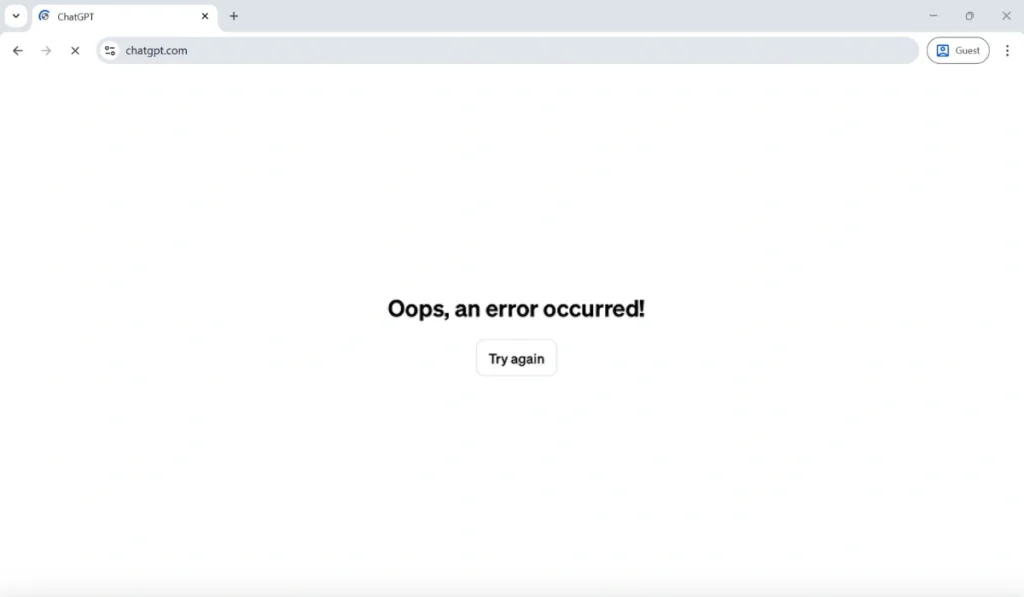
This message “Oops, an error occurred” is a simple system behaviour error. It appears when the ChatGPT cannot process your prompt properly or bring back a reply when you send a query. In most of the cases, the issue arrives from a small problem between your device browser, ChatGPT screen, and the OpenAI server. It does not mean your account is banned or the ChatGPT is failed forever.
You usually see this error while sending a message, waiting for a reply, switching to chats, or using advanced tools. And sometimes it shows up when ChatGPT cannot sync data in the right way, which is similar to issues like Error Fetching Connectors Connections in ChatGPT or ChatGPT Error Creating or Updating Project, since all these features need backend communication to work properly.
Common Causes of “Oops, an Error Occurred“ Message in ChatGPT
This error message can arise for multiple reasons, depending on your browser, network, or ChatGPT’s system behaviour. Understanding the cause can helps you to choose the right fix.
- Temporary overload on OpenAI servers during high traffic
- Weak or unstable internet connection is causing request timeouts
- Corrupted browser cache or cookies are breaking the session
- VPN or proxy changes IP behavior and blocks requests
- Expired login or authentication session
- Browser extensions blocking scripts used by ChatGPT
- Backend sync issues while loading projects or connectors
How to Fix “Oops, an Error Occurred” Message in ChatGPT?
The Solutions depend on both your setup and ChatGPT’s system condition. But most users solve the issue by trying the steps below, one by one.
Fix #1: Refresh the Page or App and Start a New Chat
This error can often occurs due to a temporary session glitch. When the browser loses sync with ChatGPT servers, responses fail to load properly. Refreshing the page clears minor UI problems and resets the active session.
Once you start a new chat, ChatGPT reconnects to OpenAI servers and rebuilds the request flow. This often fixes the error instantly.
Here’s how you can restart the chat session in just a few seconds.
- Refresh the ChatGPT page or app
- Click on New Chat
- Type your prompt again
- Wait for the response to load
Fix #2: Clear App Cache and Browser Cookies
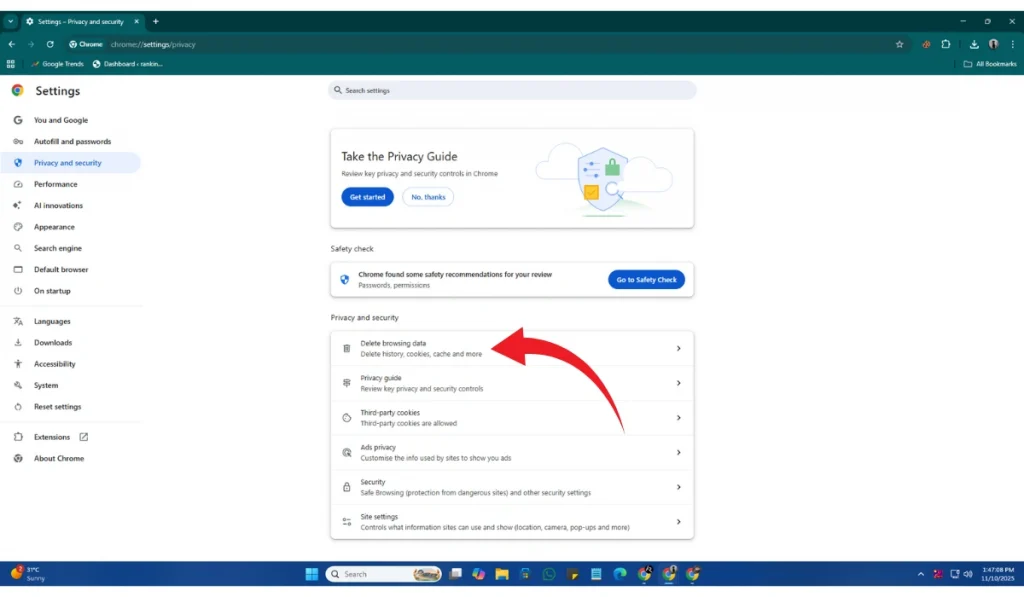
The corrupted cache files in app or cookies on browser can stop ChatGPT from storing session data correctly. This affects replies, project loading, and even connector syncing. Over time, browsers collect old data, and that old stuff can make site behavior pretty weird.
After clearing cache and cookies, your browser and mobile create a fresh session. This helps ChatGPT load scripts and responses normally again.
On Browser
Follow the steps below to easily clear cache and cookies on both browser and mobile:
- Open your browser settings
- Go to Privacy or History
- Select cached images and cookies
- Clear the data
- Reload ChatGPT and log in again
On Mobile
- Click on the ChatGPT app icon for at least 3 to 4 seconds.
- Click on App Info
- Choose Storage and cache
- Click Clear cache and restart your device.
Fix #3: Disable VPN or Proxy Service on Your Device (if you are using it)

The VPNs and proxies may often change your device IP address or move your traffic through restricted servers. OpenAI security systems can block or put limit on these connections, and that leads to response failures.
If you are using it, Simply turn off the VPN or proxy on your device. Then try again.
Fix #4: Turn on the Incognito Mode or Switch to a Different Browser
Browser extensions can block JavaScript files or background requests. This directly affects ChatGPT features like projects and connectors. Even ad blockers or privacy tools can trigger this error.
A clean browser environment helps test whether extensions are the problem. If ChatGPT works in incognito mode, then an extension is likely causing the issue.
Try these simple steps to test ChatGPT in a clean environment quickly.
- Open an incognito or private window
- Log in to ChatGPT
- Send a short test prompt
- Check if the error appears
Fix #5: Check OpenAI Server Status
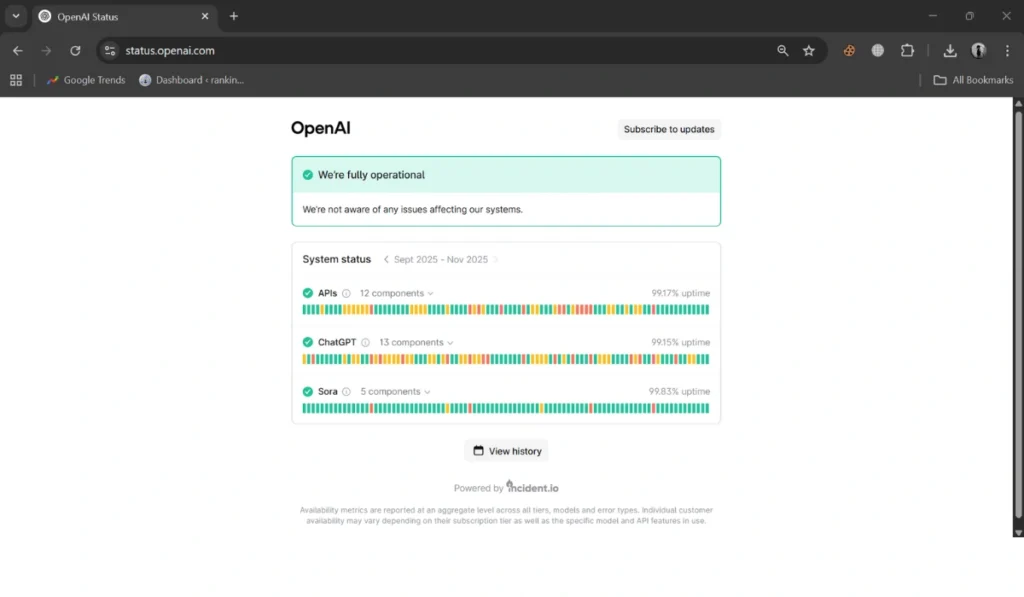
Sometimes the problem is not on your side. The OpenAI servers may be slow down, under maintenance, or facing heavy traffic load. When this happens, replies, projects, and connectors fail together. In this case, waiting is the only solution.
Below are the steps to check ChatGPT server status.
- Open the OpenAI Status page
- Check ChatGPT availability
- Look for active incidents
- Wait until services recover
Fix #6: Log Out and Log Back Into ChatGPT
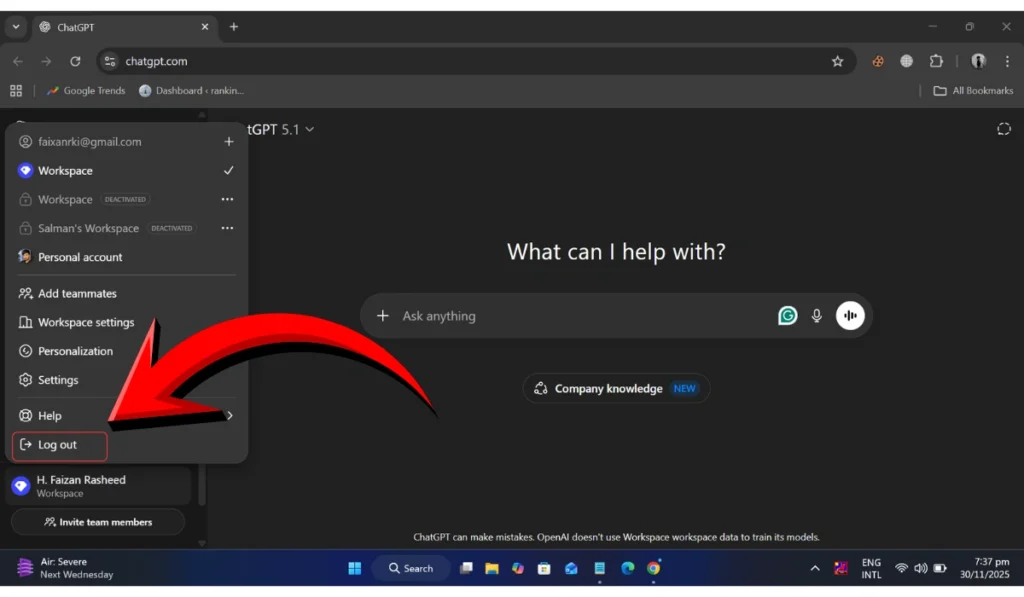
An expired or broken login session can prevent actions such as saving chats or updating projects. This can also trigger the ChatGPT to throw “Error Creating or Updating Project,” message. Simply, Log out of your current account and then log in back. After it, start a new chat it will solve the error.
Fix #7: Reduce Your Prompt Length or Complexity
Very long prompts or complex instructions increase processing load. Sometimes ChatGPT fails to handle them in one request, especially during peak usage.
Shorter prompts reduce server strain and improve response stability. Break large tasks into smaller messages.
Fix #8: Check Internet Stability and DNS Settings

Unstable connections cause requests to drop mid-process. Incorrect DNS settings can also block access to OpenAI servers.
Once your internet connection becomes stable, then ChatGPT goes back to its normal operations. Switching to a reliable DNS, like your ISP’s default, may also helps a lot.
Fix #9: Wait and Retry to open After Some Time
ChatGPT may temporarily block requests due to high traffics or rate limits. These limits can often reset automatically. Wait for a few minutes, refresh the browser or app. After it again try to open the ChatGPT.
Prevention Tips to Avoid ChatGPT Errors in the Future
Preventing ChatGPT errors in the future can safes a lot of time and prevent to interupt in your workflows, especially if you are using ChatGPT for a projects or a research.
Below are some simple tips you can utilize to reduce ChatGPT errors in the future:
- Keep your browser updated
- Avoid sending many prompts quickly
- Use ChatGPT without VPNs when possible
- Clear browser cache regularly
- Disable unused extensions
- Maintain stable internet access
- Back up important project content
Conclusion
In short, “Oops, an error occurred” usually points to the server overloads, browser issues, session problems, and network instability. It does not means your ChatGPT account is banned or blocked. In many cases, simple solutions like refreshing the page or clearing the app cache can solve this problem.
Try these fixes above one by one. If the error keeps showing up then waiting or contacting OpenAI support is the next step. If this guide helped you, share it with others or drop a comment about what solution is worked for you.