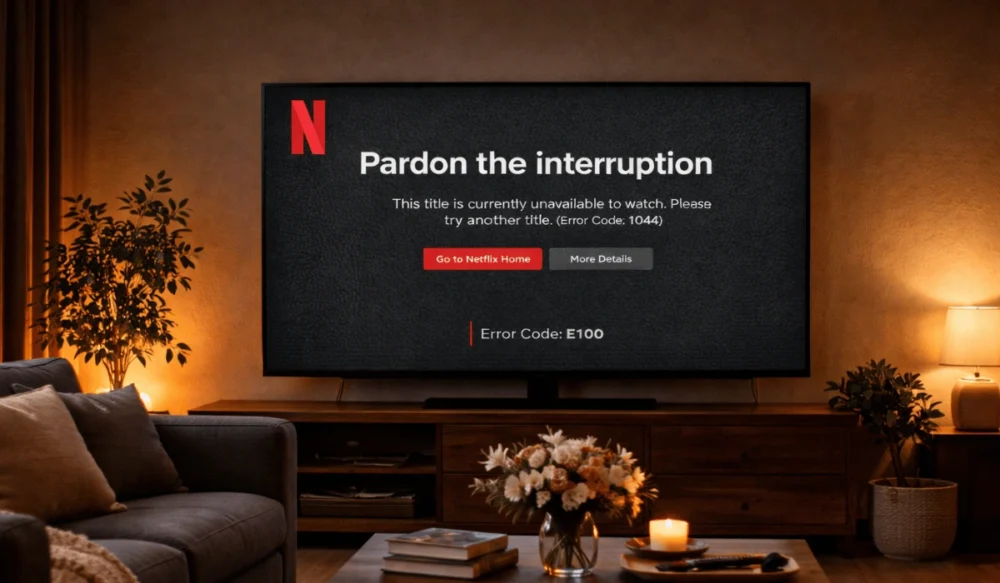
You turn on Netflix, press play on a movie or show, and then everything freezes. An unusual message pops up on the screen:
“Netflix Error Code E100”.
Nw you are unable to connect Netflix to you your Smart TV, Roku, Fire TV, Xbox, PlayStation, or maybe even inside your browser player. And honestly, that part feels super irritating because your Wi-Fi still looks fine, YouTube videos open normally, other streaming apps work okayish, but Netflix alone suddenly decides it cannot play anything anymore.
I remember once thinking my TV was dying because of this error, but the actual fix ended up being just router and app cleanup stuff. So yeah, this error looks scary at first, but usually it is fixable without doing anything too crazy.
In this guide, I’ll explain what Netflix Error Code E100 means, why it happens, how you can fix it step by step, and what you can do so it hopefully does not come back again later.
What Is Netflix Error Code E100?
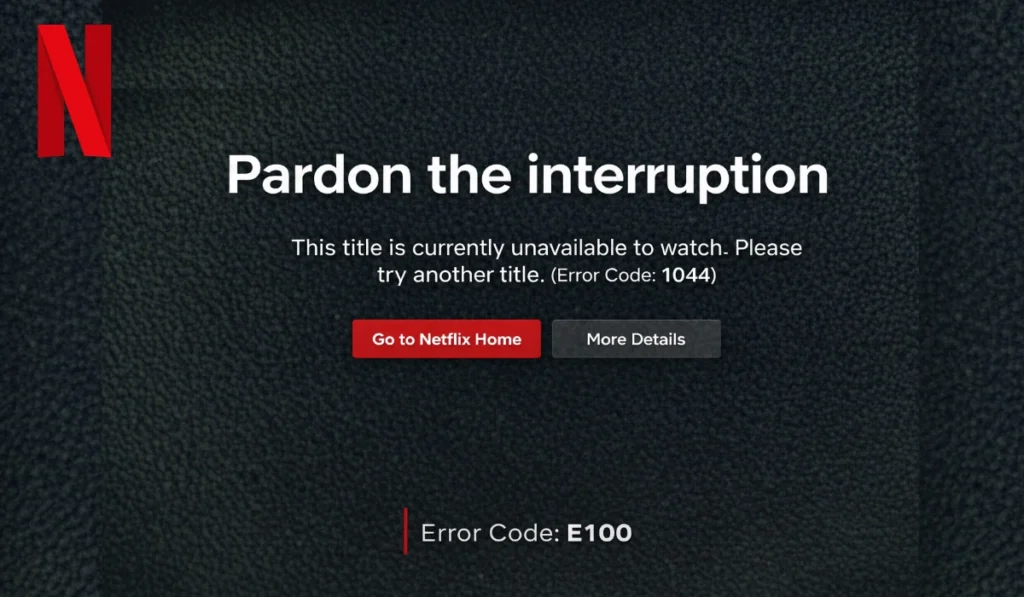
Primarily, Netflix error E100 is a communication fault between your streaming device/network settings and the Netflix app. The app tries to request video data from Netflix servers, but something strange interrupts the connection before playback fully starts, and this can happen because of damaged cache files, outdated firmware, unstable DNS routing, VPN conflicts, weak network communication, or temporary app problems sitting quietly in the background.
So Netflix stops the stream instead of loading a broken or incomplete video session. Your internet may still work fine. Browsing still works. YouTube still works. But Netflix refuses to cooperate. Weird problem honestly.
You usually see this error on Smart TVs, Roku devices, Amazon Fire TV, Xbox consoles, PlayStation consoles, or sometimes inside a web browser player too. And the confusing part is that everything else on the device may still feel perfectly normal while Netflix alone acts broken.
Common Causes of Netflix Error Code E100
Several different things can cause this error based on your device, network configuration and method of streaming.
Below are the most common causes users should check first.
- Corrupted Netflix app cache or temporary files
- Weak or unstable Wi-Fi signal
- Outdated Smart TV or streaming device firmware
- Incorrect DNS server settings
- VPN or proxy conflicts
- ISP throttling during busy streaming hours
- Temporary Netflix server outages
- Too many connected devices using the same network
How to Fix Netflix Error Code E100
Start with the easier fixes first. Seriously. A lot of people instantly jump into advanced network settings when the real issue is just a stuck app session or messy temporary files. Try one fix at a time, test Netflix again, and then move to the next thing only if the error stays there.
Fix #1: Restart Your Streaming Device
Netflix Error Code E100 often appears when your Smart TV, Roku, Fire TV, Xbox, or PlayStation stores damaged temporary data in memory, and when those background app sessions become corrupted the Netflix player may fail while trying to start a fresh stream from Netflix servers. Restarting clears those temporary processes and refreshes the connection again.
Turn the device fully off. Wait around 30 seconds. Then turn it back on again. And yeah, restarting sounds almost too simple, but honestly this fix works more than people expect.
Fix #2: Restart Your Wi-Fi Router
Sometimes Netflix is not actually the broken part. Your router may have DNS cache conflicts, unstable IP routing, or temporary connection issues that stop Netflix from creating a stable playback session correctly even while other websites and apps still seem perfectly fine. Routers can behave really weird after running nonstop for days.
Unplug the router from power. Wait half a minute. Plug it back in and allow it to reconnect fully before opening Netflix again.
Simple fix. But decent fix.
Fix #3: Check Netflix Server Status
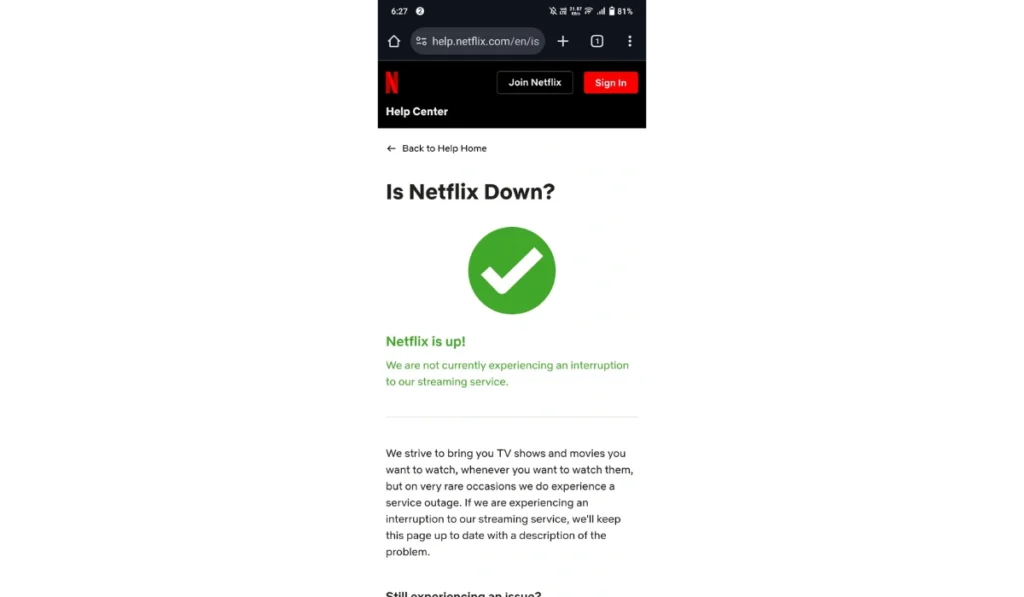
This step matters because the issue may not even be coming from your own device. If Netflix is facing regional server outages or playback failures, the app may stop loading streams correctly even when your internet speed looks completely normal and stable. So before changing random settings everywhere, check if Netflix itself is struggling first.
Follow these steps below:
- Open a browser on your phone or PC.
- Visit Downdetector.
- Search for Netflix.
- Review outage reports in your region.
- Check Netflix Help Center updates too.
If many users suddenly report the same problem together, waiting a little is honestly the only thing you can really do.
Fix #4: Update the Netflix App
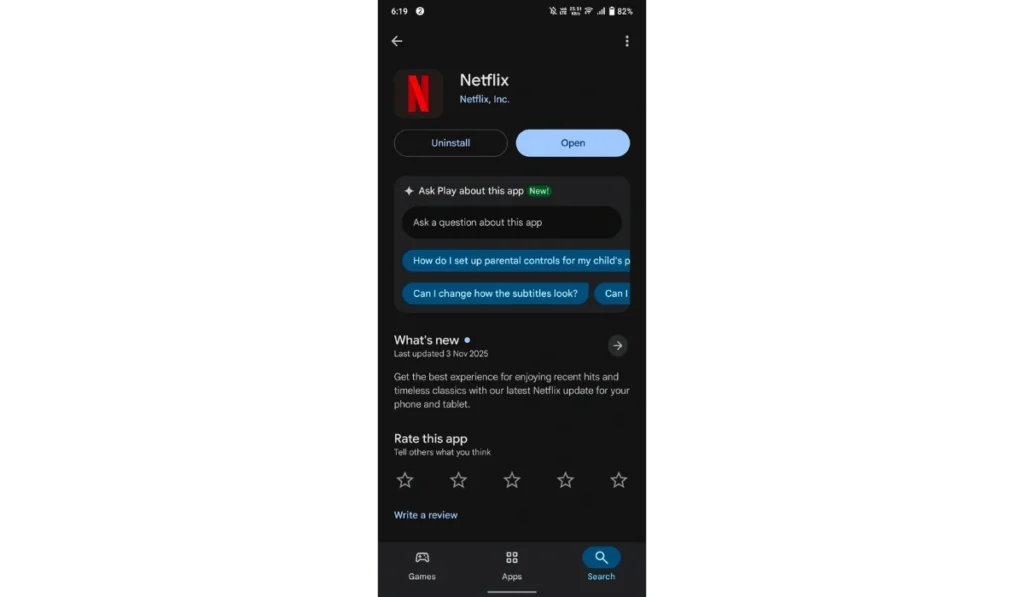
An outdated Netflix app may stop communicating correctly with updated Netflix server systems, and that mismatch between the older app version and newer streaming infrastructure can create playback errors like E100, black screens, loading loops, or failed playback sessions even when your network connection itself is stable. Older streaming apps become annoying fast sometimes.
Here are the steps which help update Netflix:
- Open your App Store or channel store.
- Search for Netflix.
- Select Update if available.
- Wait until installation finishes.
- Restart the device and reopen Netflix.
And if updating does not help, reinstalling Netflix completely can sometimes clear deeper app corruption too.
Fix #5: Clear Netflix App Cache
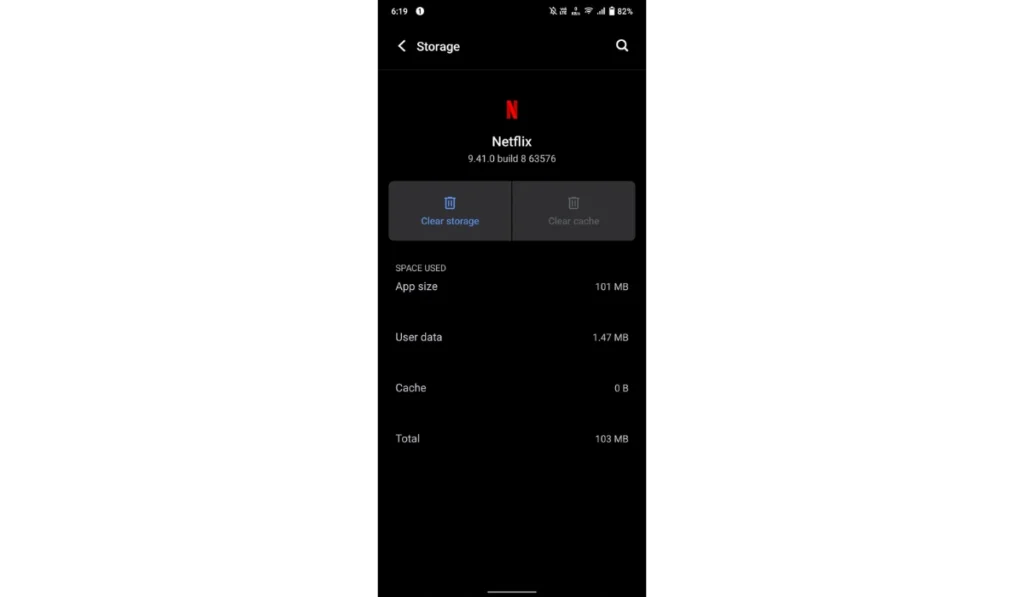
Corrupted cache files are one of the biggest reasons this error appears. Cache files help apps load faster, but when those files become damaged after crashes, updates, or interrupted sessions the Netflix app may fail while trying to load playback data properly from the server. Temporary files causing permanent headaches feels funny honestly.
Try these steps:
- Open Settings.
- Go to Apps or Application Manager.
- Select Netflix.
- Tap Clear Cache.
- Restart the device.
This normally does not delete your Netflix account. It mostly removes temporary junk data so the app can rebuild clean files again.
Fix #6: Disable VPN or Proxy
Netflix checks your IP address and streaming region before playback begins, and when a VPN or proxy is active the service may block the connection because the IP location looks suspicious, hidden, or mismatched with Netflix licensing verification systems running in the background. Netflix really does not like VPNs sometimes.
Turn off the VPN or proxy completely and test Netflix again. Because direct ISP connections usually work much more reliably for streaming.
And if your screen instead shows a direct internet connection failure, you may actually be dealing with Netflix Error Code NW-2-5 instead, which focuses more on network connectivity than playback communication.
Fix #7: Switch to Ethernet Connection
Wi-Fi signals can become unstable because of walls, interference, crowded apartments, or too many connected devices sharing the same router bandwidth, and when signal quality keeps jumping around Netflix may fail to maintain a smooth streaming session even if your internet technically still exists. Wireless internet is convenient. But sometimes wired internet just works better.
You can switch to Ethernet like this:
- Connect an Ethernet cable to the router.
- Plug the other end into the streaming device.
- Open Network Settings.
- Disable Wi-Fi.
- Restart the device and test Netflix again.
The cable setup may look messy. But Ethernet is still the way to go for stable streaming honestly.
Fix #8: Reset Network Settings
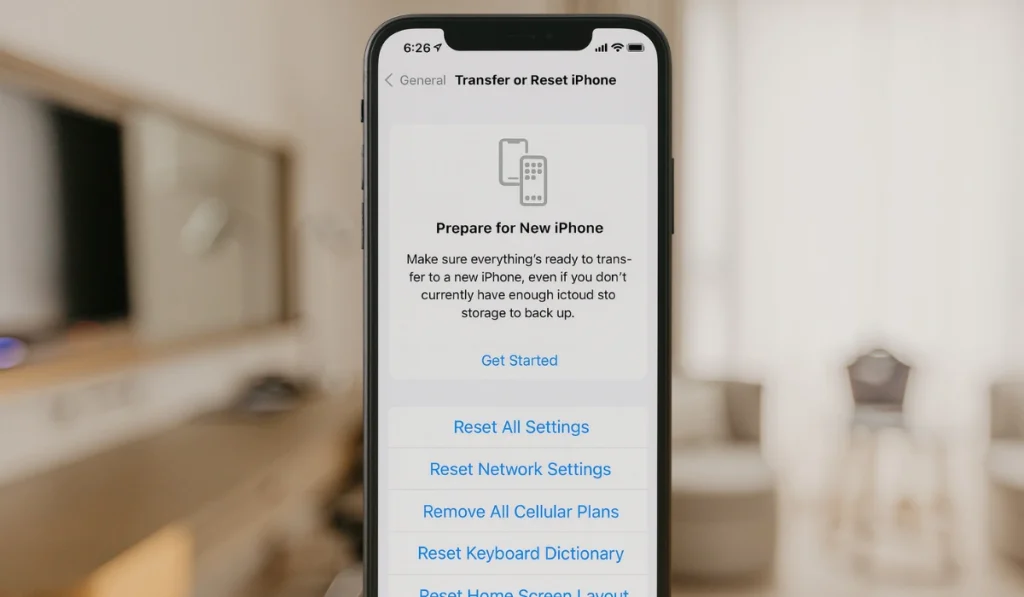
Incorrect DNS entries, broken IP assignments, or old network settings can stop your device from communicating correctly with Netflix servers, especially if custom settings were changed before by VPN apps, router tweaks, or manual network changes that quietly created conflicts later. Network settings become messy easier than people think.
Follow these instructions carefully:
- Open Settings.
- Go to Network or Internet Settings.
- Choose Reset Network Settings.
- Confirm the reset.
- Reconnect to Wi-Fi and reopen Netflix.
If network configuration conflicts caused the issue, this usually clears them pretty fast.
Fix #9: Update Device Firmware
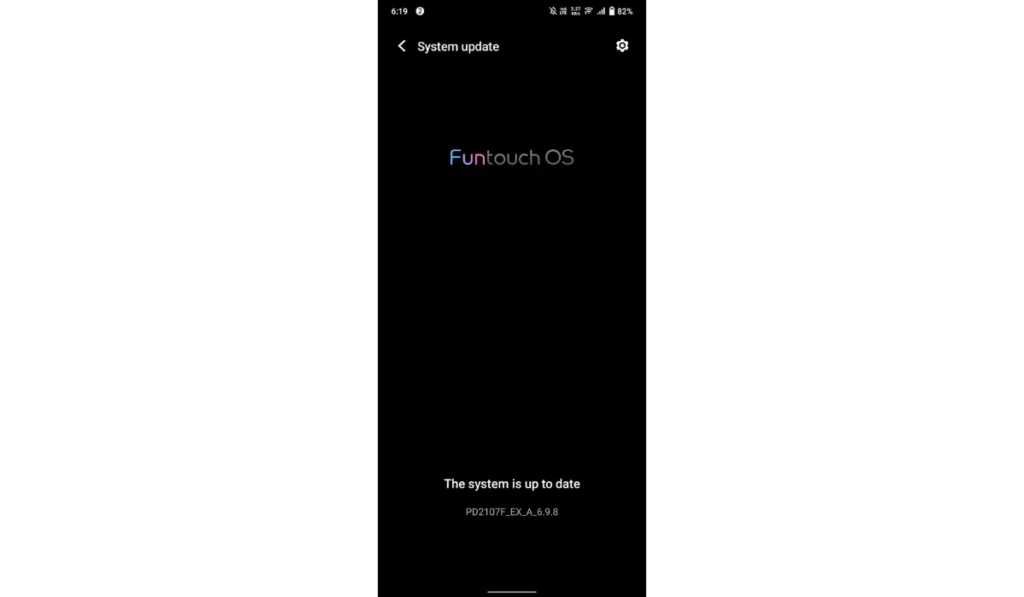
Old firmware on Smart TVs, Roku devices, Fire TV sticks, Xbox consoles, or PlayStation systems can create compatibility problems with newer Netflix app versions, and after enough app updates the older firmware may struggle to communicate correctly with modern streaming services anymore. Older Smart TVs especially become weird with apps after a few years.
Follow these steps to update firmware:
- Open System Settings.
- Select Software Update or Firmware Update.
- Check for updates.
- Install available updates.
- Restart the device completely.
Firmware updates are boring. But they fix a lot of hidden compatibility stuff.
Is Netflix Error Code E100 the Same as NW-2-5?
No, not exactly. Both errors stop Netflix playback, but the root cause is usually different. Netflix Error Code E100 mostly focuses on playback communication problems, damaged cache files, firmware issues, DNS conflicts, or VPN interference.
Netflix Error Code NW-2-5 is more directly connected to internet connectivity problems between the device, router, and ISP connection. So if you see NW-2-5, focus more on network connection troubleshooting. If you see E100, start with app, firmware, and playback communication fixes first.
Prevention Tips to Avoid Netflix Error E100 in the Future
Preventing this error is easier than troubleshooting it every few weeks again and again. Small maintenance habits help streaming apps stay stable, especially on older Smart TVs and streaming sticks that already struggle a bit with memory and firmware issues after long use.
Follow these simple prevention tips:
- Keep Netflix updated regularly
- Restart the router sometimes
- Avoid VPN usage while streaming
- Use Ethernet if Wi-Fi feels unstable
- Keep Smart TV firmware updated
- Monitor bandwidth usage during streaming
- Avoid too many connected devices together
Conclusion
Netflix Error Code E100 usually appears because of corrupted app cache, outdated firmware, unstable Wi-Fi communication, DNS conflicts, VPN interference, or temporary Netflix server problems. The message looks serious at first, but most users fix it using simple things like restarting the streaming device, refreshing the router, clearing cache, or updating the app.
If the error still continues after trying all these fixes, contact Netflix Support or your Internet Service Provider because the issue may involve deeper network routing or device compatibility problems.
And if this guide helped you, share it with someone else facing the same issue. You can also leave a comment below and mention which fix finally worked for your setup.