
Roblox Error Code 277 is super annoying because it kicks you out of the game with no clear reason. It can happen when you join a server, load a big map, or even when you’re playing normally and everything looks fine. Usually, Roblox loses connection to the game server for too long, and then the client closes your session.
This guide explains what the error means, why it happens, and how to fix it so you can stay connected without random disconnections.
What Does Roblox Error Code 277 Mean?
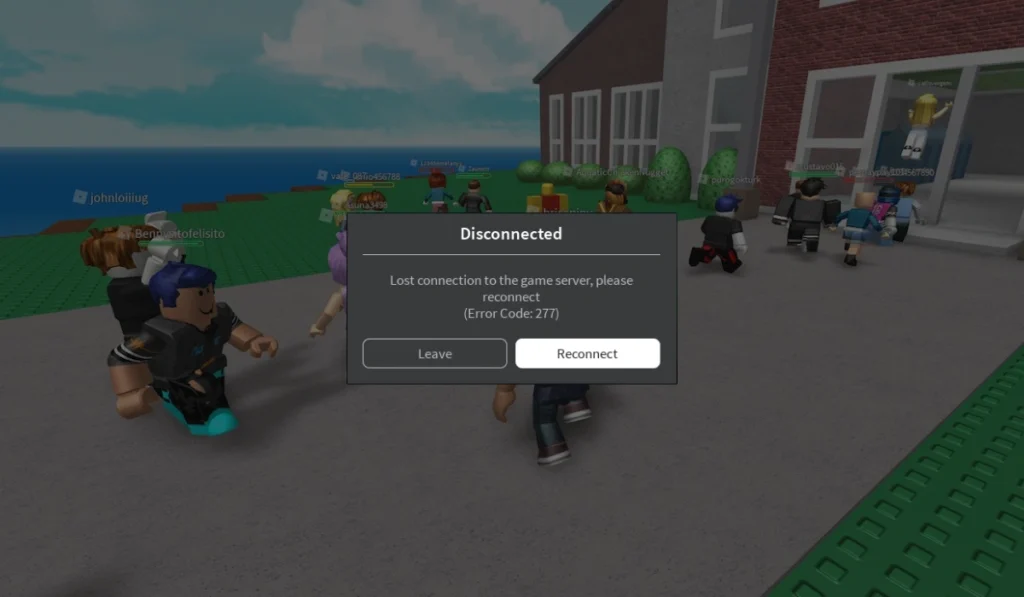
Roblox shows Error Code 277 when the client loses its connection to the game server. The server keeps sending small data packets through your network, and when that signal drops for too long, the Roblox client ends your session. The disconnect feels sudden, and the message doesn’t really explain the actual problem. I hate these errors because they look simple, but they waste your whole mood.
You can see this error on Windows, mobile devices, tablets, and even in browser mode. It can appear while loading a map, teleporting to another game, or joining a private server. The issue may happen before the game fully loads or right in the middle of a match. And yes, that timing is always weird and annoying.
Common Causes Of Roblox Error Code 277
Error 277 can show up for many reasons. Most of them come from unstable network signals or broken Roblox data.
- Weak or unstable Wi Fi
- Corrupted Roblox temporary files
- DNS problems blocking Roblox servers
- Browser extensions messing with the client
- Firewall or antivirus blocking Roblox
- Roblox servers having issues
- Background apps using too much internet
How To Fix Roblox Error Code 277
Roblox may drop the connection when your network or client has a small issue. These steps help you repair that problem fast.
Fix #1: Restart Roblox
This error sometimes appears when the Roblox client loads with a small glitch. Restarting clears that broken session. Once you reopen Roblox, the client loads new data and may connect without dropping again.
Fix #2: Check Roblox server status
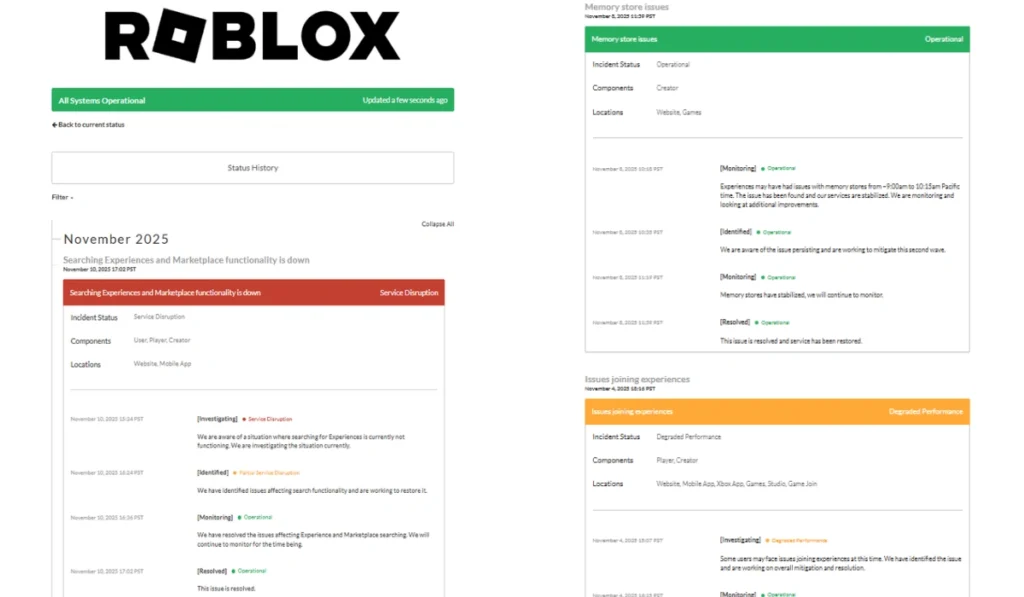
Sometimes, Roblox servers are the real problem. When servers go down, Error 277 appears even when your internet is working perfectly.
If Roblox servers are offline, you must wait until they come back.
The following steps will show you how to check the server status.
- Search “Roblox server status” online.
- Open a trusted status checker.
- Look for outage reports.
- Try again when servers are marked stable.
Fix #3: Update Roblox Player
If your Roblox Player is not updated, then an old Roblox client can drop connections because it can’t match the newer server code. Updating fixes this issue.
After the update, Roblox loads new network functions that can keep the connection more stable.
Fix #4: Check your Internet Connection
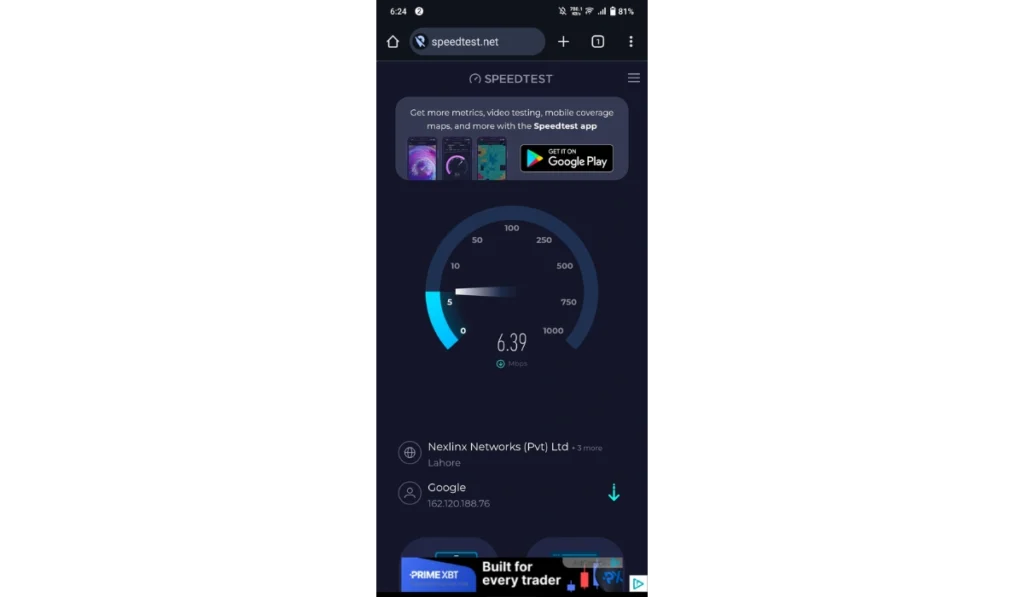
Roblox needs a strong signal for constant packets. When the Wi Fi is weak, Error 277 appears. Once you check your internet or move your device closer to the router, the signal becomes stronger, and the Roblox server stays connected. It’s a basic fix, but honestly, basic stuff works many times.
Fix #5: Restart your router
Roblox disconnects when your router holds old network data. Restarting it gives your device a clean signal.
After the restart, your router sends fresh packets, which helps Roblox maintain a stable connection.
Follow the steps below to restart it safely.
- Turn the router off.
- Wait 10 seconds.
- Turn it back on.
- Restart your device.
- Open Roblox again.
Fix #6: Close background apps.
Apps like YouTube, browsers, cloud sync tools, and game launchers use your bandwidth. When they drain the signal, Roblox disconnects.
Closing these apps frees up network bandwidth and gives Roblox more stable traffic.
Fix #7: Disable browser extensions (browser version only)
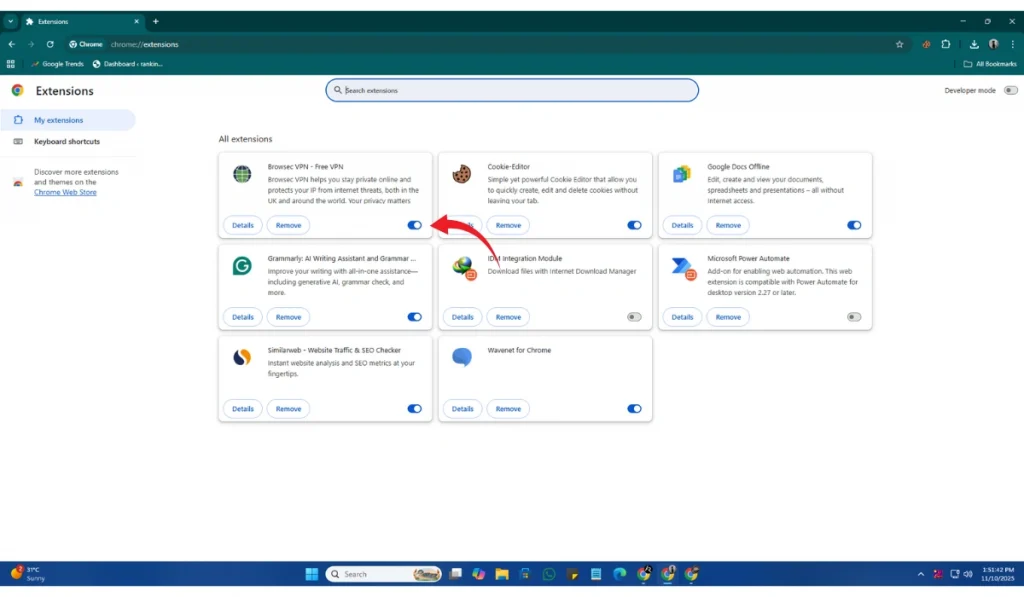
Some extensions block Roblox scripts. When scripts fail, the client disconnects.
Once you turn off the blocker, Roblox can load its scripts without problems.
Try these simple steps to turn off extensions.
- Open your browser menu.
- Click Extensions.
- Turn off ad blockers or privacy blockers.
- Restart the browser.
- Open Roblox again.
Fix #8: Clear Roblox cache on Windows
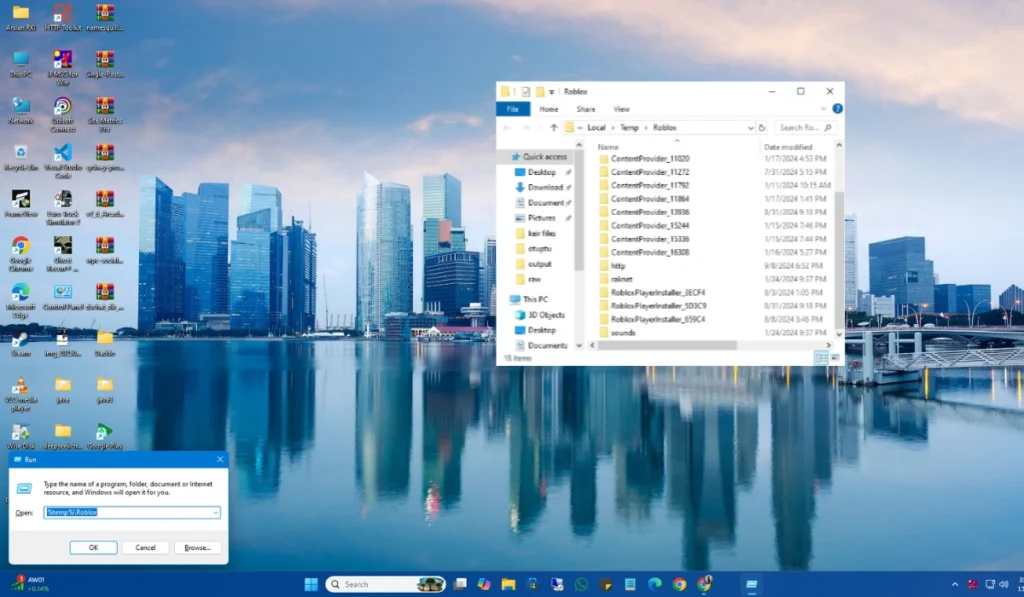
Corrupted cache files can cause Roblox Player to crash and force a disconnect. Clearing them resets the client files.
After you clear the cache, Roblox loads fresh content and runs more smoothly.
Here are the following steps that help you clear the cache.
- Press Windows key + R.
- Type %localappdata%.
- Open the Roblox folder.
- Delete the Cache folder.
- Restart Roblox.
Fix #9: Switch to 5 GHz Wi Fi or Ethernet
Roblox uses UDP packets, and they often drop on slow 2.4 GHz Wi Fi. A faster band or wired cable keeps your connection steady.
After switching, packet loss drops, and Roblox stays connected longer.
Fix #10: Change your DNS to Google DNS
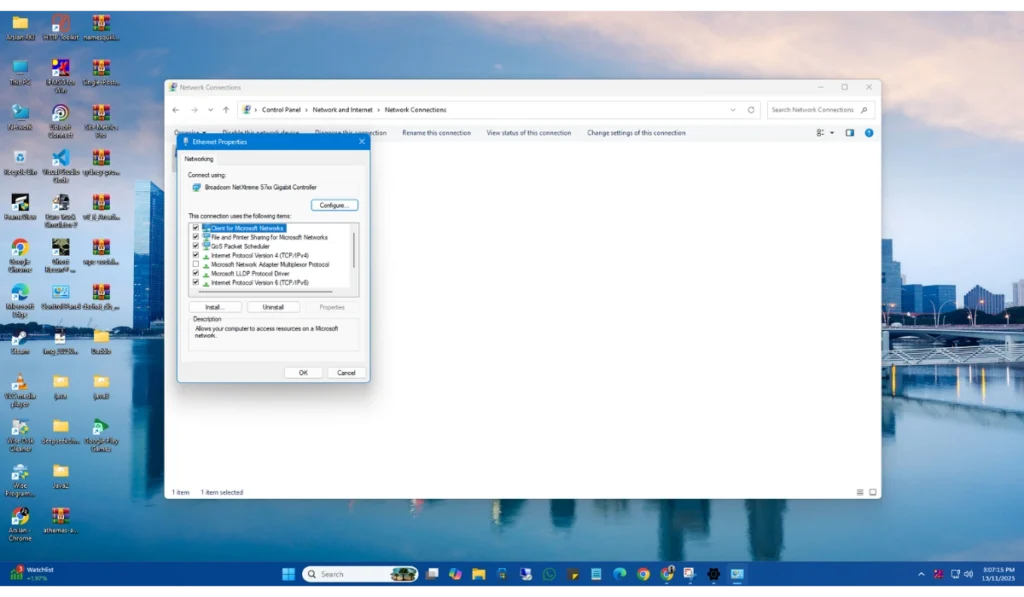
Bad DNS can block Roblox from reaching specific servers. A stable DNS helps Roblox load faster. Once DNS updates are made, server requests reach Roblox quickly and with fewer errors. This sounds a little technical, but it’s not much difficult.
Follow these steps to change your DNS settings.
- Open Control Panel.
- Select Network and Internet.
- Click Network and Sharing Center.
- Choose Change adapter settings.
- Right-click your primary adapter.
- Select Properties.
- Click IPv4.
- Enter DNS 8.8.8.8 and 8.8.4.4.
- Save and restart your device.
Fix #11: Reset network settings.

Broken adapter settings can cause random drops. Resetting puts everything back to normal.
After you reset it, your network adapter uses new values that work better with Roblox.
Below are the steps that will guide you through it.
- Open Windows Settings.
- Go to Network and Internet.
- Scroll to Network reset.
- Click Reset now.
- Restart your device.
Fix #12: Allow Roblox through the firewall
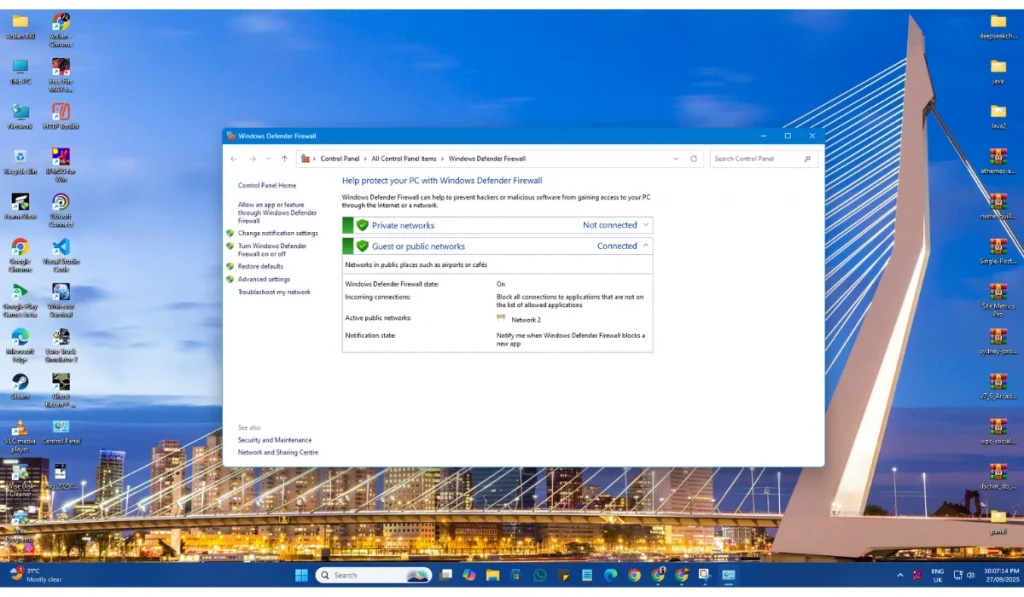
A strict firewall blocks Roblox traffic, causing Error 277. Allowing Roblox gives the client full access to the server.
Once allowed, Roblox sends and receives packets without limits.
Here’s how you can enable Roblox.
- Open Control Panel.
- Click Windows Defender Firewall.
- Select Allow an app.
- Find Roblox Player.
- Check both Private and Public.
- Save your changes.
Fix #13: Reinstall Roblox
Sometimes the Roblox Player has corrupted files that updates can’t fix. Reinstalling gives you a clean version.
Once you reinstall it, the client uses fresh system files with better stability.
Follow these steps carefully to reinstall Roblox.
- Open Control Panel.
- Click Uninstall a program.
- Remove Roblox Player.
- Restart your device.
- Download Roblox again from the official website.
- Install and launch it.
Prevention Tips to Avoid Roblox Errors in the Future
Keeping Roblox stable is easier when your connection and device stay in good shape.
- Use strong Wi Fi or wired internet
- Restart your router weekly
- Keep Roblox updated
- Clear the cache sometimes
- Avoid battery saver modes
- Use stable DNS
- Close heavy apps before playing
Conclusion
Roblox Error Code 277 happens when the client loses connection to the server. Most of the time, it comes from unstable Wi Fi, DNS issues, corrupted Roblox files, or background apps using too much data. Using the fixes above should help you stay connected and reduce disconnections.
If the error keeps occurring, check the Roblox server status or reach out to Roblox support for more help. Share this guide with other players who get disconnected, and feel free to comment with any fixes that worked for you.