
Blurry images cause problems. A photo looks unclear. Text becomes hard to read. Details fade. Many people search for a simple way to fix this, and they end up hearing about ChatGPT. That creates hope but also confusion.
This article exists to clear that confusion. It explains what unblurring images means, how ChatGPT fits into the process, and what it can and cannot do. Everything here is written for beginners. No technical skills needed. No complex tools explained in hard words.
You will learn the meaning of image unblurring, the right prompts to use with ChatGPT, step-by-step guidance, common errors, and when a free plan works or when a paid plan helps more. If you ever felt stuck with a blurry image, this guide is for you.
What Does “Unblur Image” Mean?
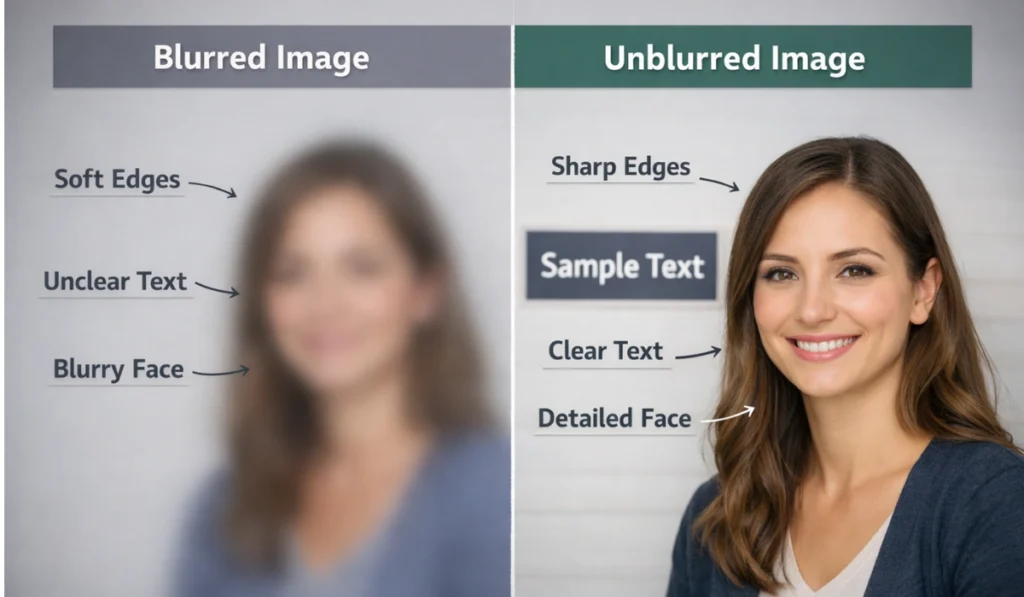
Unblurring an image means making it clearer so the main details become easier to see. This can include sharper edges, clearer text, or better visibility of faces and objects. A blurred image usually happens when a camera moves, the focus is wrong, or the image quality drops during saving or sharing.
Image blur does not always mean data is gone forever. Sometimes the image still holds enough visual signals for software to improve clarity. AI image processing looks at patterns, colors, and shapes to estimate missing details. It does not restore the exact original moment. It tries to make the image easier to understand.
When people talk about unblurring images with ChatGPT, they often mix two ideas. ChatGPT does not edit images by itself. It helps explain the blur type, suggests AI image tools, and gives clear steps. The real image change happens through external image software guided by AI logic.
Best Prompts to Unblur Images Using ChatGPT
ChatGPT gives better help when your prompt is clear and focused. If you write one short line, the reply stays shallow. If you explain what you want in simple words, the AI understands the image problem better and gives more useful guidance. You do not need technical language. You just need to explain the goal.
Below are three full, detailed prompts you can copy and paste directly into ChatGPT. Each prompt is written for beginners and tells the AI exactly what to do, step by step.
Prompt 1: Image Blur Analysis Prompt
Copy and paste this:
Analyze the uploaded image carefully. Explain in simple words why this image looks blurry. Tell me what type of blur it has, such as motion blur, focus blur, or low resolution. Describe what details are unclear, like text, faces, or edges. Then explain what kind of AI image tools can help improve this image and why they would work. Keep the explanation beginner friendly and avoid technical terms.
This prompt helps ChatGPT act like an image reviewer. It focuses on understanding the problem before fixing it, which prevents wrong steps later.
Prompt 2: Image Improvement Guidance Prompt
Copy and paste this:
I have a blurry image and I want to improve its clarity without changing how it looks. Guide me step by step on how to fix this image using AI image tools. Explain what settings or options I should focus on, like sharpness, noise reduction, or resolution. If more than one tool can help, explain the difference in simple words. Do not assume I have technical knowledge. Explain everything as if I am using AI tools for the first time.
This prompt tells ChatGPT to slow down and teach. It works well for users who feel lost or unsure about image tools.
Prompt 3: Beginner-Friendly Full Workflow Prompt
Copy and paste this:
Walk me through a complete beginner friendly process to improve this blurred image. Start from image analysis and end with a clearer final result. Tell me what to do inside ChatGPT and what to do outside ChatGPT using AI image software. Explain common mistakes people make when trying to unblur images and how to avoid them. If the image cannot be fully fixed, explain the limits honestly. Use simple language and short steps.
This prompt is useful when you want a full plan instead of scattered advice. It connects analysis, action, and realistic expectations in one flow.
These three prompts work well because they focus on clarity, guidance, and honesty. ChatGPT handles explanation and planning. The actual image sharpening happens through AI image tools, guided by the steps ChatGPT provides.
If these prompts helped you, share this section with others and leave a comment about which prompt worked best for your image.
How to Unblur Images from ChatGPT?
ChatGPT works best as a guide, not as an image editor. It helps you understand the problem and choose the right action. This step-by-step flow keeps things simple and avoids confusion.
- Open ChatGPT and upload the blurred image if image upload is available.
- Ask ChatGPT to analyze the image and describe the blur type.
- Use one of the recommended prompts to get clear instructions.
- Follow the suggested AI image tool or software outside ChatGPT.
- Apply the recommended settings and review the result.
- If the image still looks unclear, ask ChatGPT how to adjust the process.
Each step connects to the next. You do not need advanced knowledge. You just follow instructions and check results.
Troubleshooting Errors While Unblurring Images from ChatGPT
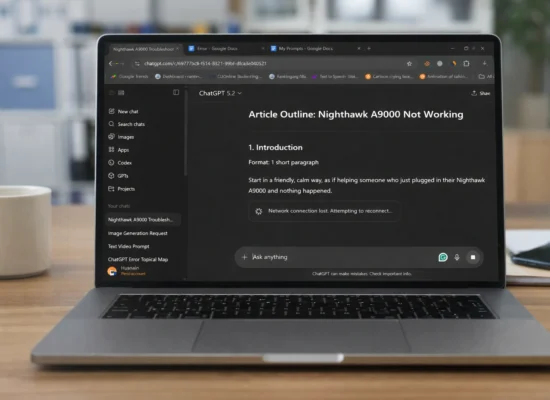
Sometimes things do not work as expected. That does not mean you failed. It usually means a system or connection issue has happened.
Common issues include image upload failure, slow responses, or incomplete analysis. These often happen during high traffic or a weak internet connection.
One error many users see is “ChatGPT failed to get status”. This message usually points to a temporary system issue. It does not mean your account is broken.
You can try these steps:
- Refresh the page and try again
- Reupload the image
- Check your internet connection
- Wait a few minutes and retry
If this error appears often, it may relate to plan limits. Free plans can face more restrictions during busy hours.
Free Plan vs Premium or Team Plan
The free plan works for basic guidance and text prompts. It may struggle with image uploads or response speed.
A premium or team plan offers:
- Better image understanding support
- More stable performance
- Faster responses
- Fewer system interruptions
If image work matters often, a paid plan can reduce frustration. If you only try once or twice, the free plan is enough.
Conclusion
Unblurring images with ChatGPT is not about magic editing. It is about guidance, clarity, and smart use of AI tools. ChatGPT helps explain what is wrong with an image and how to fix it using the right software.
This article broke the process into small steps. It explained the meaning of image unblurring, shared clear prompts, showed a simple workflow, and covered common errors. Beginners can follow this without fear.
If this guide helped you, share it with others who face the same problem. Leave a comment if you tested these steps or found another issue. Real feedback helps improve future guides.