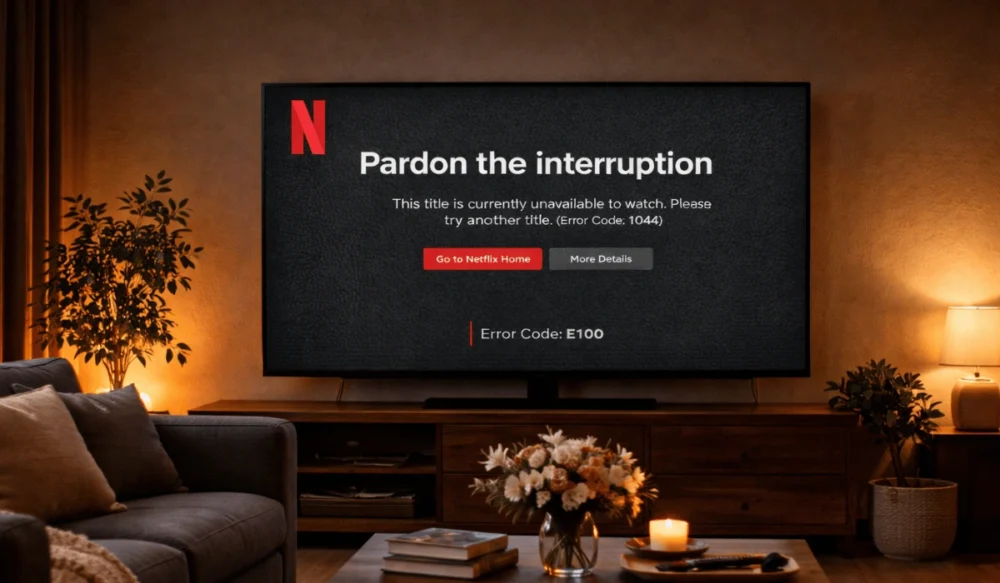
You open the Netflix app on your device, press the play button, and then suddenly the movie or show stops. A message appears on your screen:
”Netflix Error Code E100”.
Now the movie won’t load on your Smart TV, Roku, Fire TV, Xbox, PlayStation, or even your web browser. It’s annoying, especially when your Wi-Fi looks fine. But don’t worry, I am here to help you by doing deep research and analyzing the official Netflix support guide. I found some clear ways to fix this problem.
This guide explains, in simple terms, what this error means, why it happens, how to fix it step by step, and how to prevent it from coming back.
What Is Netflix Error Code E100?
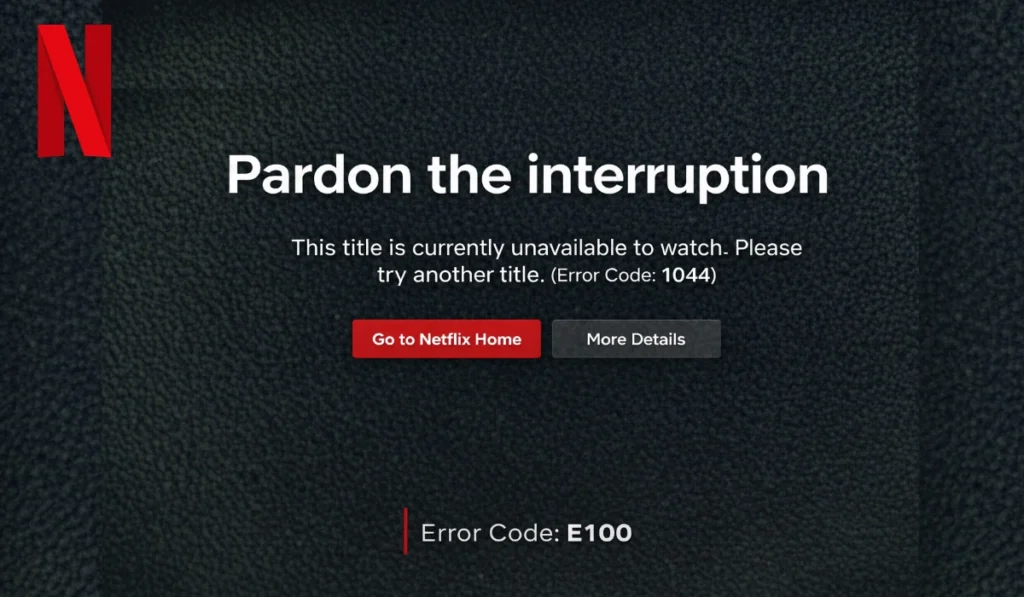
Netflix Error Code E100 is a playback communication issue between the Netflix app and your streaming device or network environment. When this error appears, the app cannot properly load video data from Netflix servers. This may happen due to a corrupted app cache, outdated firmware, unstable network routing, or DNS server issues. The system blocks the video stream to prevent incomplete playback. Your internet may still work for other apps, but Netflix fails to establish a stable session. So it feels confusing. Wi-Fi works. YouTube works. Yet Netflix refuses to play.
You usually see this error on the Netflix home screen of a Smart TV, inside the Roku interface, on Amazon Fire TV, or in the Netflix app on Xbox and PlayStation. Sometimes it appears in a web browser player as well.
Common Causes of Netflix Error Code E100
This error can happen for several reasons, depending on your device settings and network configuration. Sometimes the Netflix app holds damaged temporary data. Other times, the Wi-Fi router struggles to resolve DNS requests correctly. In some cases, your ISP network may throttle bandwidth.
Below are the most common causes you should check.
- Corrupted Netflix app cache or stored temporary data
- Weak or unstable Wi-Fi signal from your router
- Outdated Smart TV firmware or streaming device software
- Incorrect DNS server configuration in network settings
- Active VPN or proxy server interfering with Netflix IP verification
- ISP bandwidth throttling during peak hours
- Temporary Netflix server outage reported on Downdetector
- Network congestion from multiple connected devices
How to Fix Netflix Error Code E100
Start with simple actions before adjusting advanced network settings. Many users fix this error by restarting devices or refreshing their router connection. If that doesn’t work, move to deeper fixes like clearing cache or resetting network settings.
Fix #1: Restart Your Streaming Device
Netflix Error Code E100 often appears when your Smart TV, Roku, Fire TV, Xbox, or PlayStation stores temporary corrupted data in memory. Restarting the device clears background processes and refreshes the Netflix app session. When you turn the device off and back on, it reconnects to the Wi-Fi router or Ethernet network.
The system then establishes a fresh connection with Netflix servers. In many cases, streaming works immediately after the reboot.
Fix #2: Restart Your Wi-Fi Router
Sometimes the Netflix app works correctly, but your router has DNS cache conflicts or IP routing issues. Restarting the Wi-Fi router refreshes the IP address and clears DNS memory. When the router reconnects to your Internet Service Provider, it rebuilds a stable pathway to Netflix servers. This simple step often resolves streaming interruptions caused by unstable network communication.
Fix #3: Check Netflix Server Status
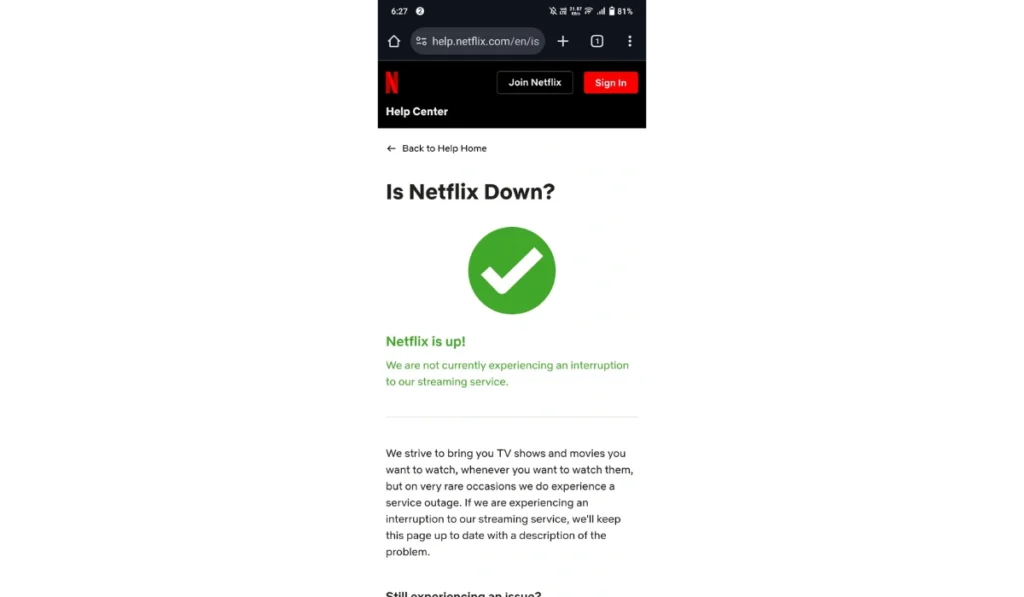
This fix matters because the problem may not be on your device at all. If Netflix experiences a regional outage, the app cannot retrieve video content even if your internet is stable. Once Netflix restores its servers, playback resumes automatically.
Follow the steps below to easily check server status:
- Open a browser on your phone or computer.
- Visit Downdetector.
- Search for Netflix.
- Review outage reports in your region.
- Check the Netflix Help Center for official updates.
Fix #4: Update the Netflix App
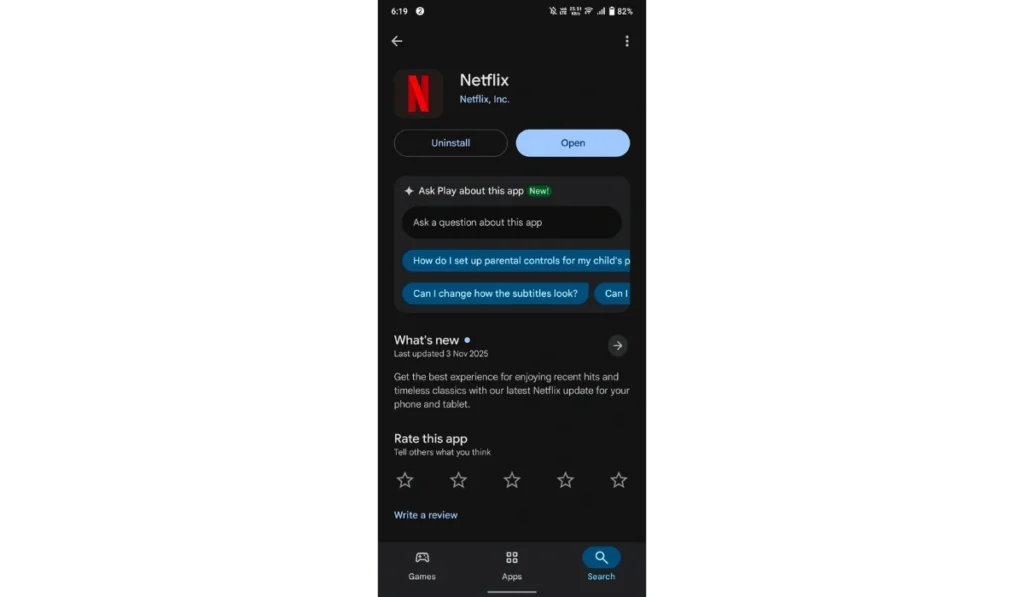
An outdated Netflix app may fail to communicate with updated Netflix servers. Software compatibility problems can trigger playback errors. After installing the latest version, your device receives bug fixes and stability improvements. That improves streaming reliability.
Here are the following steps which help you to update the Netflix app:
- Open your device’s App Store or channel store.
- Search for Netflix.
- Select Update if available.
- Wait until installation completes.
- Restart your device and open Netflix again.
Fix #5: Clear Netflix App Cache
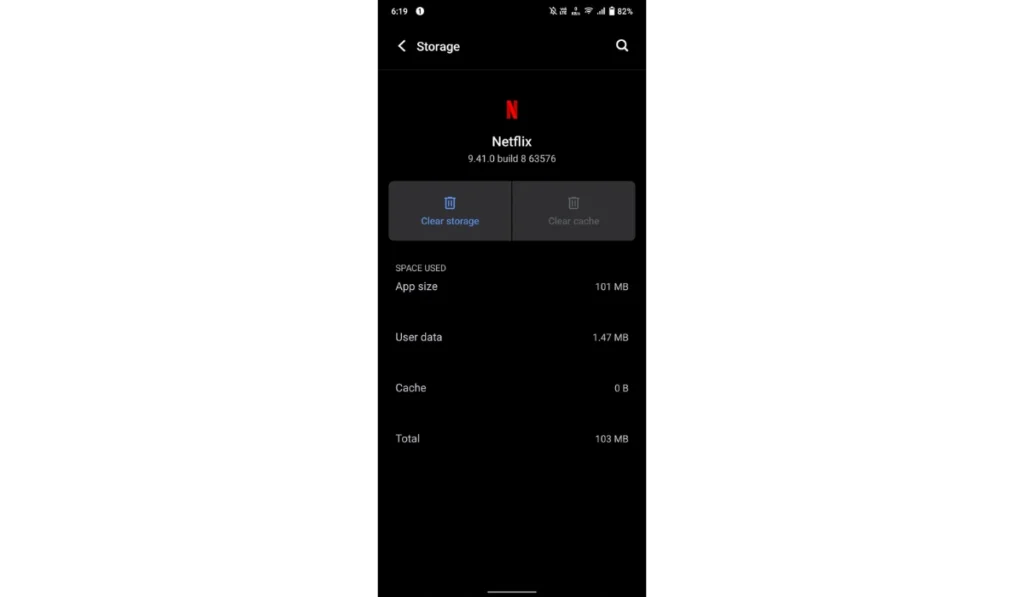
Corrupted cache files can block the Netflix app from loading properly. Clearing cache removes temporary stored data without deleting your login details. When you reopen the app, it rebuilds clean configuration files. That often restores smooth playback.
Try these simple steps to quickly clear Netflix cache:
- Open Settings on your device.
- Go to Apps or Application Manager.
- Select Netflix.
- Tap Clear Cache.
- Restart your device.
Fix #6: Disable VPN or Proxy
Netflix checks your IP address and region before allowing streaming. When you use a VPN or proxy server, Netflix may block access because the IP looks suspicious or mismatched. Disabling the VPN allows your device to connect directly through your ISP network. Once the VPN is off, the app verifies your connection and streaming usually resumes.
If your screen instead shows a network connection failure, you may be facing Netflix Error Code NW-2-5, which focuses on internet connectivity rather than app communication.
Fix #7: Switch to Ethernet Connection
Wi-Fi signals weaken because of distance, walls, or interference from other devices. A wired Ethernet cable provides a more stable data connection. This reduces packet loss and improves bandwidth consistency. Many Smart TVs and gaming consoles perform better with wired internet.
You can perform the following steps to switch to Ethernet:
- Connect an Ethernet cable to your router.
- Plug the other end into your streaming device.
- Open Network Settings.
- Disable Wi-Fi.
- Restart the device and test Netflix again.
Fix #8: Reset Network Settings
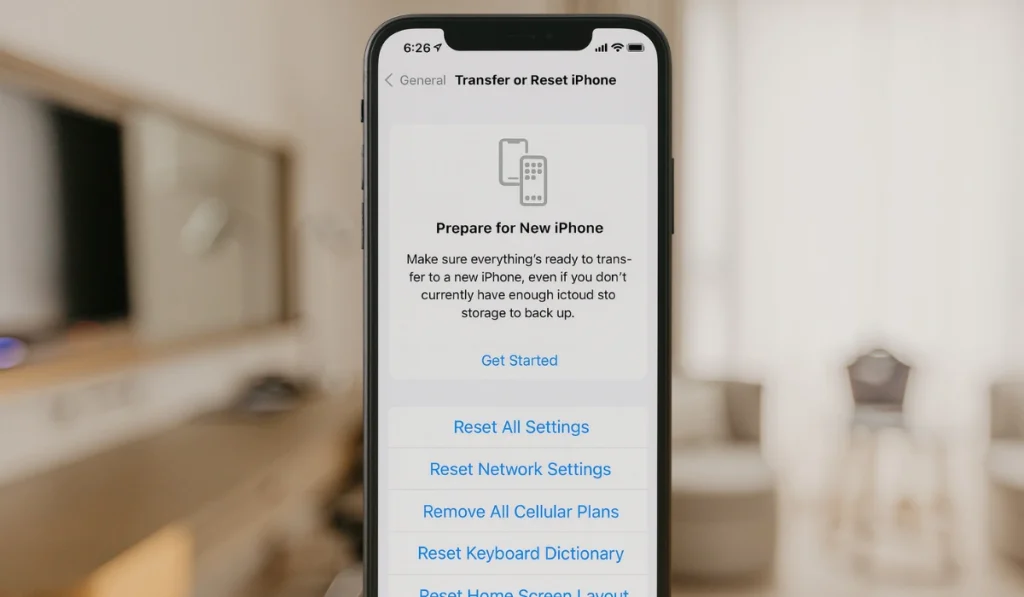
Incorrect DNS configuration or IP conflicts can prevent your device from communicating with Netflix servers. Resetting network settings removes custom DNS entries and restores default internet configuration. After resetting, the device reconnects using fresh network parameters.
Follow these easy instructions to reset network settings without confusion:
- Open device Settings.
- Navigate to Network or Internet Settings.
- Choose Reset Network Settings.
- Confirm the reset.
- Reconnect to Wi-Fi and relaunch Netflix.
Fix #9: Update Device Firmware
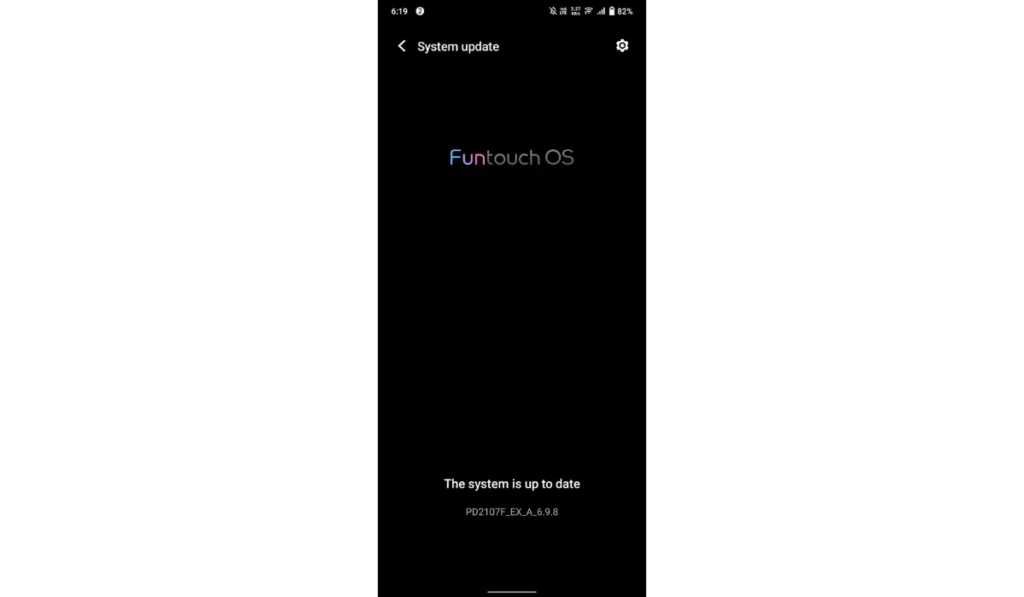
Outdated firmware on a Smart TV, Roku, or Fire TV may cause compatibility issues with the Netflix app. Firmware updates improve system stability and network drivers. After installing updates, the device communicates better with streaming servers.
These are the exact steps you need to follow to update firmware successfully:
- Open System Settings.
- Select Software Update or Firmware Update.
- Check for new updates.
- Install available updates.
- Restart the device completely.
Is Netflix Error Code E100 the Same as NW-2-5?
Although both errors stop streaming, they are different. Netflix Error Code E100 usually relates to app data, firmware compatibility, DNS settings, or VPN interference. It focuses on communication between the Netflix app and the device environment. In contrast, Netflix Error Code NW-2-5 signals a direct network connectivity issue. That means the device cannot connect to the internet properly through the router or ISP. So the root cause differs.
Prevention Tips to Avoid Netflix Error E100 in the Future
Preventing this error saves time and frustration. When you keep your Netflix app, firmware, and router settings updated, playback interruptions become less common.
Follow these simple tips to prevent Netflix errors in the future:
- Keep the Netflix app updated regularly
- Restart your Wi-Fi router once a week
- Avoid using VPN while streaming Netflix
- Use Ethernet instead of weak Wi-Fi when possible
- Keep Smart TV firmware updated
- Monitor bandwidth usage if many devices share the network
- Avoid connecting too many devices during streaming
Conclusion
In short, Netflix Error Code E100 appears because of corrupted app cache, outdated firmware, unstable Wi-Fi connection, DNS conflicts, VPN interference, or server outages. While the message looks serious, most users fix it with simple steps like restarting their streaming device or refreshing their router.
If the issue continues after trying all nine fixes, contact Netflix Support or your Internet Service Provider for deeper network diagnostics.
And if this guide helped you, share it with someone facing the same problem. You can also leave a comment below about which fix worked for you.