
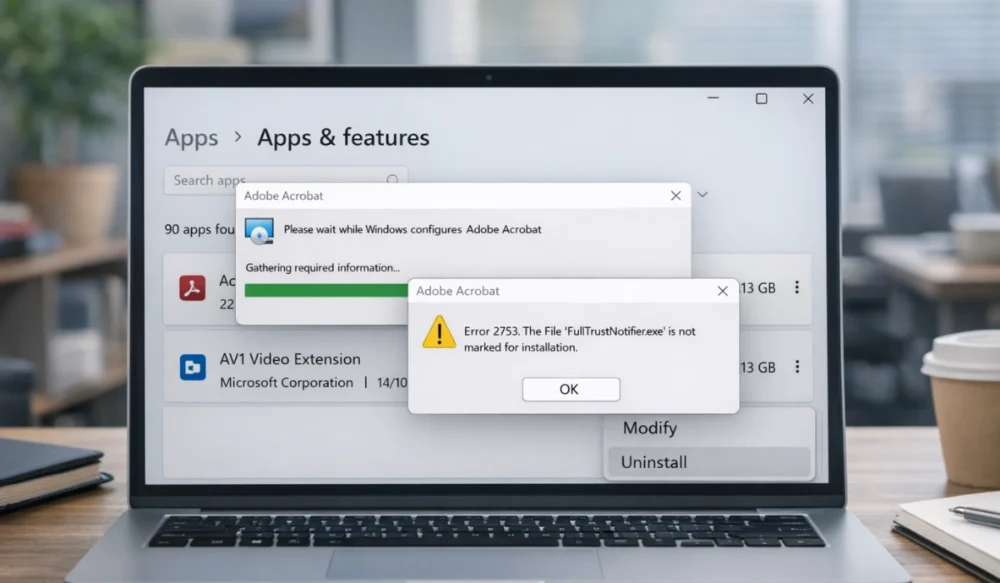
Seeing Adobe Acrobat stop mid-installation with an error message like “FullTrustNotifier.exe is not marked for installation” feels confusing. Many users also notice error 0xc00007b or repeated configuration popups. I reviewed Microsoft Community discussions and Adobe support solutions to understand why this happens and how to fix it safely.
This guide explains the error in simple terms, shows verified fixes, and helps you stop it from returning.
What Is fulltrustnotifier.exe Error?
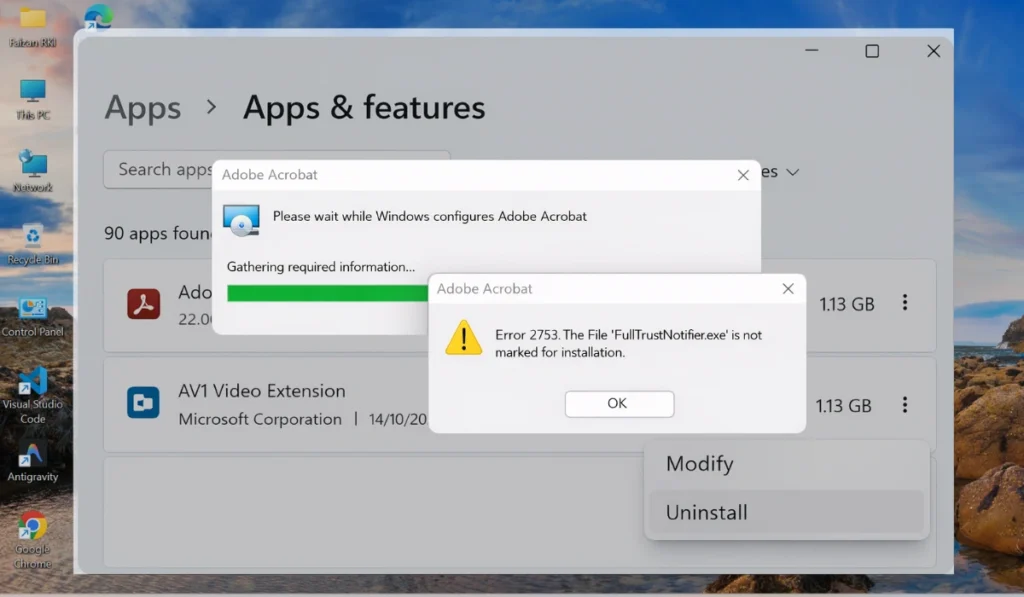
FullTrustNotifier.exe is a small executable file installed with Adobe Acrobat. Adobe uses it as a notification manager that communicates with Windows services. It checks updates, manages background alerts, and confirms trusted application actions inside the Windows environment. When Windows Installer cannot validate this component, Acrobat fails to configure correctly.
The operating system then blocks the process and shows an application or installation error. This usually relates to Adobe Acrobat DC installation data, system permissions, or damaged program components rather than a hardware issue.
The file normally lives inside the Acrobat program directory and works silently alongside Windows background services. Many users also notice error 0xc00007b or repeated configuration popups.
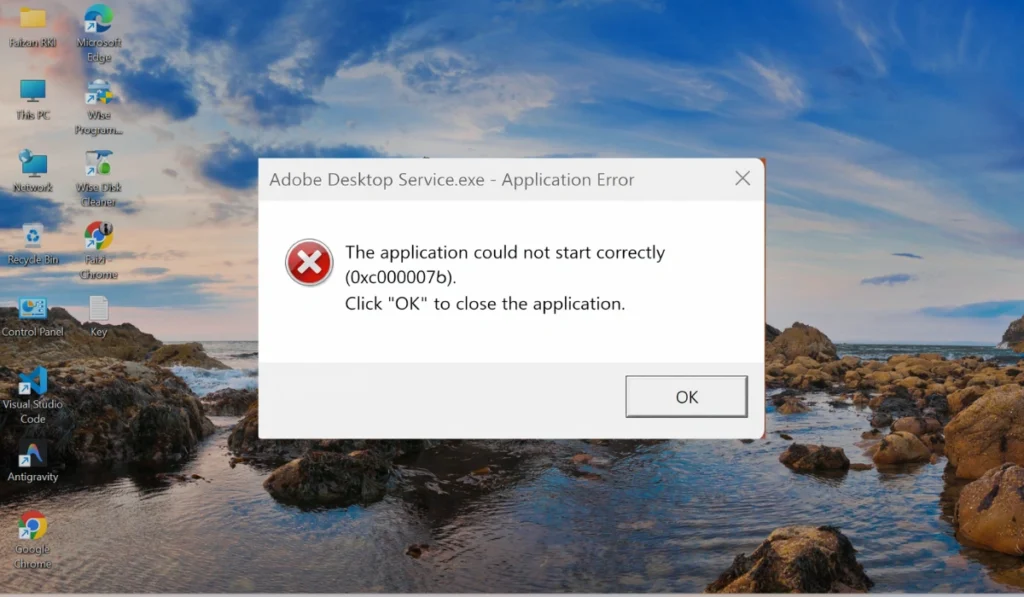
You usually see this error while Windows configures Adobe Acrobat during startup, after updates, or when opening or printing PDF documents. A dialog box may appear during installation or login, similar to the configuration window shown earlier, followed by repeated popups requesting repair or reinstall.
Common Causes of fulltrustnotifier.exe Error
This issue often starts when Adobe components and Windows installation services stop syncing correctly. Software updates may interrupt files, registry entries may remain after uninstalling, or system libraries may not match the program version.
Because Acrobat integrates closely with Windows Installer and notification services, even a small corruption can trigger repeated configuration attempts. Users often notice the problem after reinstalling Acrobat, updating Windows 11, or restoring older backups.
Most reported causes include:
- Corrupted Adobe Acrobat installation files after update failure
- Damaged ADCNotificationClient component inside Acrobat folder
- Missing or broken fulltrustnotifier.exe executable file
- Incorrect NotificationAppx registry entry in Windows Registry Editor
- DLL mismatch causing error code 0xc00007b
- Hidden leftover Adobe files from previous installations
- Interrupted Adobe update or incomplete configuration process
How to Fix fulltrustnotifier.exe Error
The fix depends on what failed – installation files, registry entries, or system libraries. Sometimes a simple update solves it. Other times Windows still reads old configuration data and keeps reinstalling the same component.
Start with easier solutions first, then move toward deeper repairs. Most users fix the issue without reinstalling Windows.
Fix #1: Update Adobe Acrobat
Outdated notification components often trigger validation problems. Follow the steps below to easily update Adobe Acrobat:
- Open Adobe Acrobat.
- Click Help from the top menu.
- Select Check for Updates.
- Install available updates.
- Restart your computer.
Once updated, Acrobat replaces damaged notification files automatically.
Fix #2: Delete the Corrupted fulltrustnotifier.exe File
Sometimes the executable itself becomes damaged but Acrobat keeps calling it.
Here are the following steps which help you remove the file safely:
- Open File Explorer.
- Go to
C:\Program Files\Adobe\Acrobat DC\Acrobat\ADCNotificationClient - Locate fulltrustnotifier.exe.
- Delete the file.
- Restart Windows.
Adobe recreates a clean version during the next launch.
Fix #3: Remove NotificationAppx Registry Key
A corrupted registry entry prevents Windows Installer from recognizing the component.
You can perform the following steps to remove the entry:
- Press Win + R.
- Type regedit and press Enter.
- Navigate to
HKEY_CURRENT_USER\Software\Adobe\Adobe Acrobat\DC\Installer - Find NotificationAppx.
- Right-click and delete it.
- Restart the PC.
This clears outdated installation references.
Fix #4: Uninstall Notification Manager for Adobe Acrobat
If only the notification module is broken, removing it resolves repeated popups. Try these simple steps to uninstall it:
- Open Start menu search.
- Type Notification Manager for Adobe Acrobat.
- Right-click the result.
- Select Uninstall.
- Restart your system.
Windows reloads the component during reinstall or update.
Fix #5: Perform a Clean Adobe Reinstallation
Hidden files often remain even after uninstalling Acrobat. These leftover files confuse Windows Installer.
Steps to perform a clean reinstall:
- Remove Adobe Acrobat from Apps & Features.
- Use Bulk Crap Uninstaller or similar cleanup tool.
- Delete remaining Adobe folders in Program Files.
- Restart your PC.
- Download Acrobat from the official Adobe website.
- Install again.
A fresh installation removes corrupted configuration data.
Fix #6: Disable Protected Mode in Adobe Acrobat
Protected Mode sometimes blocks notification components from loading. Follow these easy instructions to change the setting:
- Open Adobe Acrobat.
- Go to Edit > Preferences.
- Select Security (Enhanced).
- Uncheck Enable Protected Mode at startup.
- Restart Acrobat.
This removes sandbox conflicts affecting the executable.
Fix #7: End FullTrustNotifier Process from Task Manager
Some users found multiple background instances still running. The following steps will show you how to stop them properly:
- Right-click the Windows icon.
- Open Task Manager.
- Find FullTrustNotifier under Background Processes.
- Right-click and choose Open File Location.
- Remove duplicate Adobe files if present.
- Restart Windows.
Popups usually stop afterward.
Fix #8: Repair Windows System Files (SFC and DISM)
Error 0xc00007b often links to damaged Windows system libraries. Perform the following steps carefully:
- Open Command Prompt as Administrator.
- Type sfc /scannow and press Enter.
- Wait for completion.
- Then run:
DISM /Online /Cleanup-Image /RestoreHealth - Restart your PC.
Windows repairs missing DLL files required by Acrobat.
Prevention Tips to Avoid fulltrustnotifier.exe Error in Future
Software errors rarely appear without warning. Regular maintenance keeps Acrobat stable and prevents installation conflicts. Small habits help a lot. Keep programs updated, avoid mixing old and new versions, and allow updates to finish before shutting down your PC. Many recurring Acrobat issues start from interrupted installations or leftover configuration files.
Simple prevention steps to avoid errors in the future:
- Update Adobe Acrobat before major Windows updates
- Install software only from Adobe’s official website
- Restart your computer after updates complete
- Remove old Adobe folders before reinstalling
- Create system restore points regularly
- Keep Windows drivers updated
- Run antivirus scans periodically
Conclusion
In short, fulltrustnotifier.exe belongs to Adobe Acrobat’s notification system. Errors appear when installation files, registry entries, or system libraries become corrupted. Most cases relate to incomplete updates or leftover files rather than malware or serious system damage. The fixes above address each confirmed cause reported by Microsoft and Adobe users.
Try the solutions step by step and test Acrobat after each one. If the problem continues, contact Adobe Support or Microsoft technical support for deeper diagnostics. And if this guide helped you, share it or leave a comment describing which fix worked for you.