
AI is now part of our daily life. We use it for studies, assignments, work notes, coding help, and even simple chats. ChatGPT makes many of these tasks easier. But sometimes, right in the middle of something important, ChatGPT suddenly stops and shows a message saying: “Network Connection Lost. Attempting to Reconnect.” That moment feels frustrating. The reply stops. The screen freezes. Your flow breaks.
You are here because of this error, and yes, I’ve faced it many times too. After using ChatGPT for a long time and reading official updates from OpenAI, along with real user reports, I noticed clear patterns behind this issue.
In this guide, I’ll explain what this error means, why it happens, and how you can prevent it from returning. The fix section is intentionally left for you to write in your own format. Let’s begin.
What Does “Network Connection Lost. Attempting to Reconnect” Mean?
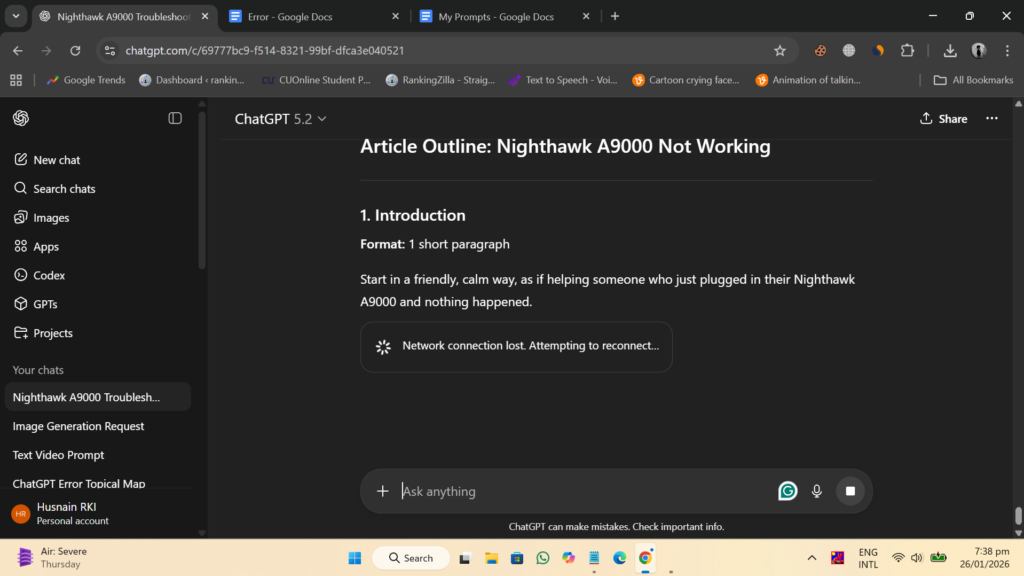
This message means ChatGPT lost its live connection to the internet or to OpenAI servers. ChatGPT works through a constant real-time link between your browser and the server. When that link breaks, even for a short time, ChatGPT tries to reconnect automatically. Sometimes it works. Other times, it gets stuck and stops responding.
You usually see this message while typing a reply, after sending a long prompt, or when a chat tab stays open for too long without activity. It appears inside the ChatGPT web interface or mobile app, often with a loading indicator or reconnect notice.
Common Causes of the ChatGPT Network Connection Error
This error does not happen for just one reason. It can come from your internet, your browser, your network settings, or even server-side conditions. Knowing the cause helps you avoid random trial and error.
Common causes include:
- Weak or unstable internet connection from your ISP
- High traffic or temporary service issues on OpenAI servers
- VPN or proxy services changing network routes
- Browser extensions blocking background requests
- Corrupted browser cache or stored cookies
- Firewall rules on office or school networks
- DNS server delays or incorrect DNS configuration
How to Fix Network Connection Lost. Attempting to Reconnect in ChatGPT?
This error can come from different places. Sometimes it’s your connection path. Sometimes it’s the app or browser state. The fixes below work for both mobile and browser users. Try them in order and stop when the error goes away.
Fix 1: Refresh the ChatGPT Page or App
This issue often starts when the current session freezes and can’t recover by itself. Refreshing forces ChatGPT to reload the session and rebuild the live connection with the server. It clears small glitches that stop replies from loading.
If the reconnect message was caused by a short interruption, this usually fixes it right away.
Fix 2: Start a New Chat Conversation
Long chats can quietly expire in the background. When that happens, ChatGPT keeps trying to reconnect but fails. Starting a new chat creates a clean session and a fresh connection.
Copy your last message, open a new chat, paste it, and continue. Many users see the error disappear instantly.
Fix 3: Check Your Internet Stability
ChatGPT needs a steady connection to work properly. Even a short drop can break the live link between your device and the server. This happens more often on weak or shared networks.
Switching to a stronger connection usually solves the problem without changing any settings.
Fix 4: Turn Off VPN or Proxy Services

VPNs and proxy services reroute traffic through extra servers. This often breaks real-time connections that ChatGPT depends on. Location switching and added delay increase reconnect failures.
Once the VPN or proxy is off, ChatGPT can connect directly, which usually restores stability.
Steps for Browser (Windows, macOS):
- Open your VPN or proxy app
- Turn off or disconnect the VPN
- Reload the ChatGPT page
- Resume your chat
Steps for Mobile App (Android, iOS):
- Open the VPN app on your phone
- Tap disconnect or turn off
- Return to the ChatGPT app
- Reload or reopen the chat
Fix 5: Clear Browser Cache and Cookies
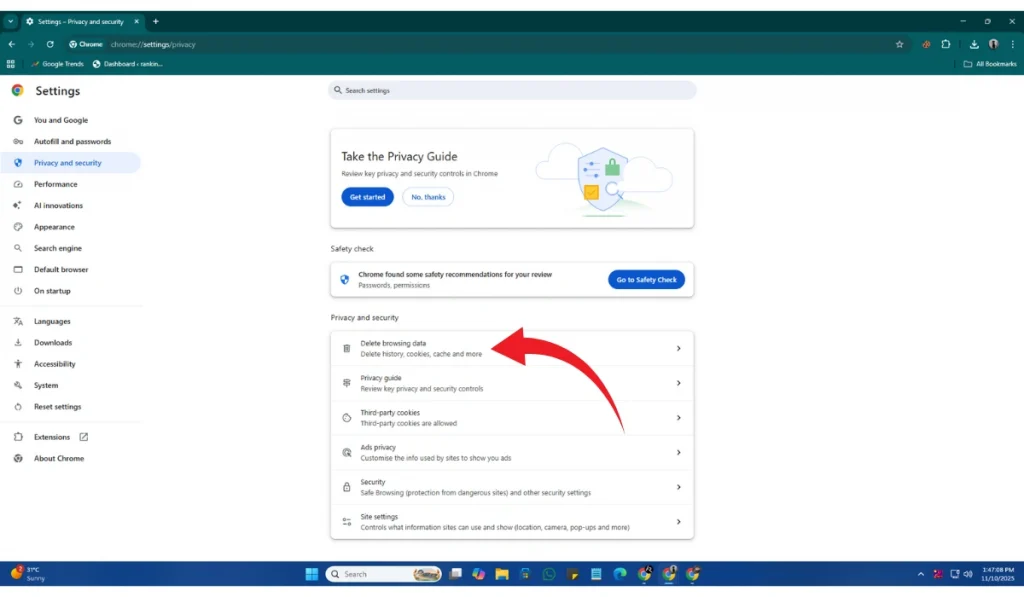
Browsers store site data to speed things up. Over time, this data can become outdated or corrupted. When that happens, ChatGPT may fail to reconnect or keep showing the same error.
Clearing this data forces the browser to load fresh session information.
Steps for clear cache:
- Open browser settings
- Go to privacy or browsing data
- Select cookies and cached files
- Clear data for chat.openai.com
- Reload ChatGPT and sign in again
Fix 6: Disable Browser Extensions
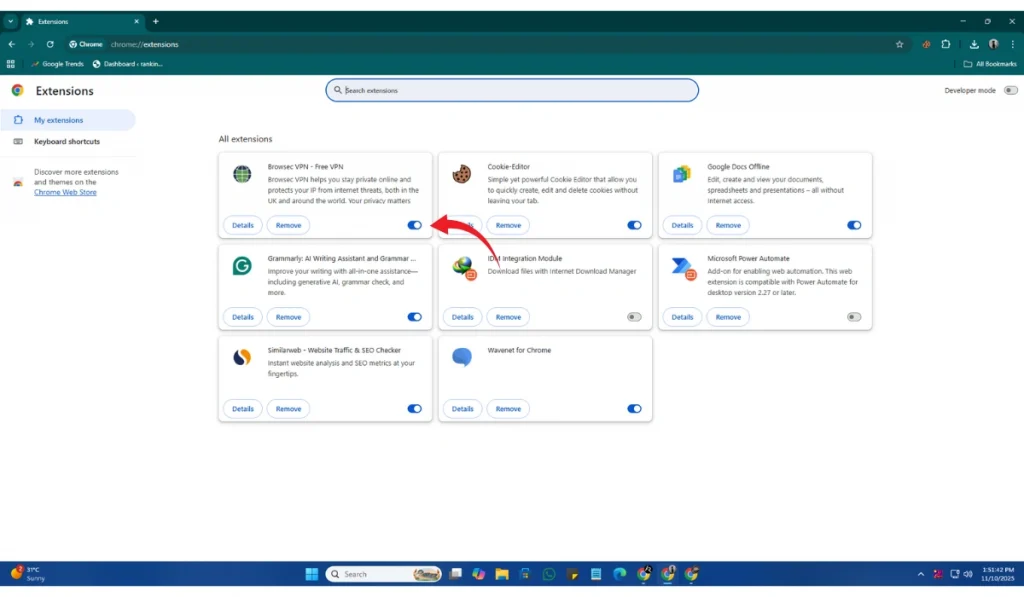
Some extensions block scripts or background network requests. Ad blockers and privacy tools are common causes. They can interrupt ChatGPT’s live connection without showing a warning.
Disabling extensions helps you find if one of them is causing the problem.
Here is how to disable extension:
- Open your browser’s extensions page
- Turn off extensions one by one
- Reload the ChatGPT page
- Test after each change
Fix 7: Use Incognito Mode or Another Browser
Incognito mode runs without extensions or stored cache. This creates a clean environment to test ChatGPT. If it works there, the issue is linked to your main browser setup. Trying another browser also helps confirm whether the problem is browser-specific.
Fix 8: Check OpenAI Server Status
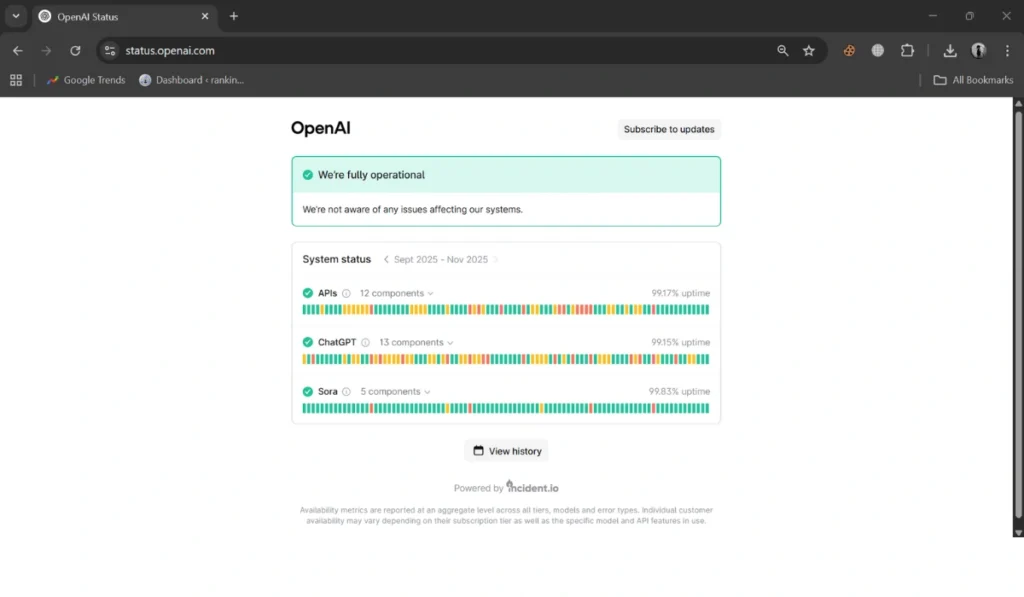
Sometimes the problem isn’t on your device. OpenAI servers may experience high traffic or short maintenance windows. During these times, ChatGPT may fail to reconnect.
If servers are unstable, waiting is often the only solution.
Follow these steps to check server status:
- Open a browser
- Visit the official OpenAI status page
- Check ChatGPT service status
- Wait until services return to normal
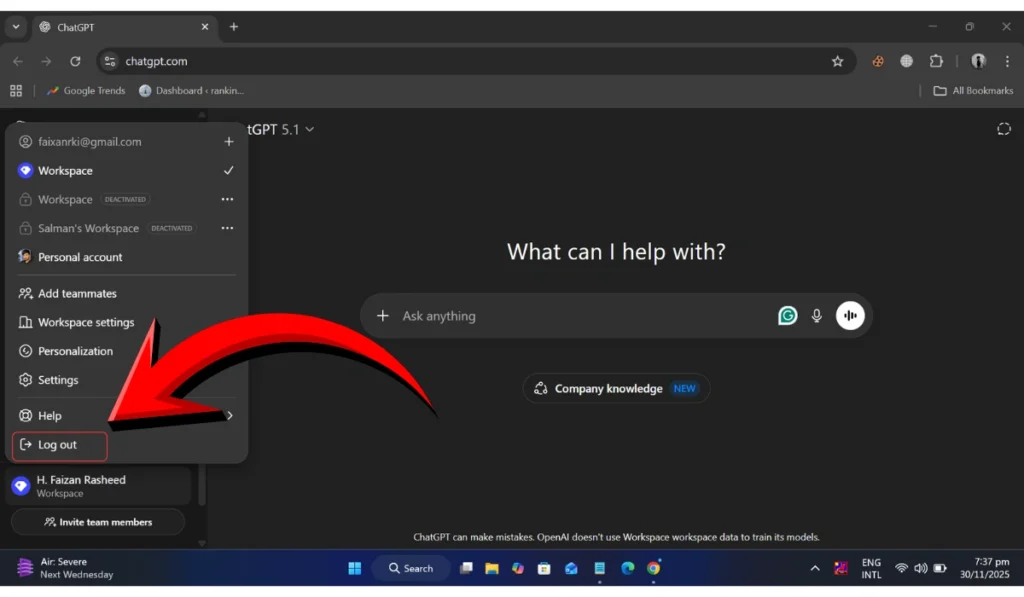
Fix 9: Log Out and Log Back In
Session tokens can expire or break after long usage. When that happens, ChatGPT may fail to reconnect even with a good connection. Logging out and back in refreshes authentication and often restores normal behavior.
Prevention Tips to Avoid This Error in the Future
Avoiding this error saves time and keeps your work smooth, especially during long writing or coding sessions. A few simple habits make a real difference.
Here are some easy prevention tips:
- Use a stable and reliable internet connection
- Don’t leave ChatGPT idle for long periods
- Break very long prompts into smaller parts
- Keep only one ChatGPT tab open at a time
- Avoid using VPNs while working in ChatGPT
- Keep your browser updated
- Restart your router once in a while
Conclusion
To sum it up, this error appears when ChatGPT loses its live connection to the server. It usually happens because of internet drops, browser problems, VPN interference, or temporary server load. Most of the time, it’s not serious and doesn’t mean anything is broken.
Try the prevention tips above and apply your fixes when needed. If the error keeps returning, reaching out to official ChatGPT or OpenAI support is the safest option.
If this article helped you, leave a comment or share it with someone facing the same issue.