
When you try to create a new ChatGPT project or update an existing one and see the notification “error creating or updating project,” it’s frustrating because it stops your work right away. It might block your files, your changes, or your project settings. This guide explains what the message means, why it appears, and how to fix it quickly so you can keep building your project in the ChatGPT Workspace.
What Is ChatGPT “Error Creating or Updating Project”?
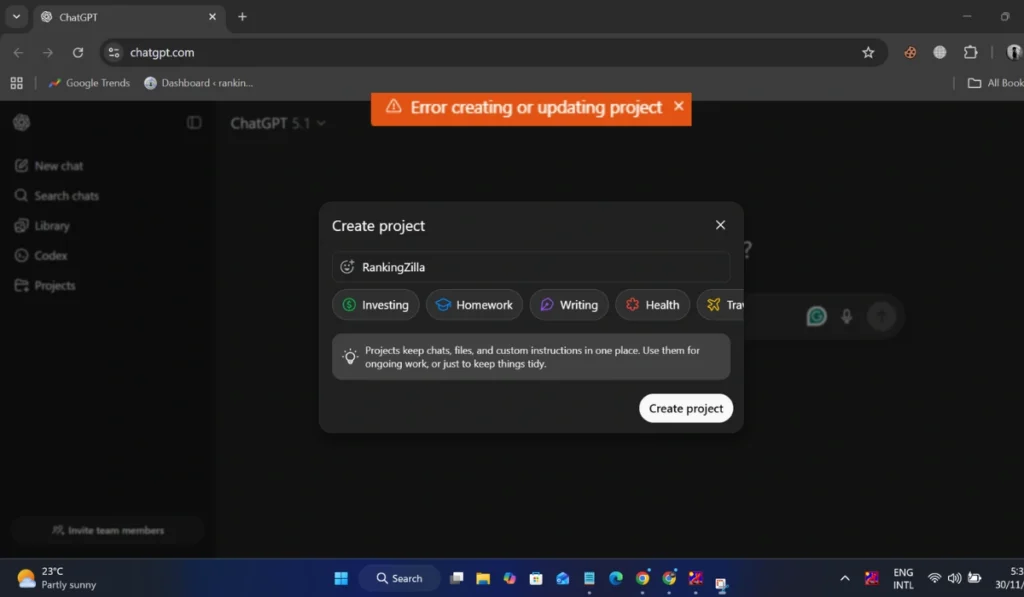
This message appears when ChatGPT cannot save your project data. It usually means the system failed to sync something with the OpenAI servers. It may happen while adding files, updating instructions, editing project settings, or saving custom tools. The issue can come from the browser, the mobile app, your network, or your login session.
You may see the error inside the ChatGPT web dashboard, the Projects tab, the Workspace area, the mobile app, or when switching between pages. Some users see it while saving memory or adding project actions. Others see it when uploading a file or trying to rename a project.
Common Causes of ChatGPT “Error Creating or Updating Project”
The problem can come from many places. Here are the most common causes:
- Expired login token or account not syncing
- Corrupted browser cache or cookies
- Browser extensions blocking OpenAI scripts
- Slow or unstable Wi Fi
- VPN or proxy blocking traffic
- Unsupported file format or large file upload
- OpenAI server outage or request timeout
How to Fix ChatGPT “Error Creating or Updating Project” Easily?
Try each fix step by step. Some need only a simple change, while others need a short list of actions.
Read Also: How to Fix Error Fetching Connectors Connections in ChatGPT?
Fix #1: Refresh Your Login Session
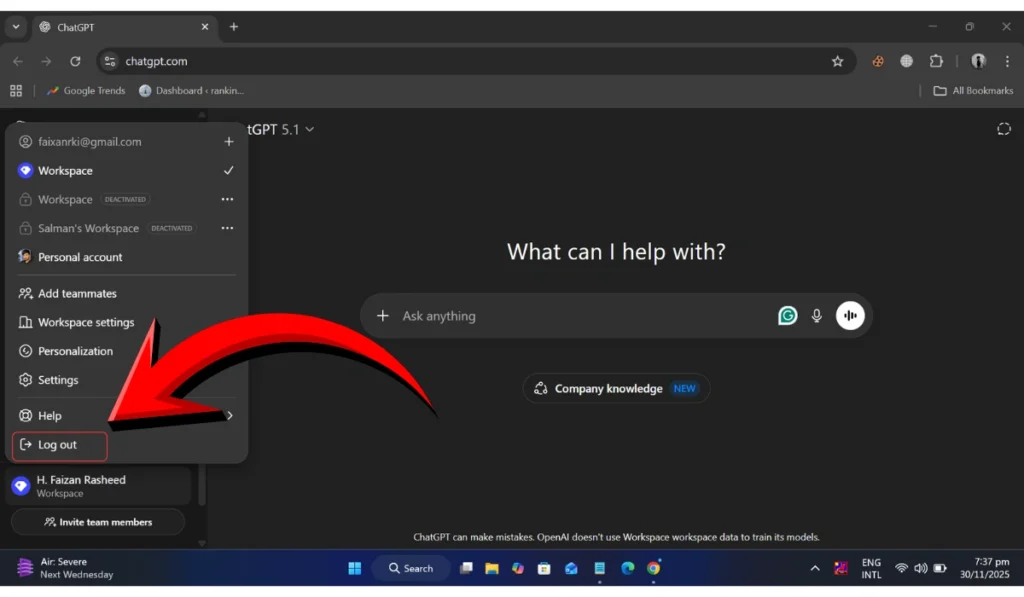
Your login session may be old or out of sync.
Sign out of ChatGPT, close your browser or app, open it again, and sign back in. This refreshes your token and often clears the error.
Fix #2: Clear Browser Cache and Cookies
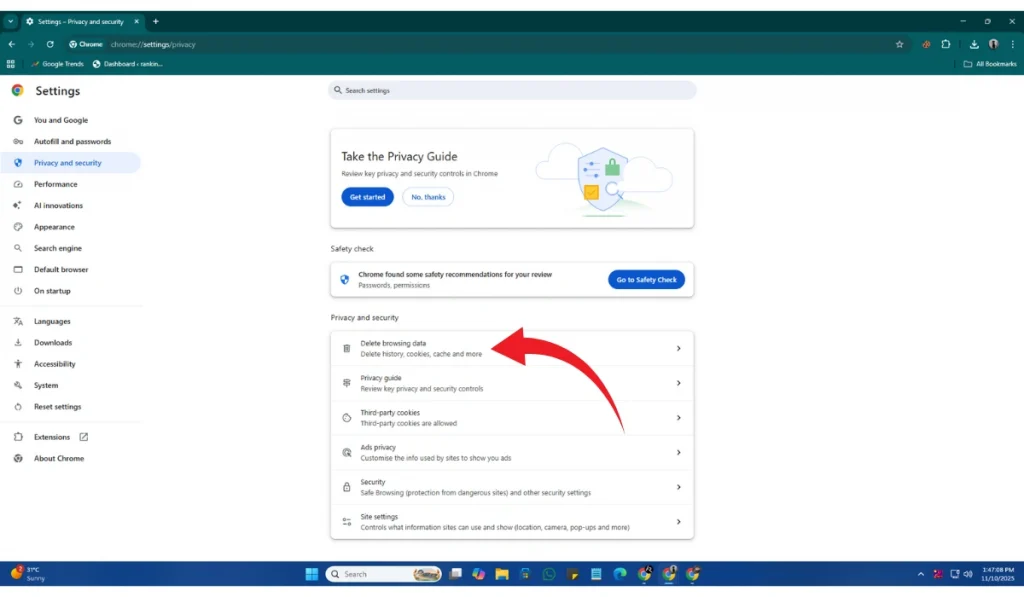
Broken cache files can stop ChatGPT from saving your project. Follow the steps below to clear your browser cache easily:
- Open your browser settings.
- Go to Privacy or History.
- Click Clear browsing data.
- Remove cache and cookies.
- Restart your browser.
- Try editing your project again.
Fix #3: Disable Extensions or Ad Blockers
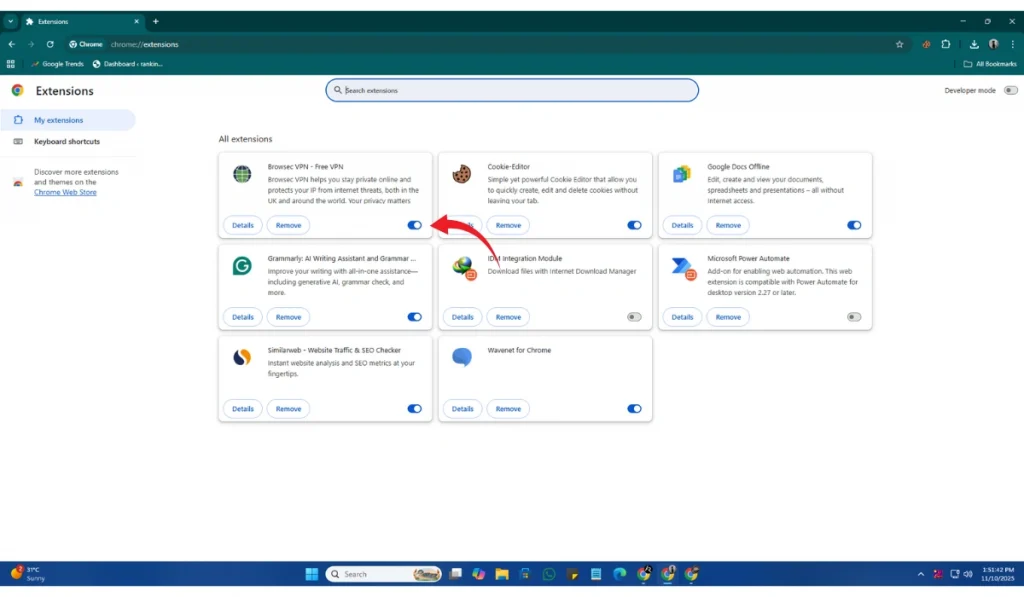
Some extensions block scripts that ChatGPT needs. Turn off your ad blocker, privacy tools, or script blockers, then reload the page and try saving the project again.
Fix #4: Try a Different Browser
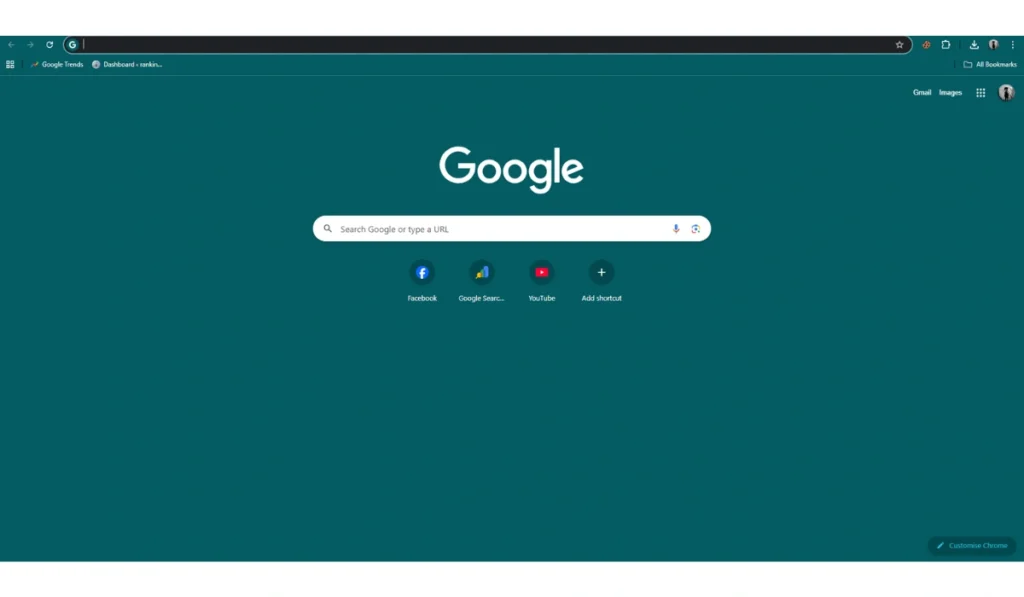
Sometimes the browser itself is the problem. Switch to Chrome, Firefox, Edge, or Safari and try the same task. If it works, the issue is browser-related.
Fix #5: Check OpenAI Server Status
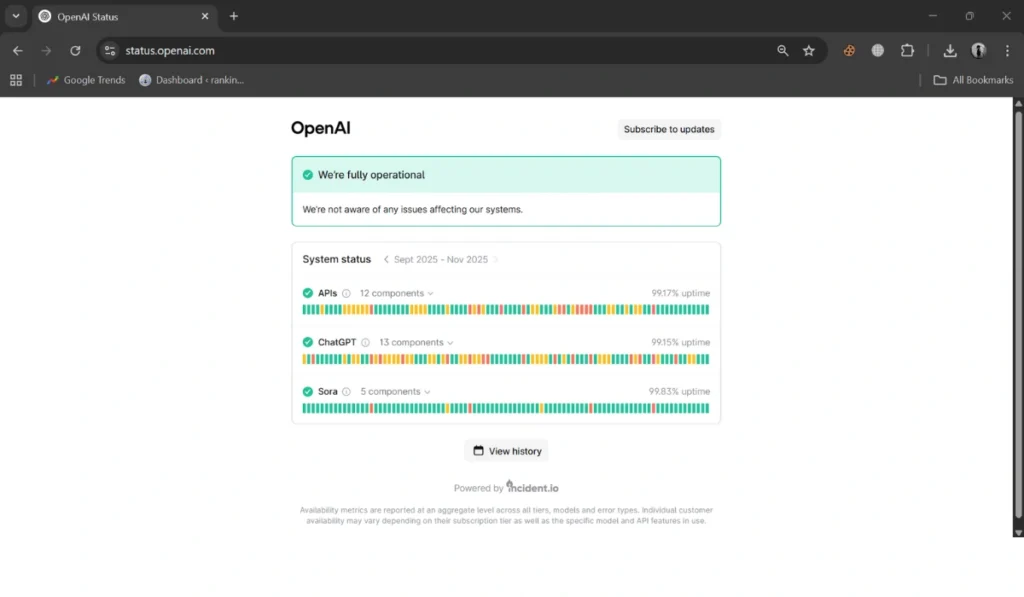
OpenAI servers may be down, causing project saves to fail. Here’s how you can check the server status in a few seconds:
- Open your browser.
- Search OpenAI status.
- Open the official status page.
- Look for outages or warnings.
- Try ChatGPT again after services return.
Fix #6: Restart Your Router

A simple router restart refreshes your connection and clears bad network data. Here are the following steps which help to you restart your router:
- Turn off your router.
- Unplug it.
- Wait around 30 seconds.
- Plug it back in.
- Let the lights load.
- Restart your device.
- Try updating the project again.
Fix #7: Turn Off VPN or Proxy

VPNs or proxies may block the connection to OpenAI servers. Turn off your VPN or proxy service and try creating or updating your project again.
Fix #8: Upload Smaller Files or Remove Unsupported Formats
Large files or unsupported file types can trigger the error. Try uploading a smaller file or switch to a supported format. This often clears the problem right away.
Fix #9: Reset the ChatGPT App on Mobile
The mobile app may store old data that blocks project updates. Perform the following steps carefully to reset the app:
- Close the ChatGPT app completely.
- Clear the app data or cache in your phone settings.
- Reopen the app.
- Log in again.
- Try saving your project.
Fix #10: Change Your DNS Settings
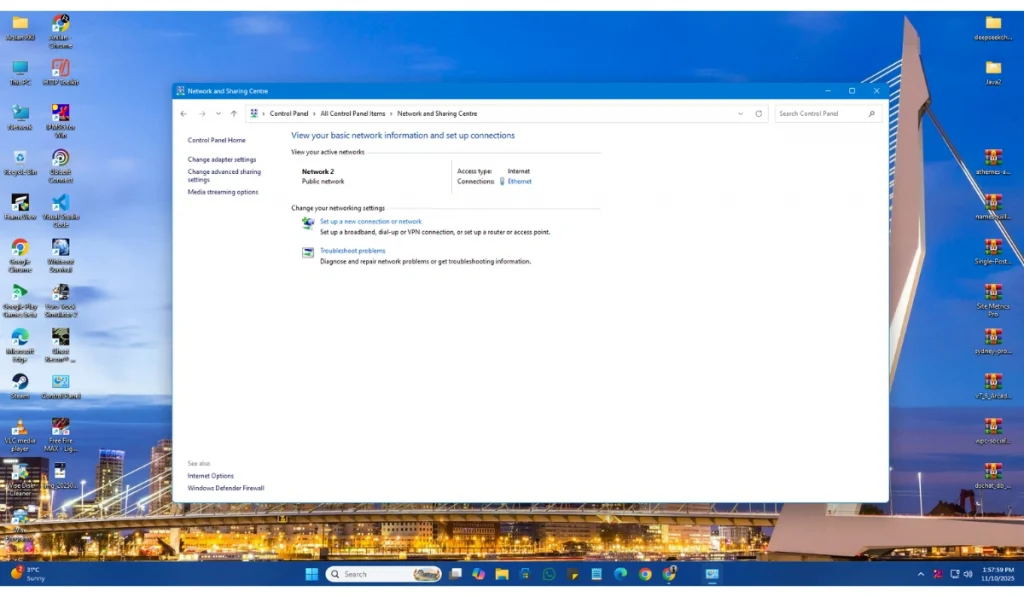
Bad DNS settings can block OpenAI services. These are the exact steps you need to follow to change DNS:
- Open your network settings.
- Select Manual DNS.
- Enter 8.8.8.8 and 8.8.4.4
- Save the settings.
- Restart your device.
- Try ChatGPT again.
Fix #11: Log Out of All Devices
Sometimes multiple devices hold old tokens. Log out of ChatGPT everywhere, then sign back in on one device and try again.
Prevention Tips to Avoid Errors in ChatGPT
These simple habits help avoid this error in the future:
- Keep your browser updated
- Avoid unstable VPNs
- Clear your cache weekly
- Check file sizes before upload
- Save your progress often
- Keep your Wi Fi stable
- Monitor OpenAI status before large edits
Conclusion
In short, the ChatGPT “error creating or updating project” message appears when the system cannot save your data due to login issues, browser trouble, network blocks, or server outages. Once you understand the causes, the fixes become easier and faster.
Try the steps in this guide and see which one works for you. If nothing helps, check the OpenAI status page or contact OpenAI Support. And if you discovered a fix that worked well, feel free to share it so others can get their projects working too.