Streaming is supposed to be smooth, but sometimes you hit an error that stops everything. Paramount+ users often encounter Error Code 3205. It’s annoying because it blocks shows, movies, or live TV. This guide explains what the error means, why it occurs, how to resolve it, and how to prevent it from reappearing.
What is Error Code 3205 on Paramount Plus?
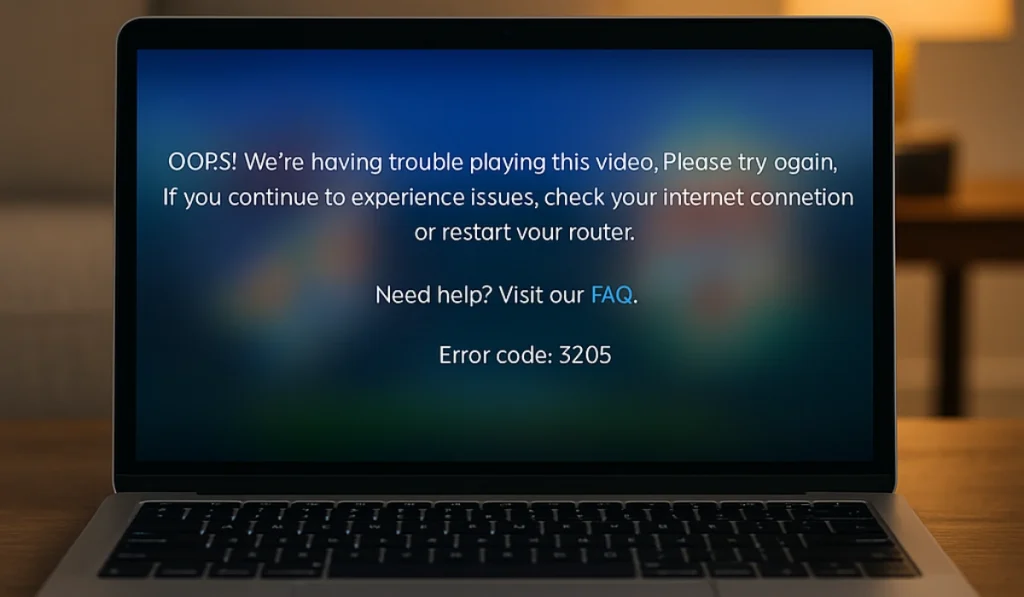
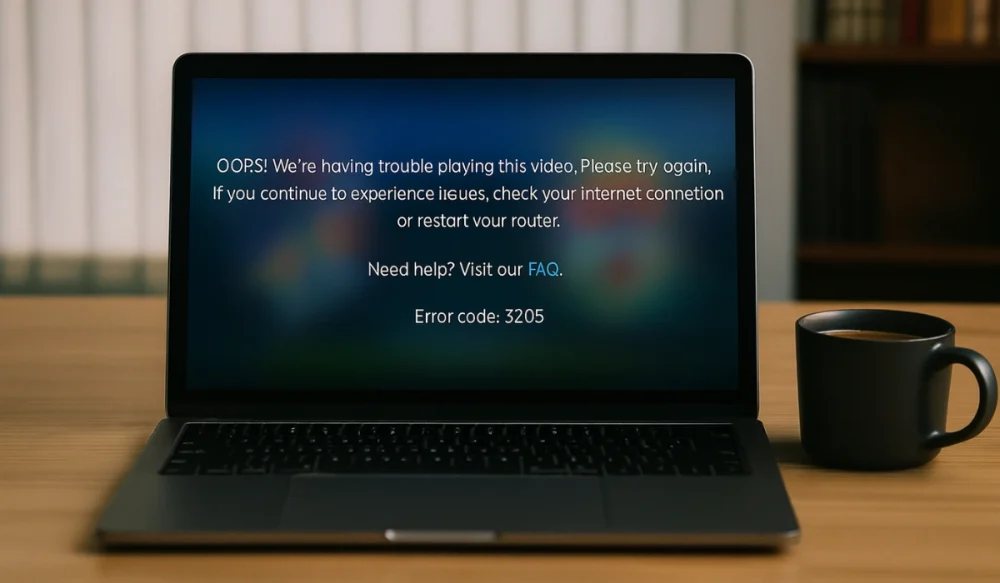
Error Code 3205 is a playback issue that occurs when Paramount+ fails to load video content. It usually means the system is having trouble connecting your device, app, or browser to the streaming servers. The error is not limited to one platform.
You can see this message on smart TVs, Roku devices, Fire TV Stick, mobile apps, or web browsers like Chrome, Safari, and Edge. It interrupts video playback and often shows a frozen screen or buffering loop.
Common Causes of Error Code 3205
Several things can trigger this streaming error. Here are the most common reasons:
- Outdated Paramount Plus app version on smart TVs or mobile devices
- Weak or unstable Wi-Fi network from your internet service provider
- Corrupted browser cache or cookies that break playback requests
- Browser extensions or ad-blockers that interfere with video streaming
- Firmware or system software on devices like Roku or Fire TV Stick is not updated
- VPN or proxy settings that block Paramount Plus’ digital rights management
- Paramount Plus server outage or scheduled maintenance
How to Fix Error Code 3205 on Paramount Plus
Streaming errors can be tricky, but Error Code 3205 typically responds to straightforward solutions. Below are outlined 10 fixes arranged from basic to more advanced. Try these fixes one by one until Paramount Plus starts working again for you.
Fix 1: Restart Your Streaming Device

A quick restart is often the fastest solution. This error can occur when your device experiences temporary glitches. Restarting clears out memory and background tasks. After a restart, Paramount Plus loads fresh content, and streaming usually resumes.
Here are the steps you can follow:
- Turn off your device, such as a Roku, Fire TV Stick, or smart TV.
- Unplug it from power for 30 seconds.
- Plug it back in and power it on.
- Open Paramount Plus and try watching again.
Fix 2: Check Your Internet Connection

Error 3205 often appears when your internet is unstable. A strong connection keeps streaming smooth, while weak Wi-Fi can cause buffering or frozen screens. When your network is stable, Paramount Plus loads video without errors.
Here is how to check the internet connection:
- Run a speed test by authentic speed tester websites, e.g, SpeedTest by Ookla or Fast.com. Minimum internet speed of 5 Mbps for HD quality or 25 Mbps for 4 K UHD.
- Restart your router and modem.
- Move your device closer to the Wi-Fi router.
- Use an Ethernet cable instead of Wi-Fi.
- Reduce the number of devices sharing the same internet.
Fix 3: Log Out and Log Back In
Sometimes, account sessions get stuck and trigger errors. Logging out and back in refreshes the connection with Paramount+ servers. After signing back in, the system works with a new session token.
Fix 4: Update the Paramount Plus App
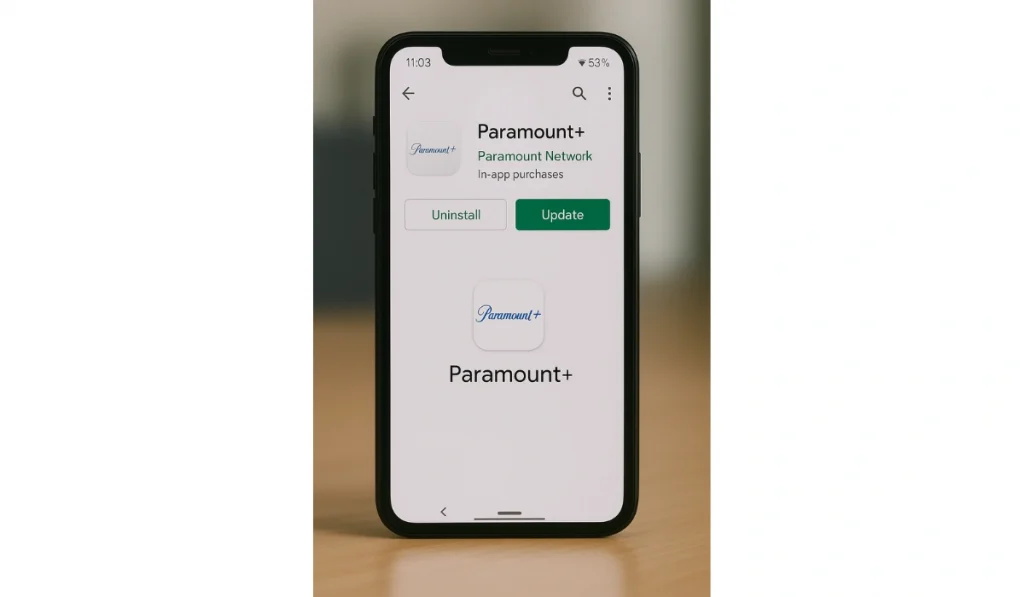
Apps need updates to fix bugs and stay compatible with servers. If you’re running an old version, you may see Error 3205. Updating ensures the app can stream video without issues.
Here are the steps you can follow to update the app:
- Open your device’s app store.
- Search for Paramount Plus.
- If an update is available, select Update.
- Relaunch the app after updating.
Fix 5: Clear Browser Cache and Cookies
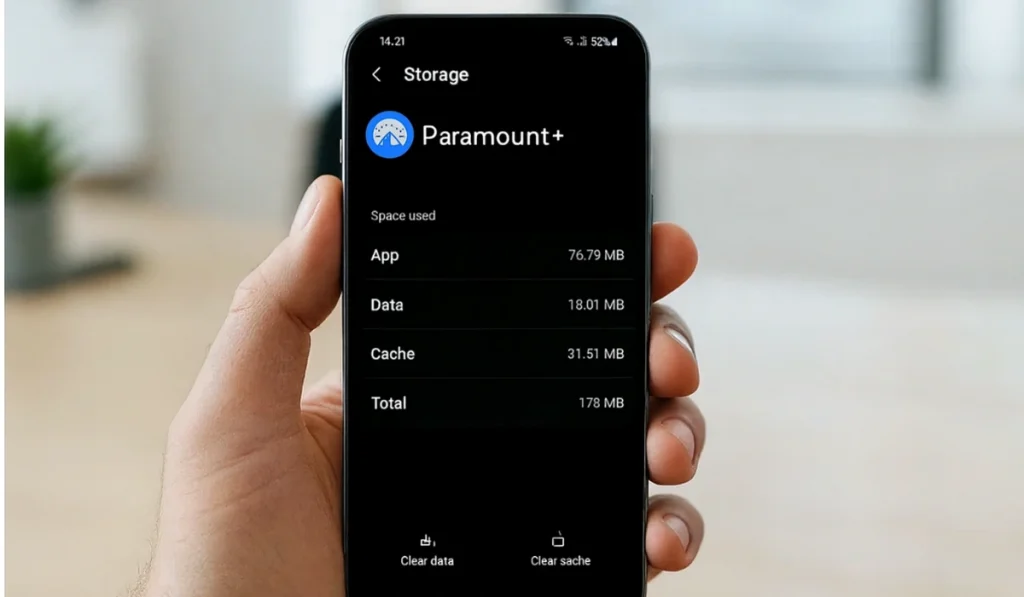
When you use Paramount Plus on a browser, old cache and cookie files may block playback requests. Clearing them resets the browser, allowing streaming to work again without stuck data.
On Chrome:
- Go to Settings.
- Click Privacy and Security.
- Select Clear Browsing Data.
- Choose Cookies and Cached Images.
- Restart the browser and reload Paramount+ to resolve the Issue.
On Android:
- Open Settings on your Android phone or tablet.
- Scroll down and tap Apps or Apps & Notifications.
- Find and select Paramount Plus from the app list.
- Tap Storage & Cache.
- Select Clear Cache.
- Reopen the Paramount Plus app and check if streaming works.
On iPhone:
- Open Settings on your iPhone or iPad.
- Go to General.
- Tap iPhone Storage (or iPad Storage).
- Scroll down and select Paramount Plus.
- Choose Offload App to remove the app but keep your login details.
- Tap Reinstall App.
- Open Paramount Plus again and test streaming.
Fix 6: Disable Browser Extensions or Ad-Blockers
Extensions like ad-blockers often interfere with streaming services. By disabling them, you will allow Paramount+ to run its video player without any restrictions. Many users find that the error is resolved easily by disabling extensions.
Fix 7: Reinstall the Paramount Plus App
If the app installation is corrupted, playback errors exist. Removing and reinstalling the app gives you a fresh start. This often clears hidden glitches and lets you stream normally.
Here are the steps you can follow:
- Delete the Paramount Plus app from your device.
- Restart your device.
- Reinstall the app from the store.
- Log back into your account.
Fix 8: Update Device Firmware or Operating System
Sometimes the device itself is outdated and blocks smooth streaming. Updating the firmware or OS improves compatibility with the latest app version. After updating, Error 3205 usually disappears.
Here are the steps to update the operating system:
- Open device Settings.
- Look for System or About.
- Select Software Update.
- Install any available updates.
- Restart and test Paramount Plus again.
Fix 9: Disable VPN or Proxy

VPNs and proxies can confuse Paramount Plus servers or block licensing checks. Turning them off usually restores normal playback. After disabling, videos load directly from your region without restriction.
Fix 10: Check Paramount Plus Server Status
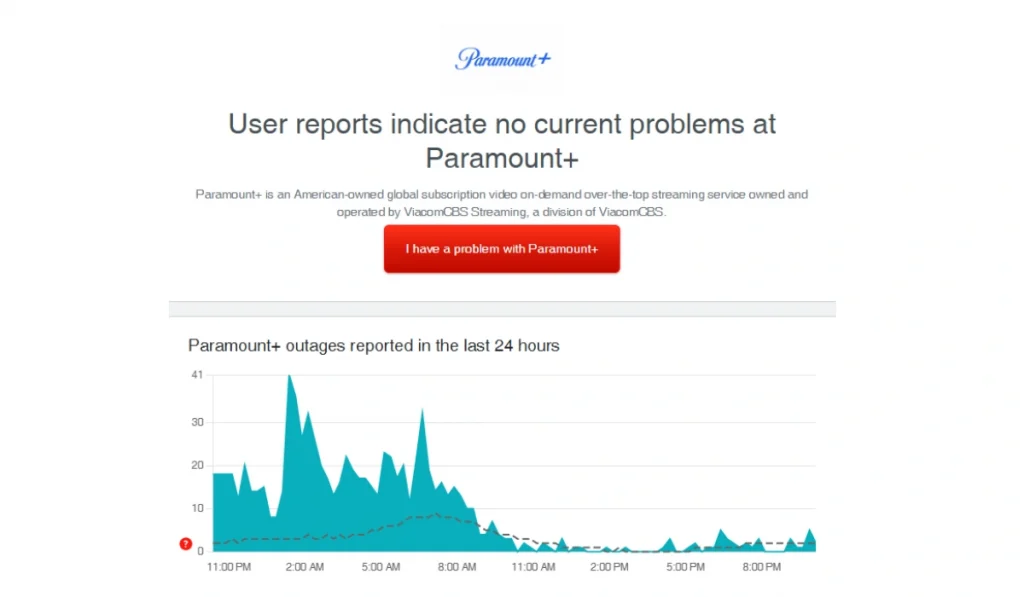
Sometimes, the Issue is not with your device or network, but with Paramount Plus itself. If servers are down, you’ll see Error 3205 no matter what you try. In that case, waiting is the only option until service is restored.
You can confirm whether the server is down by visiting Downdetector, checking Paramount Plus server status and support pages, or looking at their official social media accounts.
Prevention Tips to Avoid Paramount Plus Errors
Stopping the error before it appears saves time and frustration. These tips can help keep Paramount Plus running smoothly:
- Keep the Paramount Plus app updated
- Restart your router weekly
- Clear browser cache and cookies regularly
- Update the device operating system
- Avoid using VPNs or proxies when using Paramount+
- Maintain a stable internet connection with enough speed
- Check Paramount Plus support channels for server updates
Conclusion
Error Code 3205 on Paramount+ is a streaming error that occurs due to playback failures on various devices and browsers. It usually occurs due to app updates, a weak internet connection, or server issues.
Following the fixes and prevention tips helps stabilize streaming again. If the error persists, it’s best to contact Paramount Plus support and share your device details, app version, and error code so they can provide further assistance.