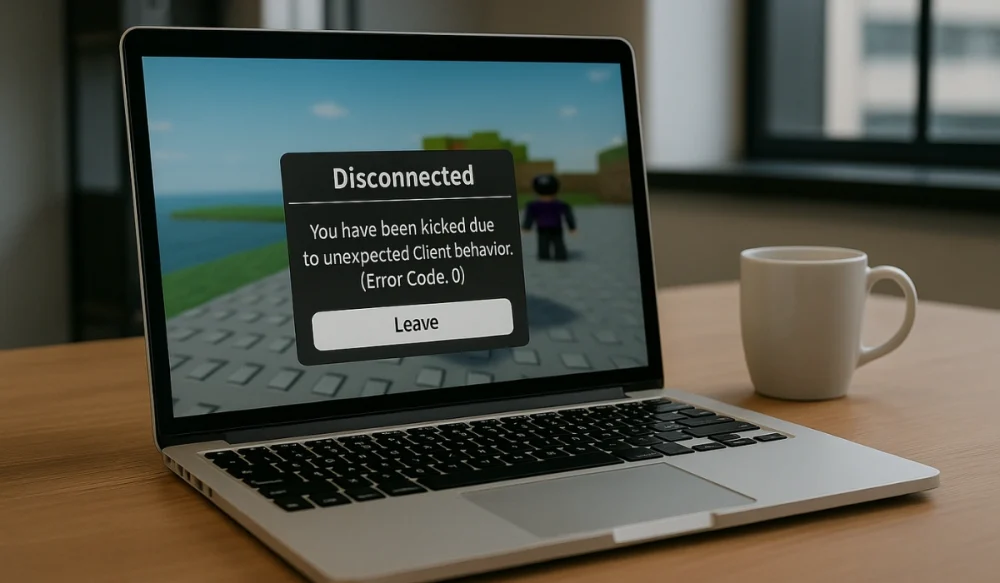
Roblox is one of the most popular online gaming platforms, but sometimes players can’t even log in to the game due to Error Code 0. This error stops the client from launching, blocks server connections, and leaves players stuck before they can even start. It isn’t enjoyable because it disrupts the entire experience, regardless of whether you’re using Windows, Mac, or a mobile device. In this guide, you’ll learn what Roblox Error Code 0 means, the most common causes, and prevention tips to keep your game running smoothly.
What is Roblox Error Code 0?
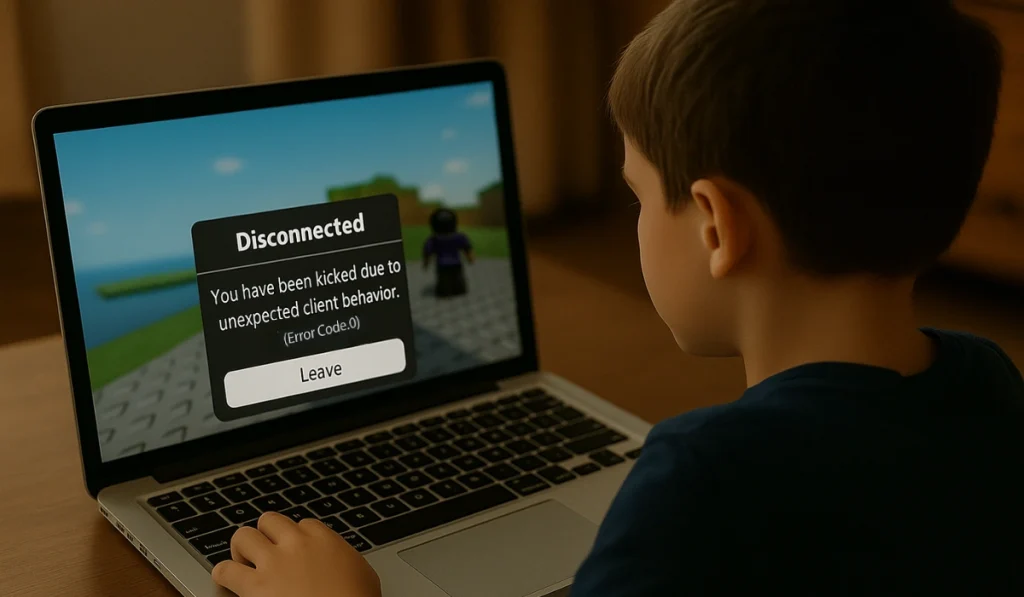
Roblox Error Code 0 is a connection or client error that appears when the game fails to start or connect to servers. In simple terms, the system cannot communicate correctly with Roblox servers, and the client shuts down. It typically occurs on Windows computers, but players on other devices can also experience it.
You’ll typically see this error in the Roblox launcher when trying to log in or start a game. For some users, it pops up with a blank client window or a crash message. Others see it right after hitting the play button in the browser or desktop app. No matter where it appears, the result is the same: Roblox won’t load.
Common Causes of Roblox Error Code 0
Various issues can trigger Error Code 0. Most of them come from the Roblox client, your internet setup, or conflicts with other software. Here are the most common causes:
- Outdated Roblox client that needs an update
- Corrupted cache or leftover temporary files from past installs
- Firewall or antivirus software is the cause of blocking the Roblox connections
- VPN or proxy interfering with Roblox servers
- Weak or unstable Wi-Fi or internet service provider issues
- Missing or outdated Microsoft Visual C++ Redistributable libraries
- Incomplete Roblox installation due to system errors or interruptions
How to Fix Roblox Error Code 0?
Error Code 0 in Roblox can appear for various reasons, ranging from server issues to local system errors. Try these outlined fixes one by one, which helps you to resolve this problem.
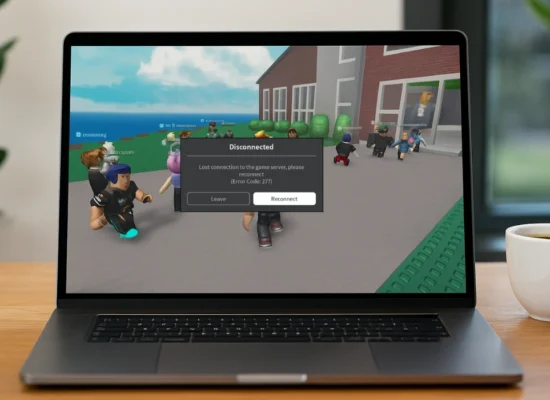
Read also: How To Fix Roblox Error Code 277
Fix #1: Check Roblox Server Status
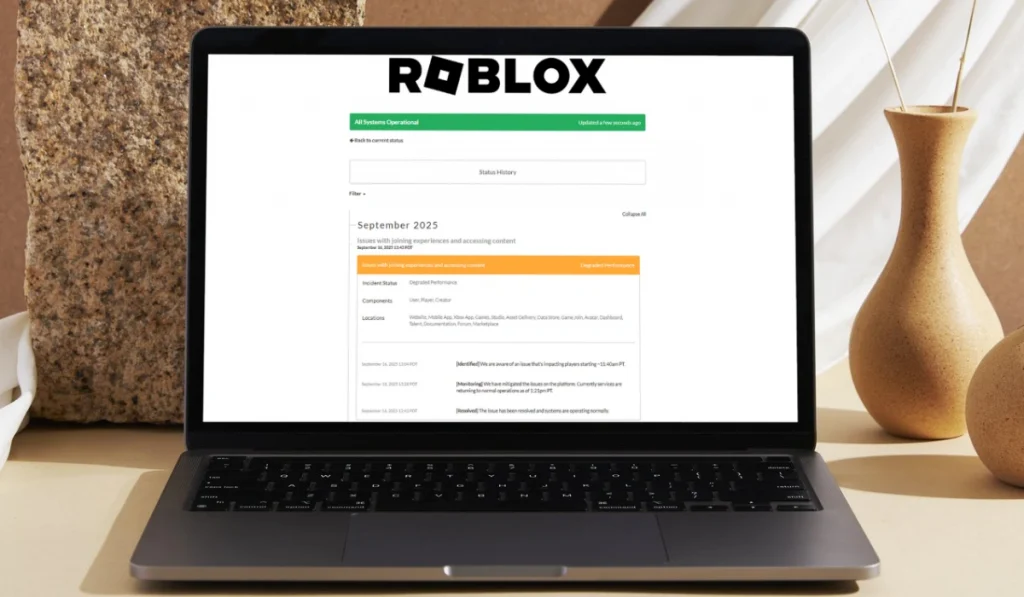
Sometimes the error has nothing to do with your PC. Roblox servers can go down during updates or outages. When that happens, Error Code 0 appears because the client can’t connect. Once the servers are back online, the error disappears on its own.
To check, visit status.roblox.com or use sites like DownDetector. If servers are down, wait until Roblox fixes the issue.
Fix #2: Restart Your Computer and Router

Temporary system and network issues often trigger Error Code 0. Restarting your PC clears memory conflicts, while rebooting the router refreshes your internet link. After this, Roblox usually launches without problems.
Follow these simple Steps:
- Close Roblox completely.
- Restart your computer.
- Please turn off your router for 30 seconds, then turn it back on.
- Open Roblox again and test.
Fix #3: Clear Roblox Cache and Temporary Files
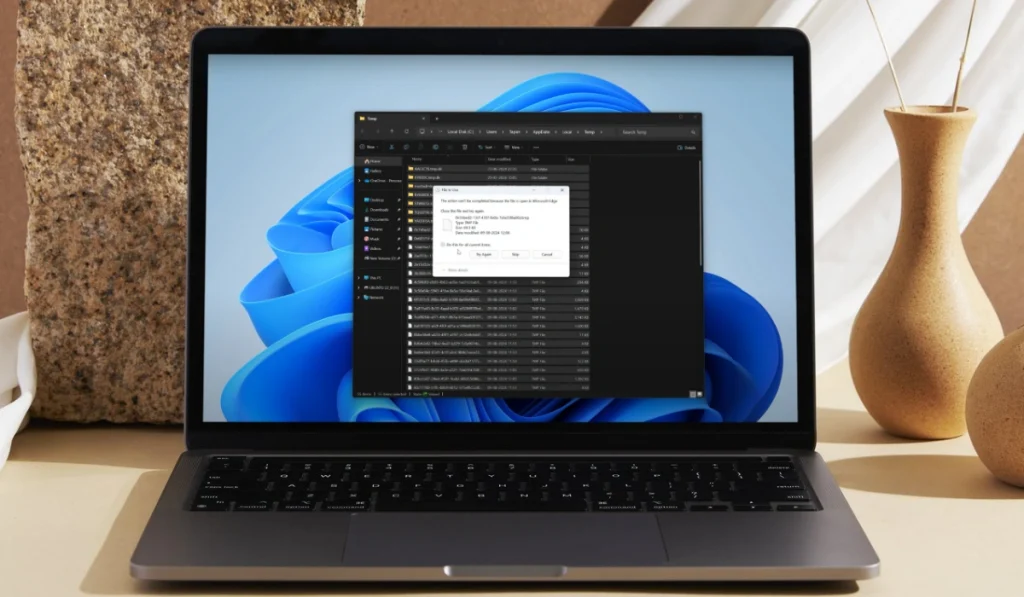
A corrupted cache or leftover temporary files can prevent Roblox from starting. Clearing them forces Roblox to create fresh files. After this fix, the client usually loads smoothly.
Here are the Steps:
- Press the keys Windows + R to Run dialog.
- Type %localappdata% and press Enter.
- Find the Roblox folder.
- Delete the folder to clear cache files.
- Restart your computer and open Roblox again.
Fix #4: Disable VPN or Proxy

Roblox often fails when a VPN or proxy is running. These tools reroute your internet traffic, which can confuse Roblox servers. Turning them off usually fixes the error instantly.
If you use a VPN, disconnect from it and try relaunching Roblox. If you’re using a proxy, turn it off in your Windows Network settings.
Fix #5: Check Firewall and Antivirus Rules
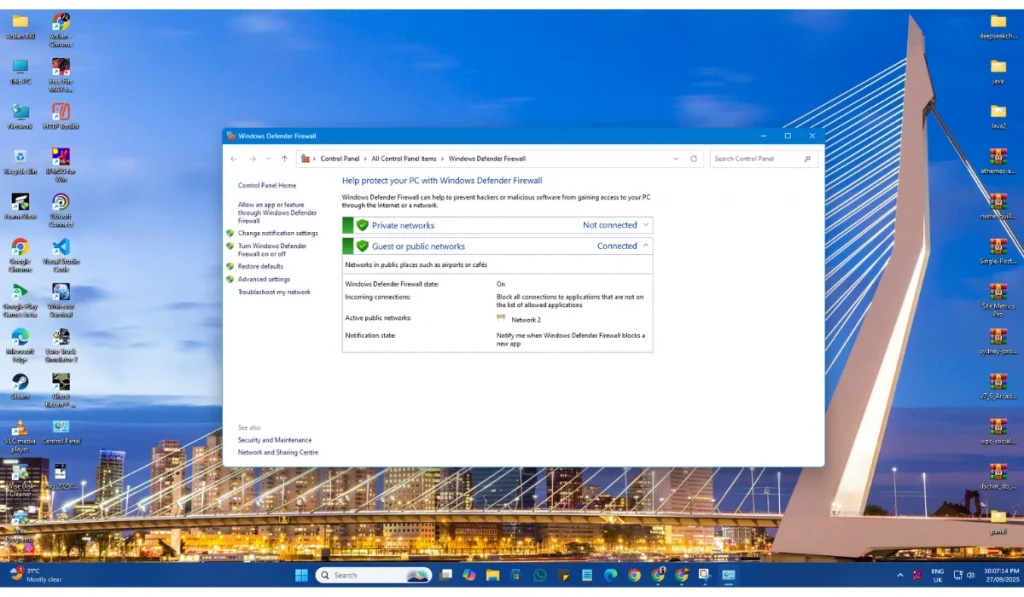
Security programs sometimes mistakenly identify Roblox connections as threats and block them. This can trigger Error Code 0. Allowing Roblox through the firewall fixes the block, and the game can connect again.
Here is how you can do it:
- Open the Windows Start menu
- Search for “Windows Defender Firewall.”
- Click on “Allow an app or feature through Windows Defender Firewall.”
- Look for Roblox in the list.
- If it’s not listed, add it manually.
- Allow Roblox for both Private and Public networks.
Fix #6: Update Roblox Client
An outdated client can’t sync with Roblox servers, leading to Error Code 0. Updating ensures your game runs on the newest files. After the update, Roblox connects properly again.
If you installed Roblox from the Microsoft Store, open the Store app, check for updates, and apply them. If you’re using the standalone version of Roblox, download the latest installer from the Roblox official website.
Fix #7: Reinstall Roblox
Sometimes the Roblox installation itself gets corrupted due to some reasons. Reinstalling gives you a fresh setup with clean files. After reinstalling, the error usually disappears.
Here is how you can reinstall Roblox:
- Open the Windows Settings by pressing Windows + I.
- Go to Apps > Installed apps.
- Find Roblox and uninstall it.
- Restart your computer.
- Download the latest version of Roblox and reinstall it.
Fix #8: Install or Repair Microsoft Visual C++ Redistributables
Roblox depends on Microsoft Visual C++ libraries to run. If they’re missing or corrupted, you may see Error Code 0. Installing or repairing these libraries restores what Roblox needs.
Below are the steps:
- Visit Microsoft’s official website and download the Visual C++ Redistributable package (available for both x86 and x64 architectures).
- Run the installer
- Select ‘Repair’ if prompted.
- Then, Restart your Device.
- Relaunch Roblox.
Fix #9: Reset DNS Settings and Use Google DNS
Sometimes the error comes from DNS problems. Flushing DNS and switching to Google DNS helps Roblox reach its servers without interruptions.
Follow Given steps to reset DNS settings:
- Press Windows + R keys, type cmd, and press Enter.
- In Command Prompt, type ipconfig /flushdns and press Enter.
- Open the Control Panel, then navigate to Network and Sharing Center > Change adapter settings.
- Right-click your active connection and choose Properties option.
- Select Internet Protocol Version 4 (TCP/IPv4), then hit on Properties.
- Choose “Use the following DNS server addresses.”
- Preferred DNS: 8.8.8.8
- Alternate DNS: 8.8.4.4
- Save changes and restart your PC.
Fix #10: Reset Network Settings in Windows

If your network configuration is broken, Roblox won’t connect. Resetting the network returns all settings to their default values. After this fix, Roblox often runs normally.
Follow the given steps:
- Open Settings with Windows + I.
- Go to Network & Internet.
- Scroll down and select Network reset.
- Click Reset now.
- Restart your PC and reconnect to Wi-Fi.
Fix #11: Check for Windows Updates
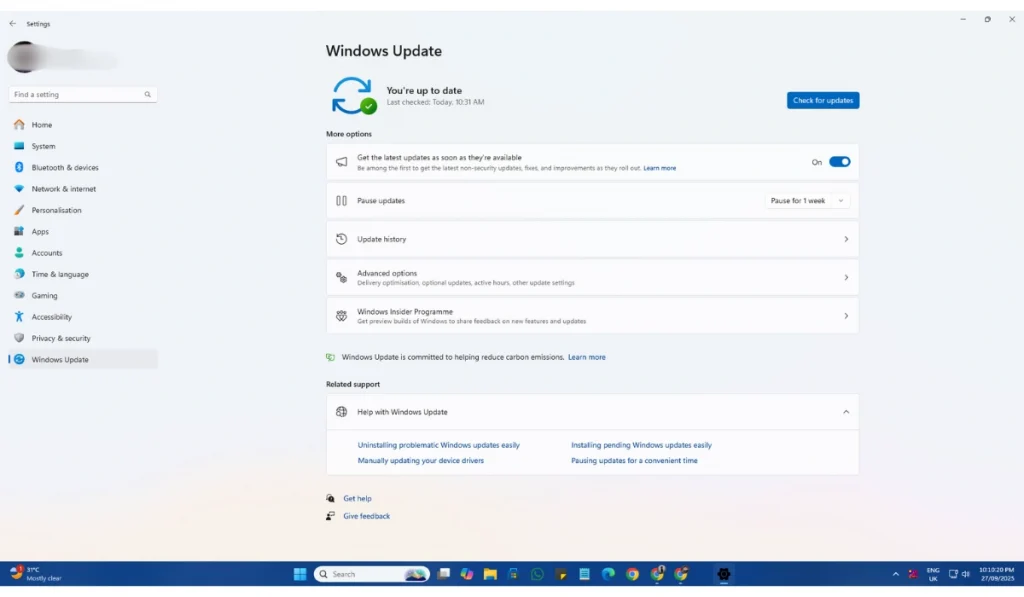
Outdated Windows files can conflict with Roblox. Running updates on Windows ensures compatibility and stability for the device. After updating, Roblox usually launches without errors.
Open Settings > Windows Update, click “Check for updates,” and then install all available updates. Restart your PC and test Roblox again.
Fix #12: Contact Roblox Support
If nothing else works, the problem may be related to your account or a more complex client issue. Roblox Support can review logs and provide further guidance.
Go to roblox.com/support, log in, and submit a support ticket. Include details about your error, device, and what fixes you have already tried.
Prevention Tips to Avoid Roblox Errors in the Future
Once you’ve resolved Roblox Error Code 0, you’ll want to prevent it from appearing again. Here are some easy steps that keep the game running without issues:
- Keep Roblox updated to the latest version
- Use a stable Wi-Fi or wired internet connection
- Avoid playing Roblox with VPN or proxy services turned on
- Add Roblox to your firewall and antivirus safe list
- Update Windows regularly, along with system libraries like Microsoft Visual C++
- Restart your router at least once a week to refresh the connection
- Often, clear the Roblox cache and temporary files every month to prevent build-up
Conclusion
Roblox Error Code 0 indicates that the game client cannot start or connect due to software, network, or system conflicts. It typically appears in the launcher or when attempting to join a game, blocking players from accessing servers.
This error can be resolved with simple steps, such as clearing the cache, checking the firewall settings, or updating Roblox. If the issue persists, Roblox Support can assist with further troubleshooting. With the right fixes and prevention habits, you’ll get back to playing without interruptions.