
AI is an important part of our lives. We use it every day for studies, assignments, projects, work notes, or even simple conversations. ChatGPT helps a lot with these tasks. But sometimes, while doing something important, ChatGPT suddenly stops and shows an error message that says: “There Was an Error Generating a Response”. That moment feels frustrating. Your work stops. Your flow breaks.
You are here because of this error, and yes, I also faced it many times. After using ChatGPT for a long time and reading official information from OpenAI and user reports, I found clear ways to fix it.
In this guide, I will explain what this error means, why it happens, how to fix it, and how you can stop it from coming back. Let’s start.
What Is “There Was an Error Generating a Response” in ChatGPT?
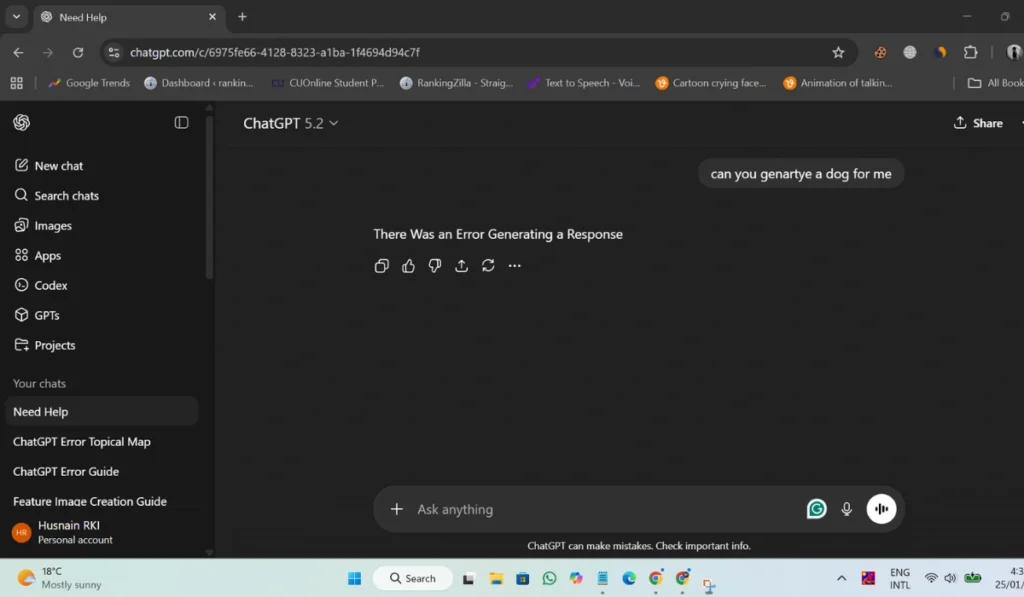
This error means ChatGPT received your message but could not finish creating a reply. The system starts processing your prompt, connects it with the language model, and then fails before the response appears. It does not mean your account is broken. It also does not mean you wrote something wrong. In most cases, the response generation process stops because the connection breaks, the system times out, or the request does not complete properly. Sometimes, when you upload files, this error can also appear: “Failed to Get Upload Status Error in ChatGPT.”
You usually see this message inside the ChatGPT chat window. It appears after you press Enter, during a long reply, or when you click regenerate response. Sometimes the answer stops halfway. Other times, nothing appears at all, just the error text. The chat screen stays open, but the reply does not load.
Common Causes of the ChatGPT Response Error
This error can happen for different reasons. Some come from the ChatGPT system, and some come from your browser or internet setup. Below are the most common causes.
- High traffic on OpenAI servers during busy hours
- Long or complex prompts that exceed token limits
- Weak or unstable internet connection
- Corrupted browser cache or cookies
- VPN or proxy interfering with requests
- Browser extensions blocking scripts
- Temporary issues with ChatGPT backend systems
How to Fix “There Was an Error Generating a Response” in ChatGPT?
In most cases, this error is temporary. The fixes depend on system conditions and how you are using ChatGPT. Try the solutions below one by one.
Fix #1: Regenerate the Response
This error often appears when the first request fails. Regenerating sends the prompt again and often works.
Here’s how you can regenerate the response in just a few seconds.
- Stay on the same chat page
- Find the Regenerate response button
- Click it once
- Wait without refreshing the page
- Check if the new reply loads
Fix #2: Shorten or Split Your Prompt
Long prompts ask ChatGPT to process more tokens. When the token limit gets close, the system may stop generating a reply. This happens more with long articles, code blocks, or detailed instructions.
Try breaking one big request into smaller messages. Send them one by one. ChatGPT handles shorter prompts more smoothly and finishes responses faster.
Fix #3: Refresh the Page or Restart ChatGPT
Sometimes the chat session becomes unstable. Refreshing resets the connection and fixes the issue.
Follow the steps below to easily refresh your ChatGPT session.
- Copy any important text from the chat
- Refresh the browser page
- Log back into ChatGPT if needed
- Open the same conversation
- Send the prompt again
Fix #4: Clear Browser Cache and Cookies
Old cache files or cookies can cause loading problems with the ChatGPT web interface.
Perform the following steps carefully to clear your browser cache.
- Open your browser settings
- Go to Privacy or History
- Select Clear browsing data
- Choose cache and cookies
- Confirm the action
- Restart the browser
- Open ChatGPT again
Fix #5: Turn Off VPN or Browser Extensions
VPNs and ad blockers sometimes block requests between your browser and OpenAI servers. This can stop response generation.
Turn off your VPN and disable browser extensions for a moment. Reload ChatGPT and try again. Once the response works, you can re-enable them one by one to find the cause.
Fix #6: Wait and Try Again Later
Sometimes the issue is not on your side. OpenAI servers handle millions of requests. During peak hours or maintenance, response generation can fail. If nothing works, wait a few minutes and try again later. This fix sounds simple, but it works often.
Prevention Tips to Avoid This ChatGPT Error in the Future
Follow these given simple tips to avoid ChatGPT errors in the future:
- Keep prompts clear and not too long
- Use a stable internet connection
- Avoid busy hours if possible
- Keep your browser updated
- Limit unnecessary browser extensions
- Restart ChatGPT sessions sometimes
- Save important prompts before sending
Conclusion
In last “There Was an Error Generating a Response” message means ChatGPT could not finish creating a reply. It usually happens because of server traffic, long prompts, session issues, or browser problems. The error looks serious, but most of the time it is not.
Try the fixes step by step and follow the prevention tips. They solve the problem in most cases. If the error keeps appearing for days, check OpenAI system status or contact official support for help.
If this guide helped you, share it with others and leave a comment. It may help someone else stuck with the same error.