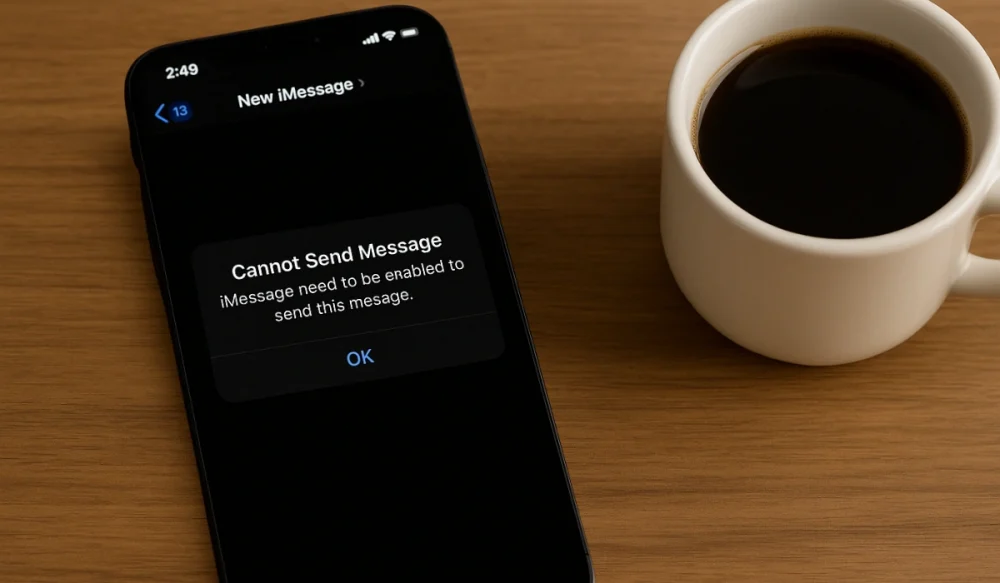
You pick up your iPhone and try to send a message or video to your friend or family member. Suddenly, you get an error message: “iMessage needs to be enabled to send this message.” This is Frustrating. This error stops you from using Apple’s secure messaging service and interrupts regular texting. In this guide, you’ll learn what the error means, why it shows up, and how you can stop it from happening again.
What is the “iMessage Needs to Be Enabled” Error?
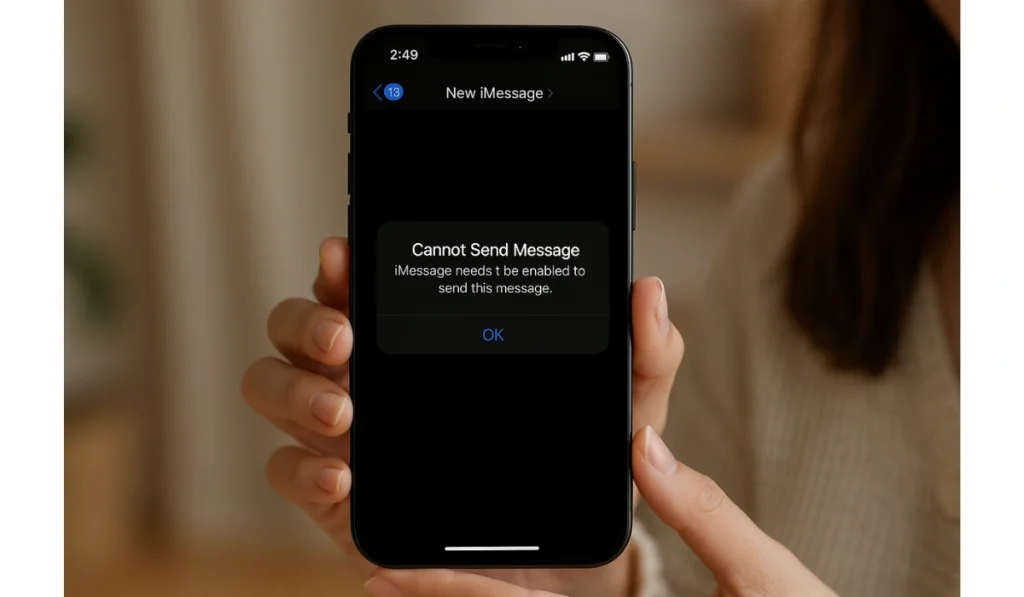
This error means iMessage isn’t active on your iPhone. iMessage uses your Apple ID and an internet connection, not just your carrier’s SMS service. When the device can’t confirm that iMessage is on, it blocks the blue bubble and throws this alert.
You typically see it inside the Messages app when sending a message to another Apple user. It can appear after a system update, when your phone switches between Wi-Fi and mobile data, or when Apple’s own servers are experiencing issues.
Common Causes of the Error
Before applying the fixes, first understand the common causes of this error that trigger the iPhone to show this error. I listed and sorted some main reasons behind this error.
- iMessage switch is off inside the Settings app
- Apple ID is signed out or has failed to authenticate
- Weak Wi-Fi or poor cellular data signal
- Carrier restrictions or SMS fallback disabled
- Old iOS version with bugs
- Apple’s iMessage servers are down
- Wrong date and time settings are blocking activation
How to Fix the “iMessage Needs to Be Enabled” Error on iPhone?
The solution depends on both your iPhone settings and its connection to Apple’s servers. Each fix addresses a possible cause. After applying these practical fixes, which work for many users, iMessage should activate, and messages will start sending as blue bubbles again. Try these fixes one by one.
Fix #1: Turn on iMessage in Settings
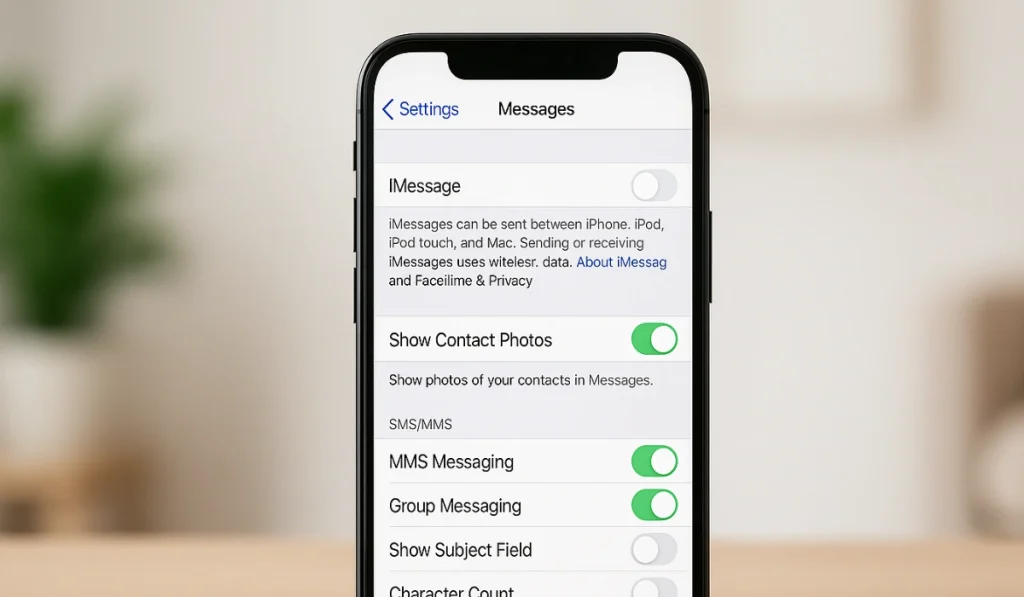
If iMessage is off, the system can’t connect to Apple’s servers. Once you enable it, the device re-registers with your Apple ID.
Here are the steps you can follow to turn on:
- Open the Settings app.
- Tap Messages.
- Turn on the switch next to iMessage.
- If it is already on, turn it off, wait 30 seconds, and then turn it back on.
- Send a test message to check.
Fix #2: Sign Out and Back Into Apple ID
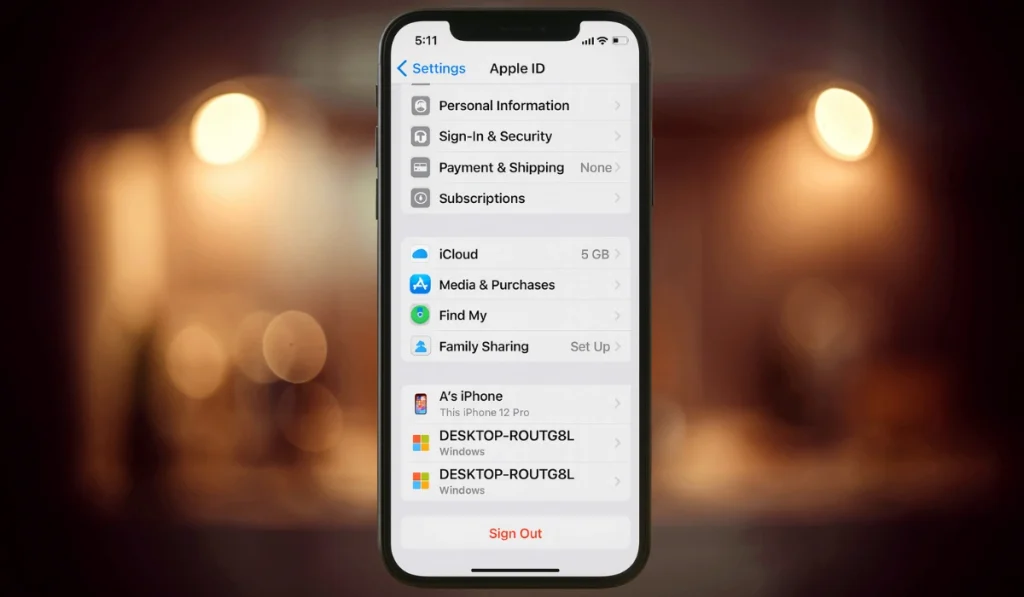
Sometimes your Apple ID session expires. Re-signing in refreshes the authentication. After this, iMessage links correctly to your account.
Simply do this:
- Go to Settings > [Your Name].
- Scroll down and choose Sign Out.
- Enter your Apple ID password to confirm.
- Restart the iPhone.
- Sign back in with the same Apple ID.
Fix #3: Restart the iPhone

Temporary glitches in iOS can cause iMessage to be blocked. Restarting clears the cache and reloads system services. After reboot, the iMessage app re-initializes.
Just hold the Side button and either volume button, then slide to power off. Next, turn it back on.
Fix #4: Reset Network Settings
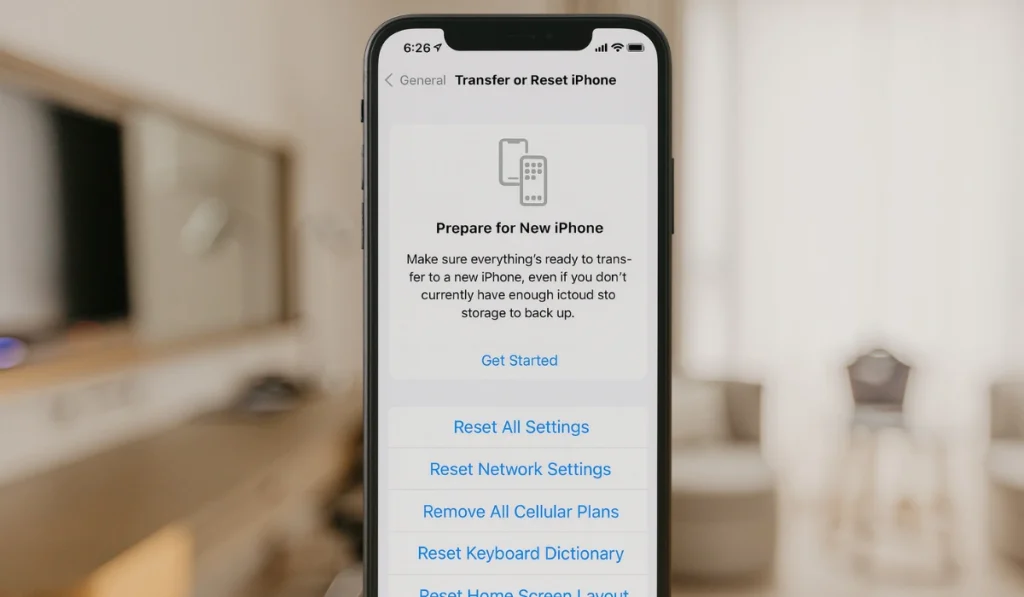
Insufficient network data or a broken Wi-Fi profile can prevent iMessage activation. Resetting clears saved Wi-Fi, VPN, and APN data. After a reset, the iPhone builds fresh network connections.
To reset network settings, follow these steps:
- Open Settings > General > Transfer or Reset iPhone.
- Tap Reset.
- Select Reset Network Settings.
- Enter your passcode.
- Reconnect to Wi-Fi and try iMessage again.
Fix #5: Check Date and Time Settings
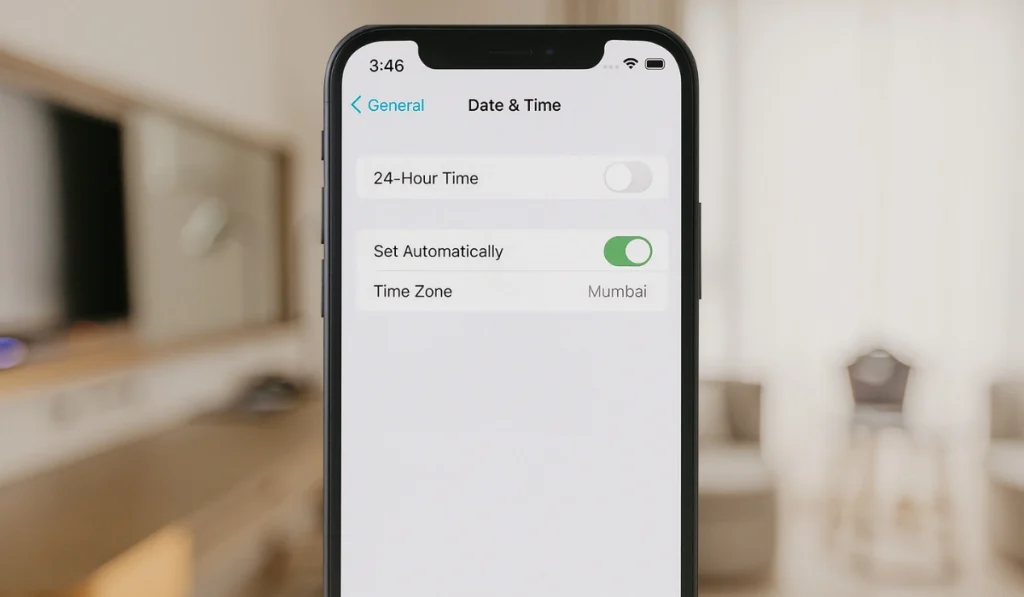
An incorrect time zone or a manually entered date can confuse Apple’s servers. Setting them automatically syncs your iPhone clock with the network, allowing iMessage to verify your identity.
Follow the given action:
- Go to Settings > General > Date & Time.
- Toggle on Set Automatically.
- Restart your phone if needed.
Fix #6: Update iOS to the Latest Version
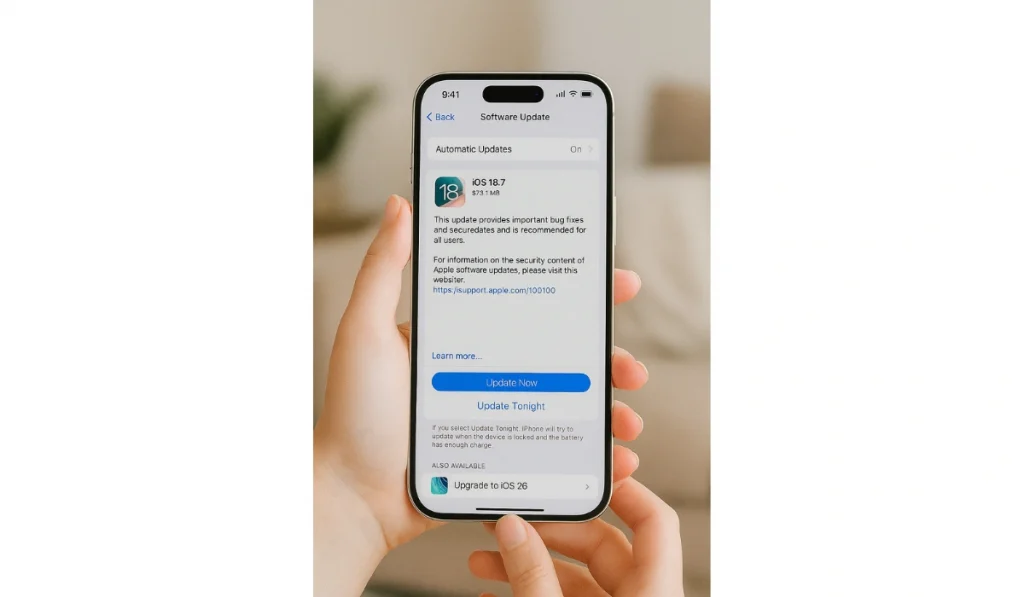
Old iOS versions may carry bugs that affect iMessage—updating, installing patches, and resyncing system services with Apple’s servers.
Go to Settings > General > Software Update and download any available update. After updating, retry iMessage.
Fix #7: Enable Send as SMS
When iMessage fails, your phone can still send a standard SMS. This doesn’t fix iMessage itself, but it ensures messages go through. Once Apple’s service reconnects, blue bubbles return.
Try this:
- Open Settings > Messages.
- Scroll down and turn on Send as SMS.
Fix #8: Check Apple’s System Status
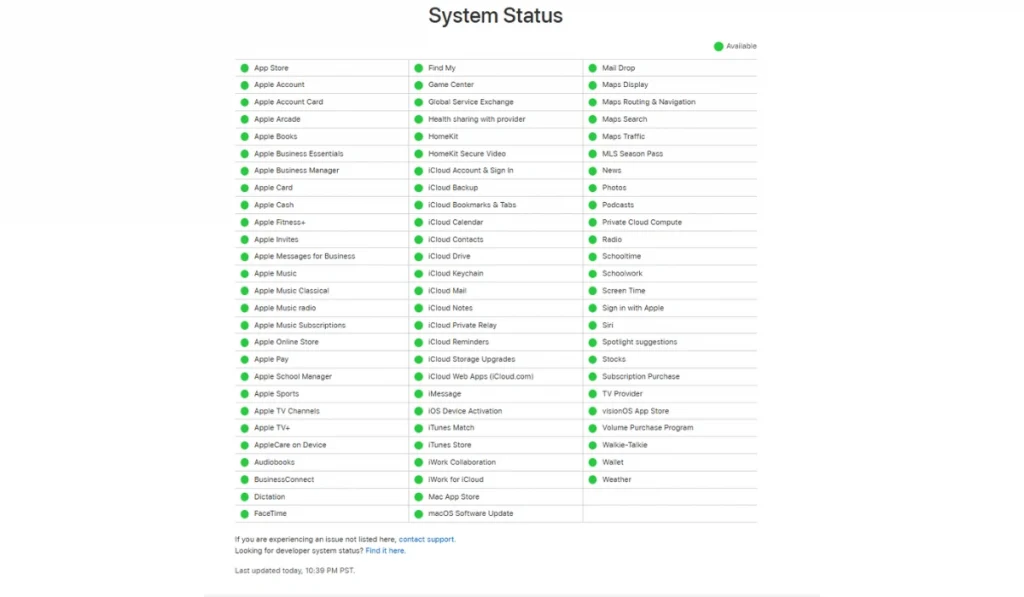
Sometimes the problem isn’t you at all. If Apple’s iMessage servers are down, no action on your phone will help. Checking the status confirms if you need to wait.
Visit Apple’s official System Status page. If iMessage is marked yellow or red, wait until it’s green again.
Fix #9: Contact Carrier for Support
Your carrier manages SMS fallback and may restrict iMessage if settings aren’t updated. Carrier re-provisioning often fixes activation failures. After carrier support updates, iMessage re-registers.
Call your carrier’s customer service or visit their store for help. Ask them to check iMessage provisioning on your SIM.
Fix #10: Replace or Reinsert SIM Card
A damaged or misaligned SIM can block network registration. Re-seating or replacing it refreshes the link between your iPhone, carrier, and Apple’s servers.
Try this:
- Power off the iPhone.
- Use a SIM eject tool or a paper clip to remove the SIM tray.
- Remove the SIM card and inspect it for dirt or scratches.
- Reinsert it properly.
- Turn the phone back on and test iMessage.
Fix #11: Disable VPN or Security Apps

VPNs or sure-firewalls can block Apple’s servers. Disabling them reconnects your iPhone directly to Apple’s activation network.
Open your VPN app or Settings > VPN and toggle it off. Retry sending an iMessage.
Fix #12: Contact Apple Support
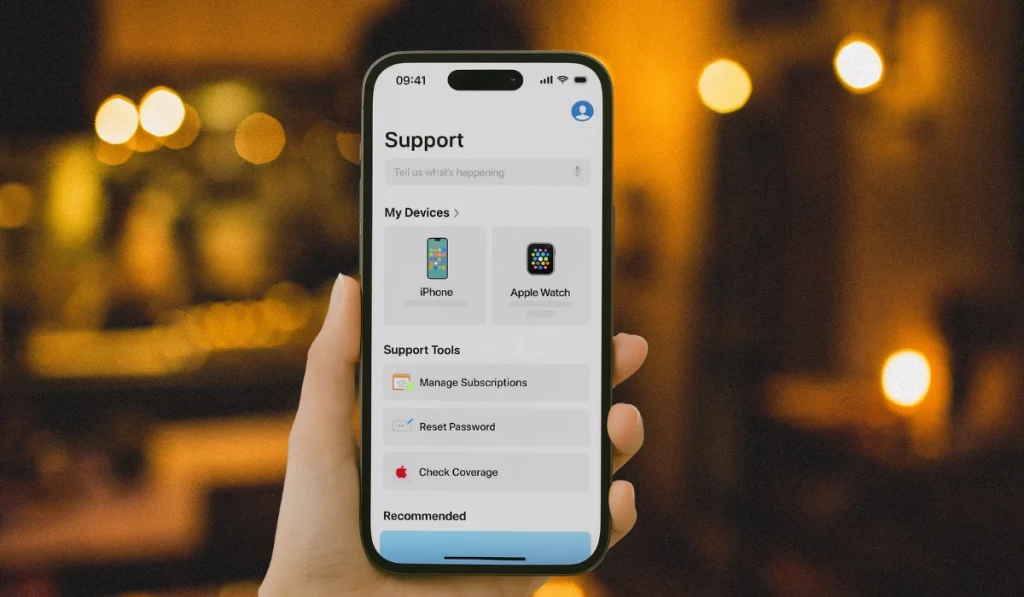
If nothing works, the issue could be deeper inside your Apple ID or device settings. Apple Support can run diagnostics. Once corrected, iMessage activates normally.
Visit the Apple Support website or schedule an appointment at the Apple Store.
Prevention Tips to Avoid iMessage Errors on iPhone
It’s always easier to stop the problem before it happens. Simple steps can keep iMessage stable:
- Keep iOS updated to the latest version
- Restart your iPhone regularly
- Stay logged into your Apple ID
- Use strong Wi-Fi or reliable mobile data
- Enable automatic date and time in settings
- Keep “Send as SMS” switched on
- Check Apple’s System Status if you face issues
Conclusion
The “iMessage needs to be enabled” error means your iPhone can’t confirm iMessage activation. It usually occurs due to incorrect settings, account sign-in issues, or a connection problem.
By understanding the causes and following prevention tips, you can reduce the chance of seeing it again. If this issue persists, the next step is to contact Apple Support or your carrier for additional assistance.