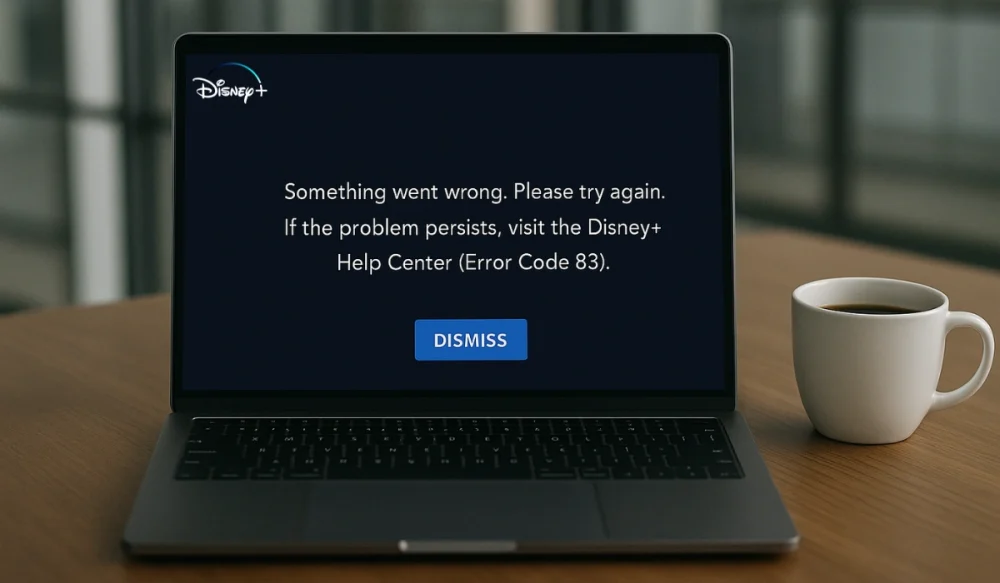
After a hectic life routine, you decided to watch your favorite movie or show on Disney+, and suddenly, a message pops up – “Error Code 83.” That’s frustrating, especially when you’re just trying to relax. I know what you’re feeling at that moment because I also faced this issue last week. This error usually means Disney+ can’t verify your device or connection. It’s often linked to security or compatibility checks that fail behind the scenes. The good news is that I found some ways to fix this problem. In this guide, you’ll learn what Disney+ Error Code 83 means, why it shows up, how to fix it, and how to prevent it from happening again.
What is Disney+ Error Code 83?
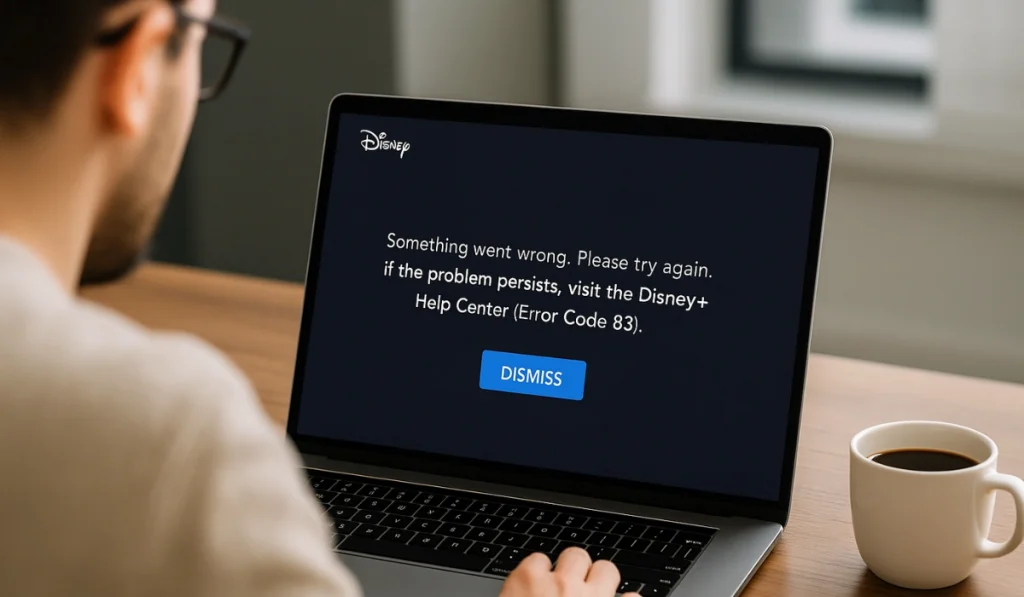
Error Code 83 appears when Disney+ is unable to verify that your device or network meets its security and playback requirements. Disney’s servers verify every request to ensure the content is being streamed through a trusted and supported device. When something is detected, such as a missing system update, a VPN being active, or the app not being up to date, the system blocks playback to keep your account safe.
Typically, the message appears as “Error Code 83: Device not supported” or “Unable to connect.” You might see it on your phone, tablet, browser, or TV. Sometimes, it happens after you log in to your Disney account, or when you try to start a show or movie. On Smart TVs, it may display a blank screen with error code 83. On a computer, it often appears as a playback window error.
Common Causes of Disney+ Error Code 83
Error 83 doesn’t have just one reason. It can occur due to network issues, outdated apps, or device compatibility problems. Here, I have listed some causes that I believe are linked to this error, and I have described these causes using many authentic sources.
- Outdated Disney+ Plus app or device firmware that fails security checks.
- Temporary server outages or maintenance periods from Disney’s side.
- Unsupported browsers or old Smart TVs that don’t meet DRM (Digital Rights Management) requirements.
- Unstable internet connections, weak Wi-Fi signals, or router errors.
- VPN or proxy services that mask your real location and confuse Disney servers.
- Corrupted cache or cookies that block new login sessions.
- Firewall or antivirus tools that mistakenly block Disney+ Plus traffic.
How to Fix Disney+ Error Code 83?
Resolving error 83 on Disney+ is so easy and straightforward that it requires some basic steps. I tried many ways to fix this, and in the end, I identified some key fixes that have worked for you, as they have for me. Below are some fixes, try them one by one.
Fix #1: Check Disney+ Server Status
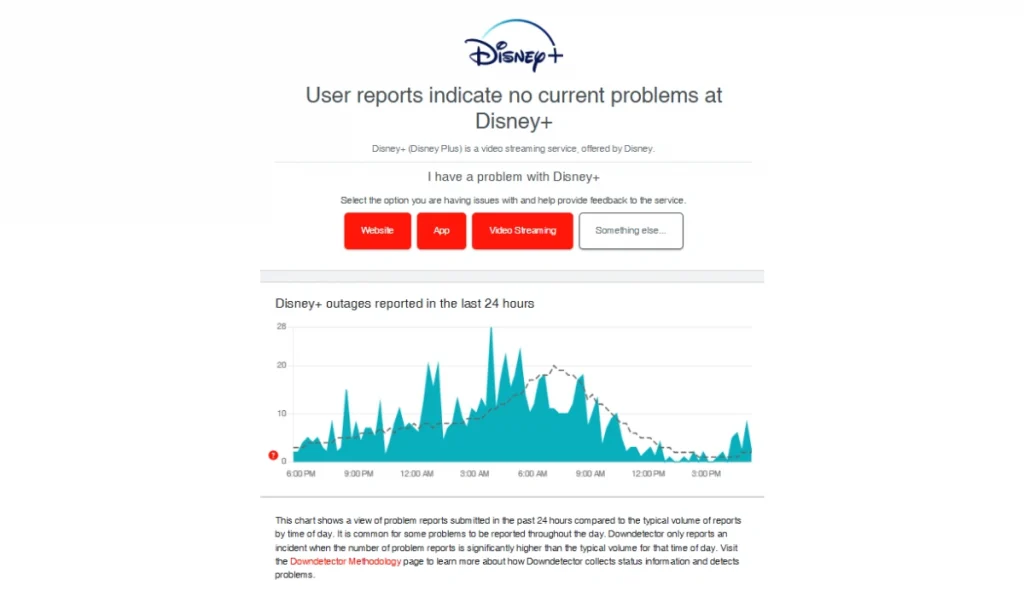
This is the first thing to check because sometimes the problem isn’t on your side. When Disney’s servers are under maintenance or experience an outage, your device can’t connect to the server, and Error Code 83 pops up.
If the servers are down, there’s nothing to fix on your end. The error disappears automatically once Disney restores its service.
You can quickly confirm it by visiting Downdetector or checking Disney+’s official Twitter page for any outage reports. If others are seeing the same error, then waiting is the last option.
Fix #2: Restart Your Device and Internet Connection

Temporary bugs, background tasks, or network errors can block your Disney+ app from connecting properly to the server. Restarting your device and router clears those temporary files and resets your connection.
Once restarted, your system reconnects cleanly to the servers, often fixing the issue immediately.
Here’s what to do:
- Close Disney+ completely.
- Turn off your device for 30 seconds.
- Restart your Wi-Fi router.
- After your internet stabilizes, open Disney+ again.
Fix #3: Update the Disney+ App and Device Software
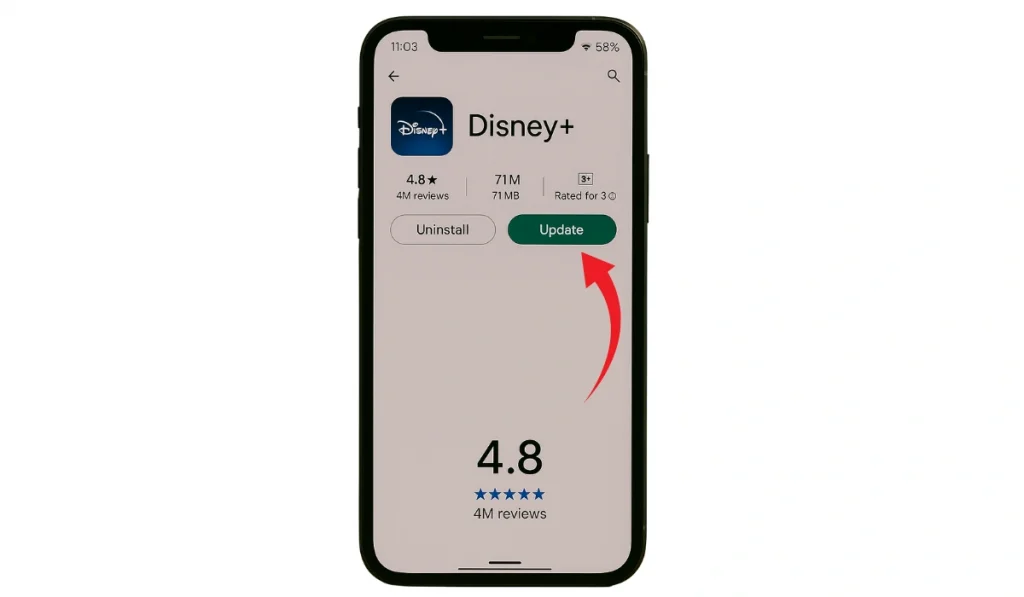
Disney regularly updates its app to enhance playback and security. If your app or device firmware is outdated, Disney’s servers may block it as “unverified,” leading to Error Code 83.
After updating, your device and app will match Disney’s latest system requirements, and streaming will start normally again.
Here’s how to do it:
- Go to your App Store, Google Play, or Amazon Appstore.
- Search for‘Disney’ and tap‘Update‘ if it’s available.
- Check your device settings for System Updates and install them too.
- Restart your device once all updates have been completed.
Fix #4: Clear Cache and Cookies (or App Data)
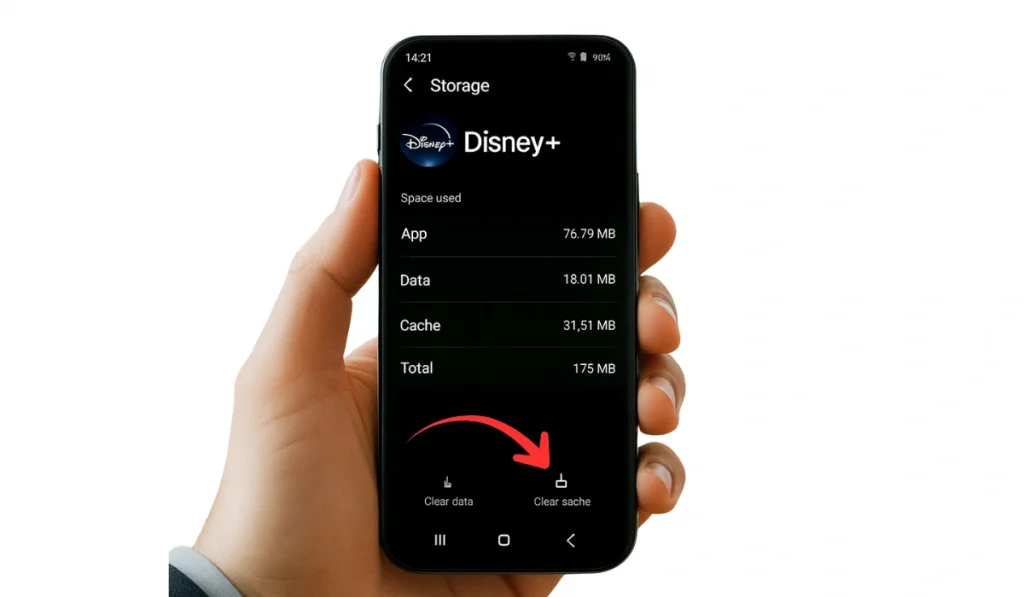
Cache files and cookies help apps load faster, but when they store outdated or broken login data, they can cause authentication errors. That’s when Error 83 appears — the app’s stored data no longer matches Disney’s servers.
After clearing them, the app refreshes its login data and loads correctly.
Here’s how you can clear cache:
- On phones or tablets: Settings → Apps → Disney Plus → Storage → Clear Cache / Clear Data.
- On browsers: Ctrl + Shift + Delete → Clear cookies and cached files.
- Then restart the app and sign in again.
Fix #5: Check Device Compatibility
Not all devices work with Disney+. Some older Smart TVs, browsers, or streaming sticks may not be compatible with Disney’s encryption (DRM) standards. When that happens, you’ll see Error Code 83 because your device can’t decrypt the stream correctly.
To fix it, check Disney’s official Supported Devices List on their Help Center. If your model isn’t available, try watching it on a different device.
After switching to a compatible device, the error should disappear immediately.
Fix #6: Turn Off VPN or Proxy

VPNs and proxies change your location. Disney+ checks the location from which you’re connecting to enforce regional streaming rights. If your VPN routes through another country, Disney’s servers might reject the connection, triggering Error 83.
Turning off your VPN or proxy resolves the issue. Once disabled, your real location connects directly to the correct regional server, and playback resumes normally. Turn off your VPN or proxy service, reconnect to your regular Wi-Fi network, and then relaunch the app.
Fix #7: Re-login or Reinstall the App
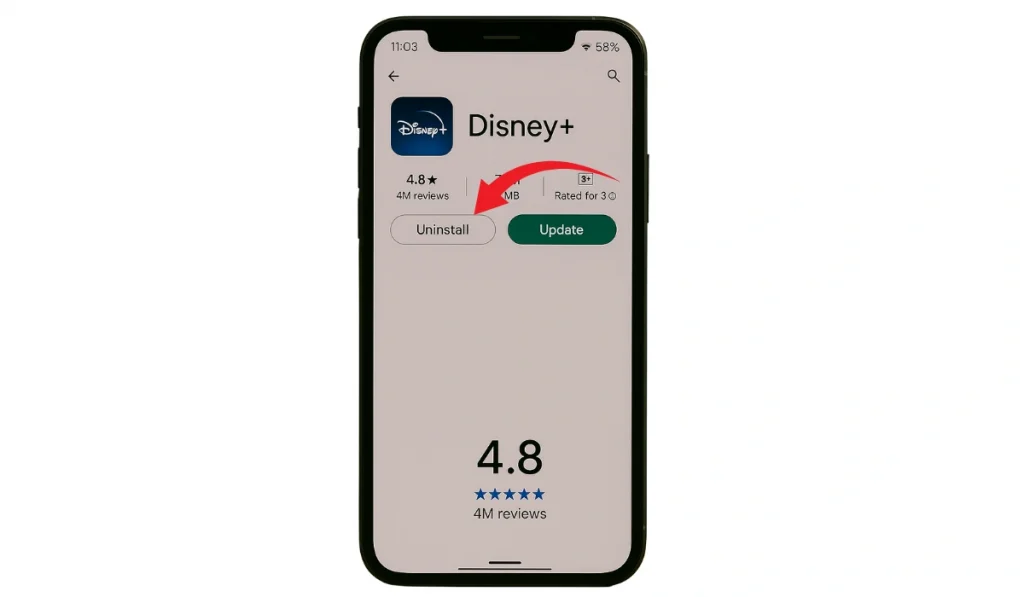
Sometimes login data gets corrupted, especially after a crash or interrupted update. The Disney+ app may continue to attempt to use broken session tokens, which can cause the connection to fail.
Reinstalling or simply signing out and back in clears the insufficient data. The app creates a new, clean session with the Disney servers, and streaming starts again.
Steps to follow:
- Sign out of Disney+.
- Uninstall the app from your device.
- Restart the device.
- Reinstall Disney+ and log back in.
Fix #8: Check Account and Subscription Status
This one doesn’t require steps, just a quick look. If your subscription has expired or your payment failed, Disney+ blocks streaming for security reasons. You’ll still be able to log in, but playback stops with Error Code 83.
After renewing or verifying your subscription, the app instantly restores full access.
To confirm, go to DisneyPlus.com → Account → Subscription and check your billing details. If needed, update your payment method and refresh your session.
Fix #9: Try Another Device or Browser
If none of the other fixes work, the issue might be tied to your current device or browser setup. Sometimes, background software conflicts or extensions interfere with streaming.
Testing on another device or browser helps isolate the problem. If it works elsewhere, your first device likely needs a reset or deeper cleanup.
Try logging in on a different device, such as your phone, laptop, or smart TV. If it streams fine there, the issue isn’t your account; it’s your original system.
Prevention Tips to Avoid Disney+ Errors in the Future
Once you resolve Disney+ Error 83, you can prevent it from happening again with a few simple tips. Here are some tips that I listed for you:
- Keep your Disney+ app and device software up to date with the latest version.
- Avoid using VPNs or proxies when streaming.
- Use a stable Wi-Fi connection – a 5GHz network works best for smooth playback.
- Clear your app or browser cache every few weeks.
- Restart your router periodically to refresh your internet connection.
- Download Disney only from official app stores like Google Play, Apple App Store, or Amazon.
- Check the Disney+ Help Center if the error persists.
Conclusion
Disney+ Error Code 83 may seem technical, but it’s often caused by a compatibility or connection issue. Once you understand what triggers it, you can usually resolve the problem quickly and prevent it from happening again.
If you still encounter the error after trying the fixes, please get in touch with Disney Support for assistance. They can check your account, device type, and region settings directly. Keep your app updated, stay connected on a stable network, and you’ll be back to streaming without interruptions.
If this guide was helpful, please share it with your family or friends, or leave a comment below. Someone else facing the same problem might find your experience helpful.