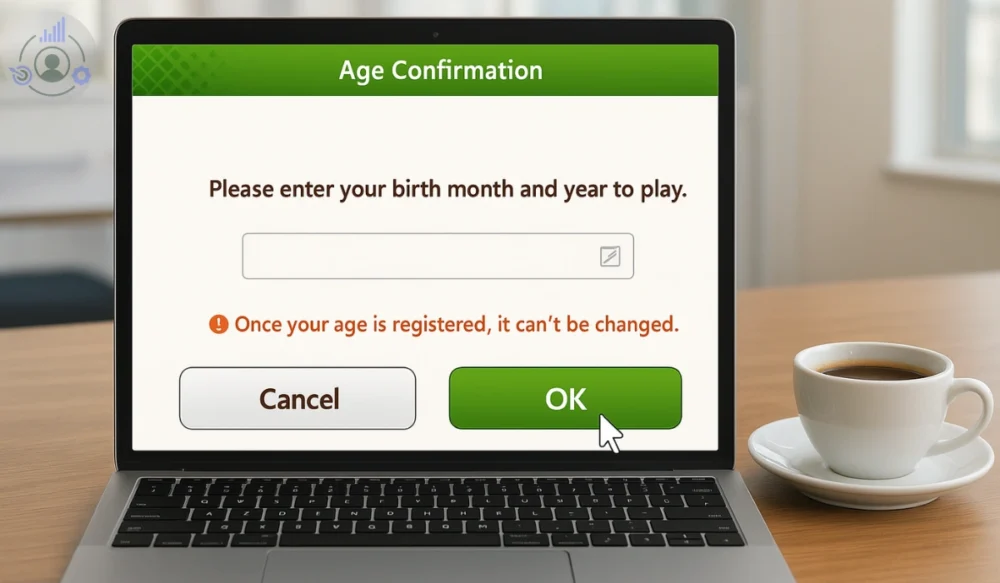
If you are a new player to Uma Musume and want to play it, after installing the game, the app asks you to confirm that you are 18+ years old. While performing this action, the game displays an error message: “Once your age is registered, it can’t be changed.” It spoils the overall experience. But don’t worry, I will solve this issue for you. Today, in this guide, I will explain what this age error means, why it happens, and what actions you can try to fix it.
What Is the Uma Musume Age Confirmation Error?
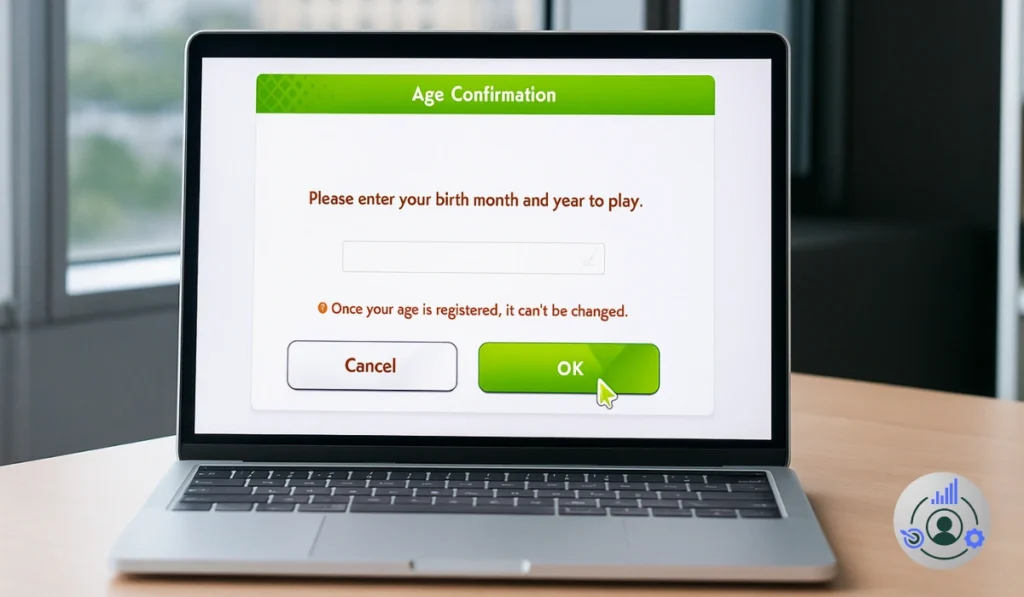
The age confirmation error appears when the DMM Games or Cygames system fails to verify your age before you start playing. This step exists because of Japan’s content laws that require players to confirm they are over 18. The system checks your account information and region before giving access to the game.
Most players face this problem right after launching Uma Musume Pretty Derby. Instead of confirming your age, the game either freezes, keeps loading repeatedly, or shows a blank white screen. It can happen on both mobile and PC. On PC, it usually appears when you log in through your DMM account. On Android or iPhone, it often gets stuck on the loading screen and never completes the age check.
Common Causes of the Age Confirmation Error in Uma Musume
Sometimes, minor technical issues can prevent the game from verifying your age. These are the most common reasons:
- Outdated browser or Uma Musume app that needs an update
- Pop-ups or JavaScript are turned off in your browser settings.
- Damaged cache or cookies are preventing the confirmation screen from loading.
- VPN or proxy changing your region and confusing the DMM system
- Temporary server maintenance from Cygames or DMM Games
- Expired login session or incorrect DMM account data
- A weak or unstable internet connection is interrupting the process.
All these issues are linked to how your browser, device, and DMM server communicate during login. If one part fails, the system can’t verify your age.
How to Fix the Age Confirmation Not Working Error in Uma Musume?
If Uma Musume’s age confirmation doesn’t appear or keeps looping, it means the app or browser can’t connect properly to DMM’s age verification system. Don’t worry, here are 12 practical solutions I believe will work for you, as they’ve already helped many players fix the same age problem in the game.
Fix #1: Refresh or Restart the App
Sometimes, the issue isn’t serious at all. The game or webpage might have loaded only halfway, leaving the age verification process stuck. In that case, a quick restart or refresh can help.
Just close the Uma Musume app completely, wait for a few seconds, and then open it again. If you’re using a browser, press Ctrl + R or tap the refresh button. This simple step often reloads the verification script correctly and makes the age confirmation box appear as it should.
Fix #2: Check Your Internet Connection

A weak or unstable internet connection can stop Uma Musume from reaching DMM’s servers during age verification. Before retrying, make sure your Wi-Fi or mobile data is working properly.
If the signal seems weak, switch between Wi-Fi and mobile data or restart your router to refresh the network. Once your connection becomes stable, reopen Uma Musume. In most cases, the age confirmation screen loads successfully right after the internet connection improves.
Fix #3: Disable VPN or Proxy

If you’re connected through a VPN or proxy, DMM’s system might detect a different region and block the age check. Uma Musume is region-locked to Japan, so using another IP address often results in verification failure.
Turn off your VPN or proxy, then restart the game. Once your real location is detected, the age confirmation screen should appear correctly and let you continue playing.
Fix #4: Clear Cache and Cookies
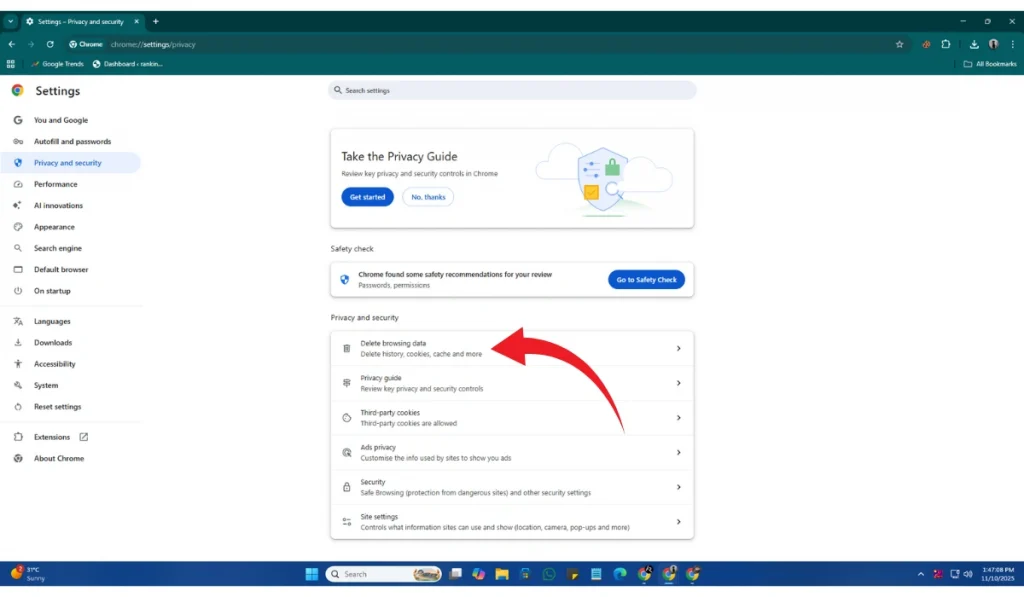
Old browsing data can block the new verification scripts from loading correctly. Clearing your cache and cookies helps refresh the DMM page and forces it to load clean files for age verification.
On Mobile (Android & iPhone)
If you are a mobile user, follow these instructions:
- Hold the App icon for 4 seconds.
- Choose ‘App info‘.
- Select Storage
- Choose Clear Cache.
- Re-open the app again.
On PC
If you are a PC user, then follow these:
- Open your browser.
- Click Settings → Privacy & Security.
- Choose Clear browsing data.
- Set the time range to All time.
- Check Cache and Cookies, then clear them.
After clearing the data, reopen the DMM page and try again. The age confirmation should now load without getting stuck.
Fix #5: Update the Uma Musume App or DMM Launcher
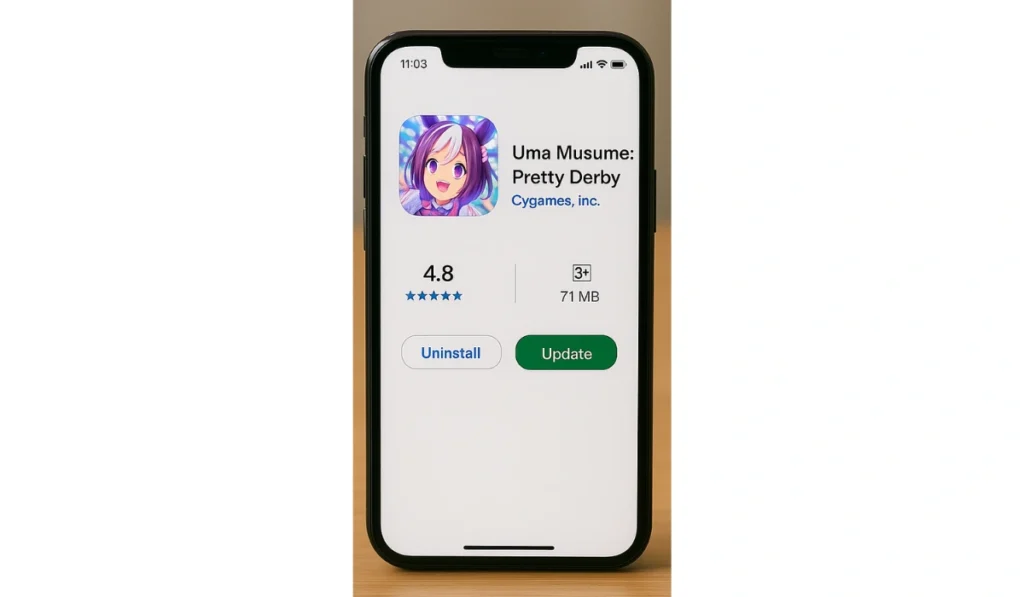
If your app or launcher is outdated, it might not connect properly with DMM’s latest verification system. Updating ensures your version matches the current verification API and prevents the age confirmation error.
On Mobile (Android & iPhone)
If you are a mobile user, follow these instructions: Open the Google Play Store or App Store.
- Search for Uma Musume Pretty Derby.
- Tap Update if the button appears.
- Wait for it to finish downloading.
- Launch the app and retry the age confirmation.
On PC
If you are a PC user, then follow these:
- Open DMM Game Player.
- Click the gear icon to open settings.
- Choose Check for Updates.
- Install any available updates.
- Restart DMM before launching the game again.
Fix #6: Log Out and Log In Again
Sometimes your login session expires or gets corrupted, which blocks the verification process. Signing out and back in resets your account token.
Go to the game or DMM site, log out of your account, close the app, then log in again. This refreshes your session and often makes the verification appear normal.
Fix #7: Change Browser or Use DMM Game Player
Some browsers don’t fully support DMM’s scripts, which can stop the age confirmation from loading. Switching to a different browser often fixes the issue instantly.
- Use Chrome, Edge, or the official DMM Game Player.
- Avoid outdated browsers or beta versions.
- Reload the page and see if the age verification pop-up appears.
Fix #8: Check System Time and Date
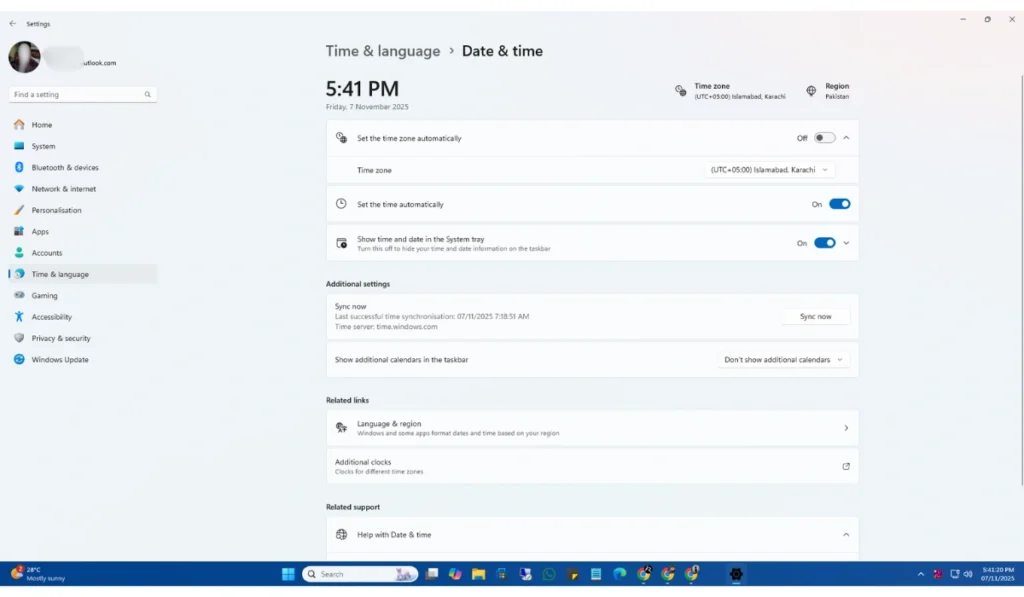
Wrong time settings can make the DMM’s verification request invalid. Setting your device to automatic time helps match the server clock and fix the issue.
If you are using a mobile, then go to your system settings, open Date & Time, and enable Automatic Date & Time. After that, restart Uma Musume and try again.
If you are using a PC, then open Date & Time settings, turn on Set time automatically, and relaunch the DMM Game Player or browser before checking the verification again.
Fix #9: Disable Ad-Blockers or Script Blockers
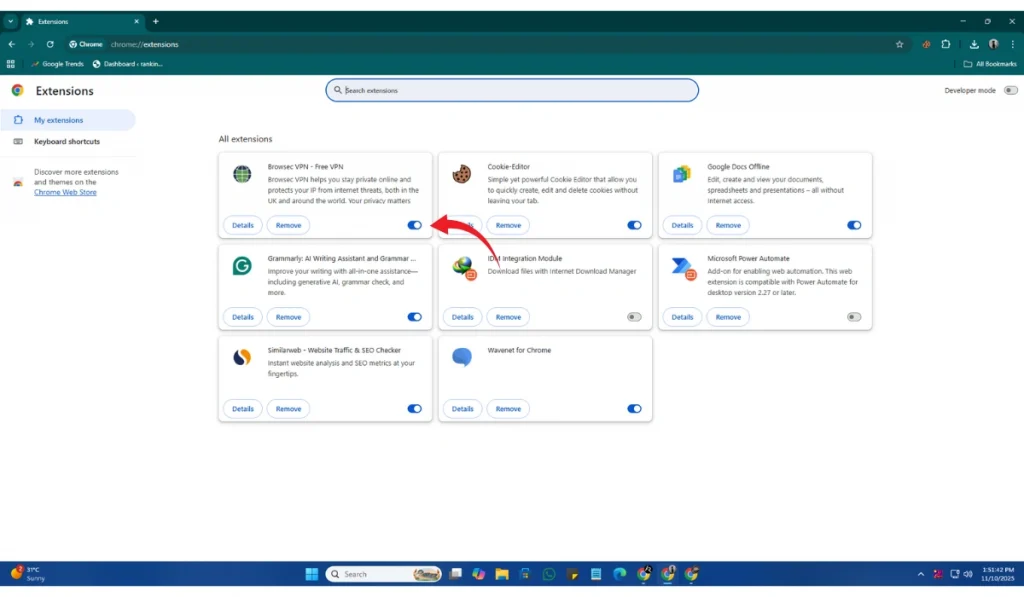
Ad-blockers often block JavaScript from running on websites, including DMM’s verification scripts. Turning them off temporarily can help the verification load properly.
- Open your browser and go to the Extensions page.
- Locate your ad-blocker (such as AdGuard or uBlock Origin).
- Click Disable or switch off the toggle.
- Reload the DMM website.
- Try the age confirmation again.
Fix #10: Reinstall the App or DMM Launcher
If nothing else works, the installation files may be corrupted. Reinstalling removes all broken data and downloads a clean copy.
On Mobile
- Uninstall Uma Musume Pretty Derby.
- Restart your phone.
- Go to the Play Store or App Store.
- Reinstall the game.
- Log in again and verify.
On PC
- Open DMM Game Player and uninstall Uma Musume.
- Delete leftover files from C:\Users[Name]\AppData\Local\DMMGamePlayer.
- Reboot your computer.
- Reinstall the launcher and game.
- Open Uma Musume and retry the verification.
Fix #11: Check DMM Account Age Settings
If your DMM account doesn’t have a valid birth date, the verification fails automatically.
Visit DMM.com, open your Account Settings, and go to Profile. Make sure your birth date is entered correctly, then save the changes and restart the game.
Fix #12: Contact DMM Support
If the issue persists after all fixes, it might be a server- or account-side issue. DMM’s support team can manually verify your account or fix backend errors.
Here are the steps you can follow:
- Open your browser and go to help.dmm.com.
- From the menu, choose Games.
- Select Uma Musume Pretty Derby from the list.
- Click on Contact Support or Submit Inquiry.
- Write that the age confirmation isn’t working and describe your issue.
- Attach screenshots if possible to help them understand the problem.
- Submit the form and wait for DMM’s response.
Prevention Tips to Avoid Errors in Uma Musume
You can stop this issue from happening again with a few habits.
- Keep your browser and Uma Musume app updated.
- Clear the cache weekly to avoid file conflicts.
- Avoid using VPNs when logging in to DMM Games.
- Always check maintenance schedules before gameplay.
- Keep your internet connection stable and avoid switching networks mid-login.
- Don’t block JavaScript or pop-ups in browser settings.
- Log out and log back in to your DMM account from time to time to refresh the system.
These steps keep your connection stable and the verification smooth.
Conclusion
The Uma Musume age confirmation error appears when the system can’t complete your age check through the DMM Games or Cygames platform. This usually happens due to browser settings, cached data, or network issues.
Try the fixes mentioned above and follow the prevention tips to keep the game running smoothly. If the problem persists, contact Cygames Support or DMM Games Customer Service for technical support.
If this guide helped you, share it with other players or leave a comment below. Your feedback can help others quickly solve the same issue.