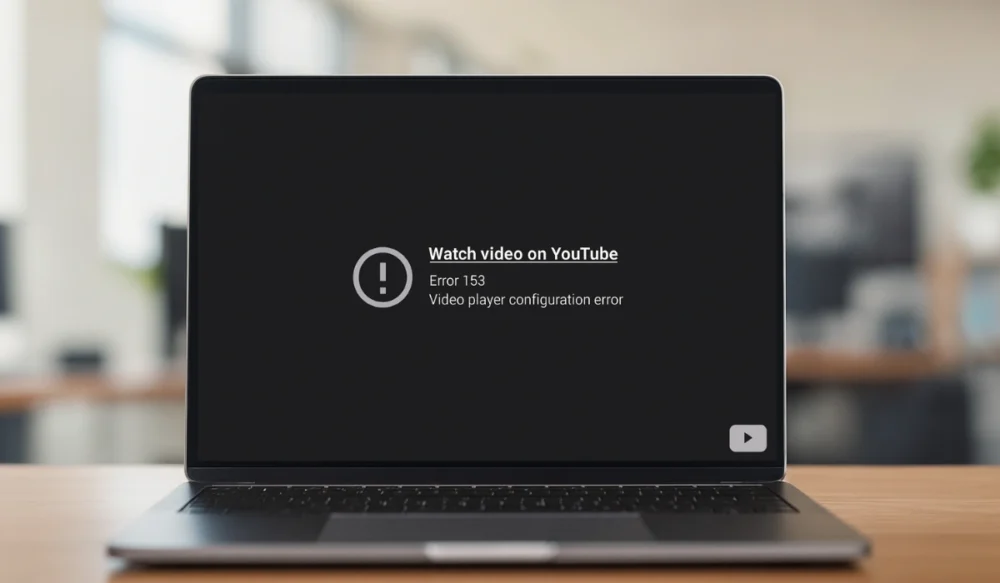
When YouTube shows the “video player configuration error 153,” the video stops and ruins your mood. You want to watch something, but the player refuses to load. This guide explains what the message means, why it happens, how to fix it, and how to prevent it from recurring.
I’ll walk you through it in a simple, friendly way so you can fix it in just a few steps.
What Is Error 153 Video Player Configuration Error on YouTube?
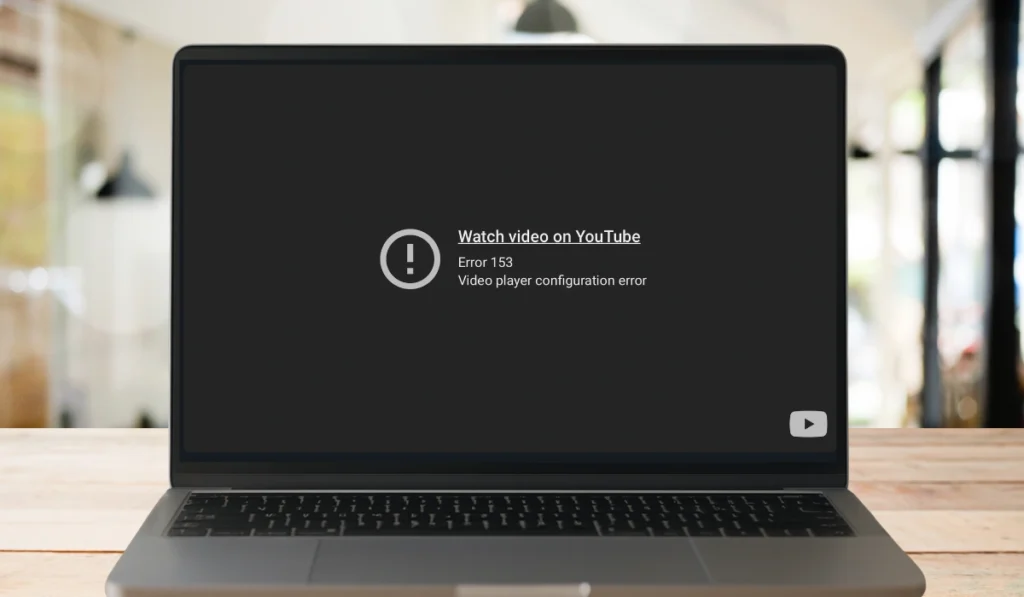
Error 153 shows up when the YouTube video player cannot load its setup. The YouTube HTML5 player needs your browser, your network, and your device to work together. It also requires features such as JavaScript, cookies, video codecs, and GPU support. When one part breaks or stops, the player stops and shows this message.
You may see it on the YouTube website, the mobile app, on smart TVs, inside embedded video frames, or in browsers like Chrome, Firefox, Edge, and Safari. Sometimes it appears before the video starts. Sometimes it shows up during the setup stage when YouTube tries to pull data from the YouTube CDN or your device’s playback engine.
Common Causes of Error 153 on YouTube
This error can appear for various reasons, depending on your settings or device. Here are the most common causes you might meet.
- Old browser cache is blocking the HTML5 player
- Weak WiFi or unstable internet that fails to load the video settings
- Ad blockers or script filters that remove YouTube playback scripts
- Corrupted cookies that break the player handshake
- DNS routing problems that prevent users from reaching the YouTube server
- JavaScript is blocked in the browser
- GPU or graphics driver issues that stop the video renderer
How to Fix 153 Video Player Configuration Error on YouTube?
There are many ways to fix this problem. Here are 12 fixes that work for many users on any device, so I hope this helps.
Fix 1: Check Your Internet Connection
When the internet drops, the YouTube player cannot load its configuration file. A quick check often refreshes the connection.
Try these simple steps to check your network quickly:
- Turn WiFi off and turn it back on
- Restart your router
- Move closer to the router
- Try a mobile hotspot
- Reload the YouTube video
Fix 2: Reload the YouTube Page or App
Sometimes the YouTube player fails once, but not again. A simple reload of the YouTube page or app forces the HTML5 player to fetch new settings.
Fix 3: Clear Cache and Cookies on Browser & App
Old cache or damaged cookies can block video scripts and playback settings. Clearing them gives the player a fresh start.
On Browser
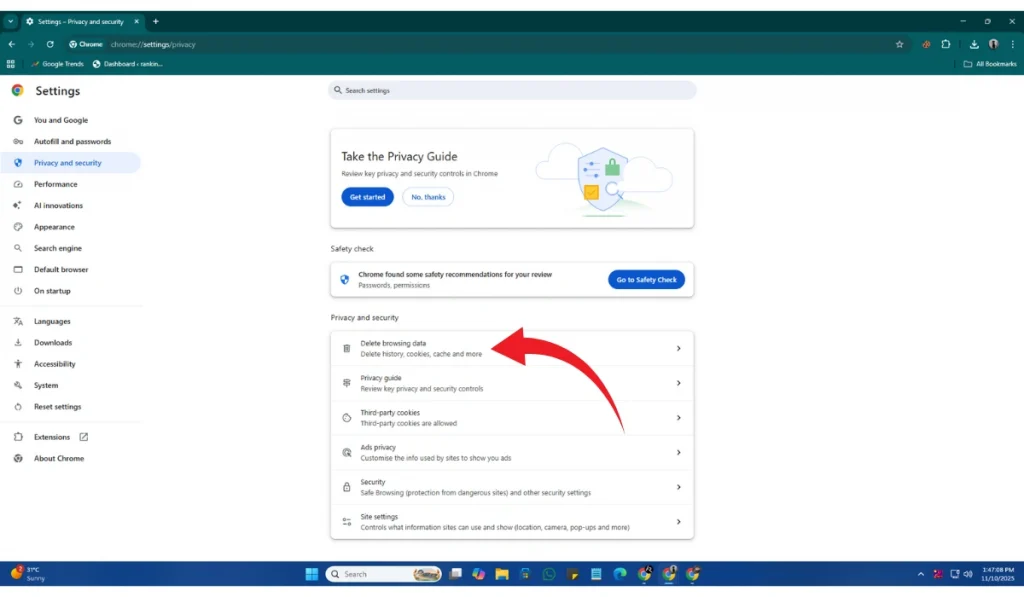
Follow the steps below to clear your cache on browser:
- Open browser settings
- Go to privacy or history
- Click Clear browsing data
- Select cache and cookies
- Restart the browser
- Try YouTube again
On Mobile or Smart TV
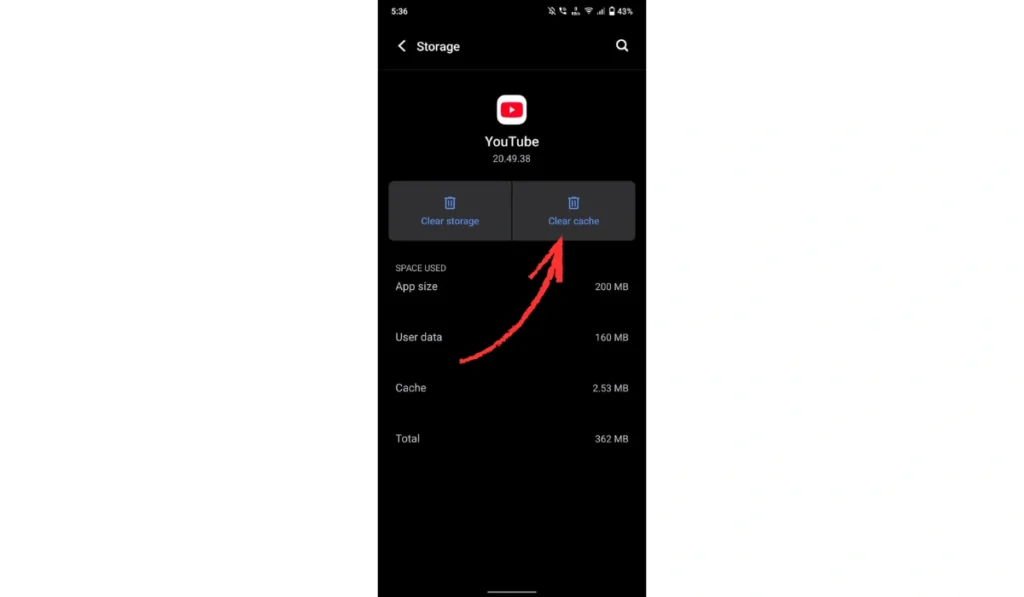
Follow these steps to clear the cache of YouTube apps:
- Go to Settings
- Find App Option
- Serach Youtube
- Go to Storage and Cache
- Clear cache
Fix 4: Disable Your Ad Blocker or Extension
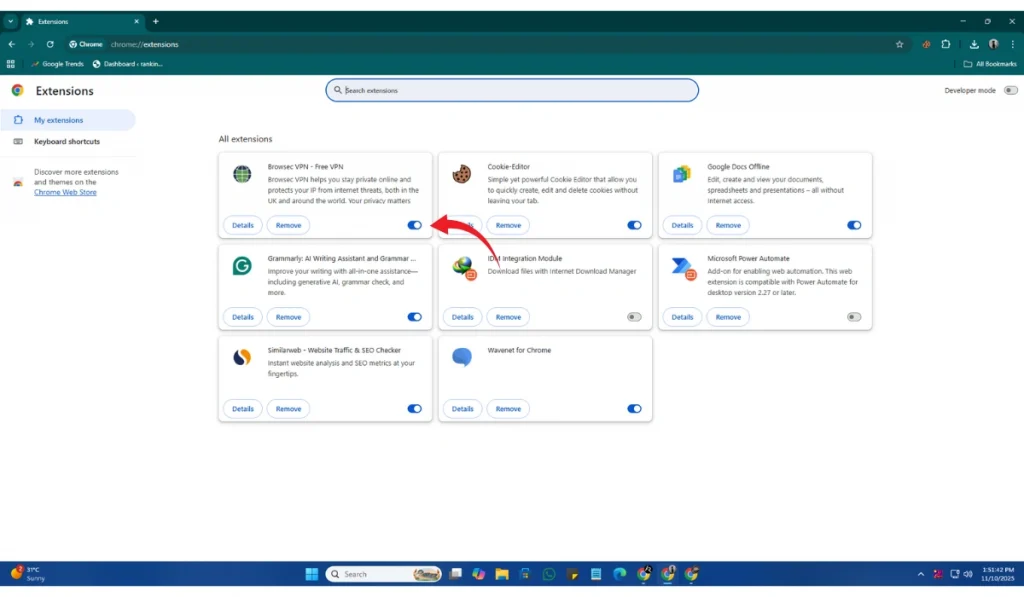
Ad blockers often remove video scripts by accident. When that happens, the HTML5 player cannot set up the video.
You can perform the following steps to turn off an extension:
- Open browser extensions
- Turn off the ad blocker or script filter
- Refresh the YouTube page
- Try the video again
Fix 5: Turn Off VPN or Proxy
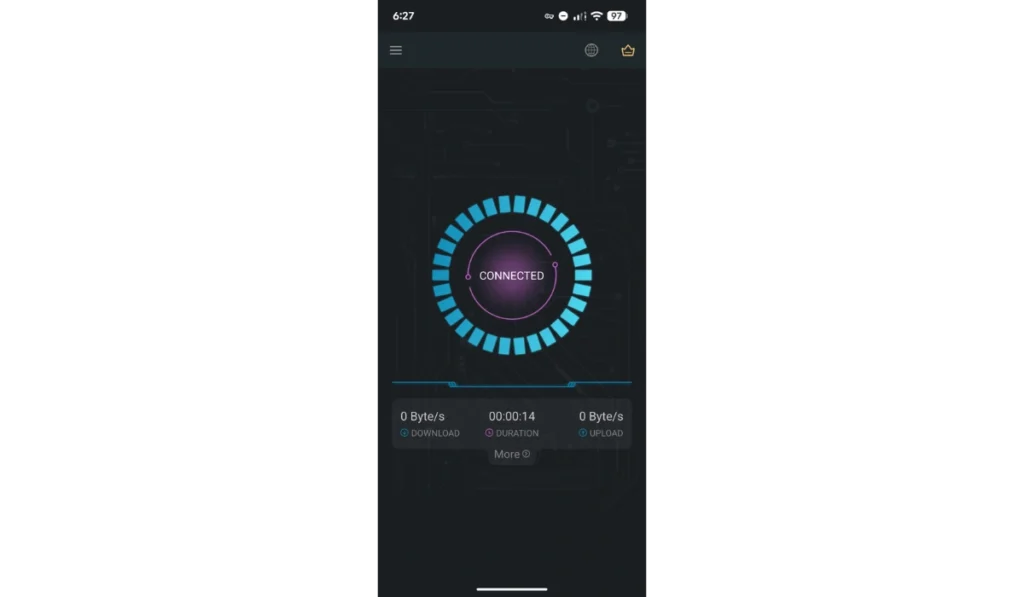
A VPN or proxy can slow down traffic or route it through blocked servers. When the YouTube CDN cannot reach your device, the player fails.
A small change helps here. Turn off your VPN or remove your proxy, then reopen YouTube. The video usually loads fine after that.
Fix 6: Update Your Browser
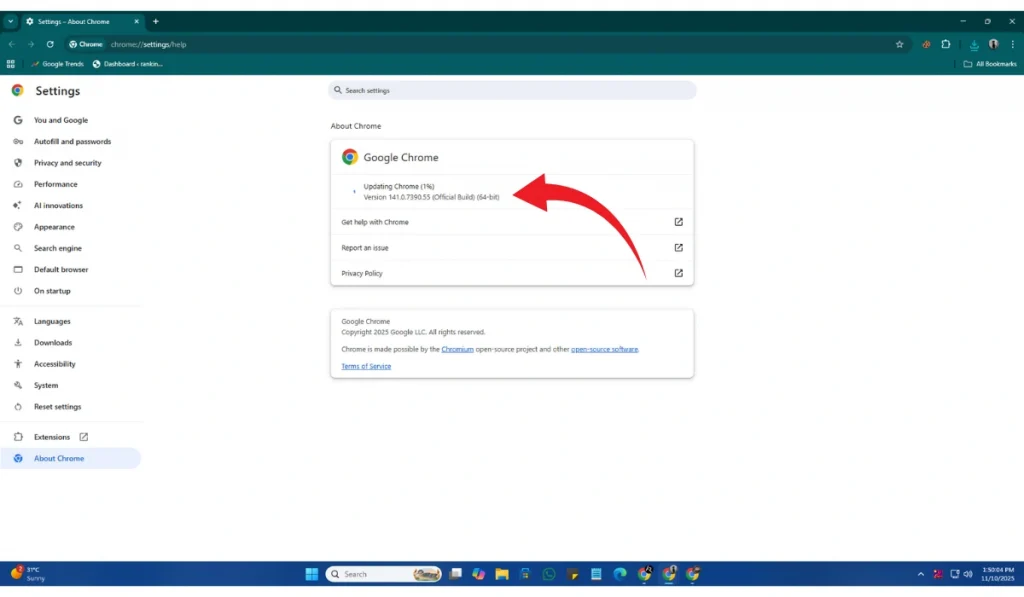
Old browsers miss required video codecs or security updates. Updating fixes that.
Here are the following steps that help you update your browser:
- Open browser menu
- Select help or about
- Check for updates
- Restart the browser
- Try running the video again
Fix 7: Enable JavaScript
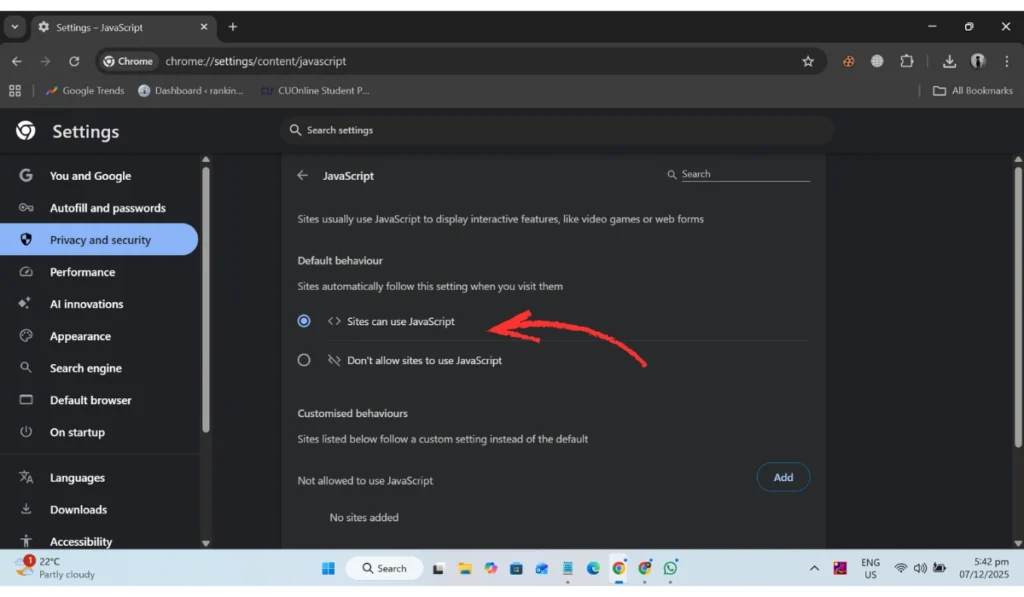
YouTube needs JavaScript to run the video player. If scripts are blocked, the player cannot start.
Follow these easy instructions to enable JavaScript:
- Open browser settings
- Go to the site Setting
- Allow JavaScript
- Refresh YouTube
Fix 8: Try a Different Browser or Device
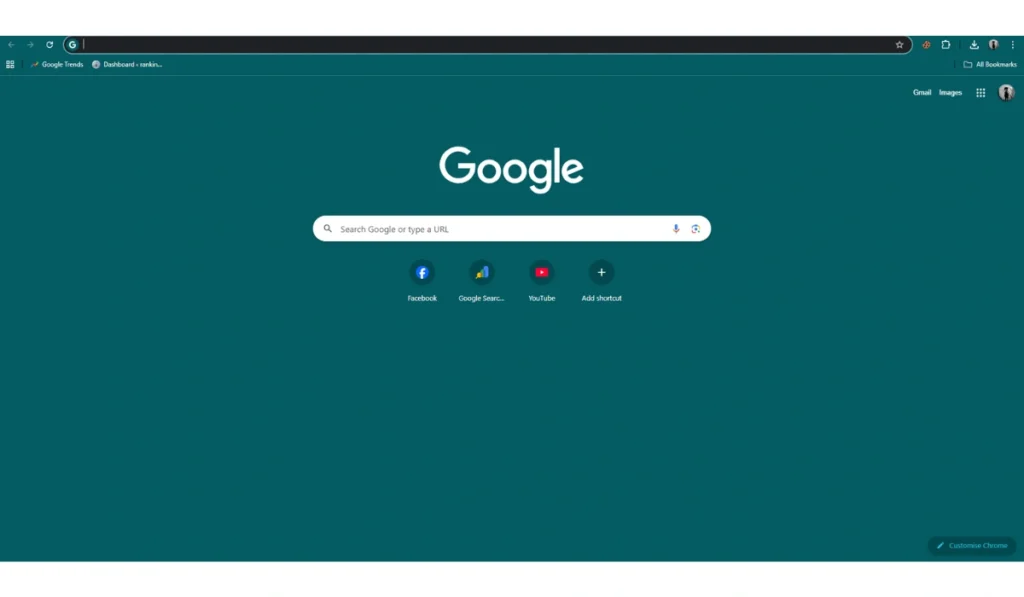
Sometimes one browser has trouble with video playback due to extensions, updates, or engine issues. Trying another browser helps you see if the player works somewhere else. It also helps you find which browser needs fixing, or if you’re on a Mobile, so change it to another to find if this error is present.
Fix 9: Reset Your DNS Settings
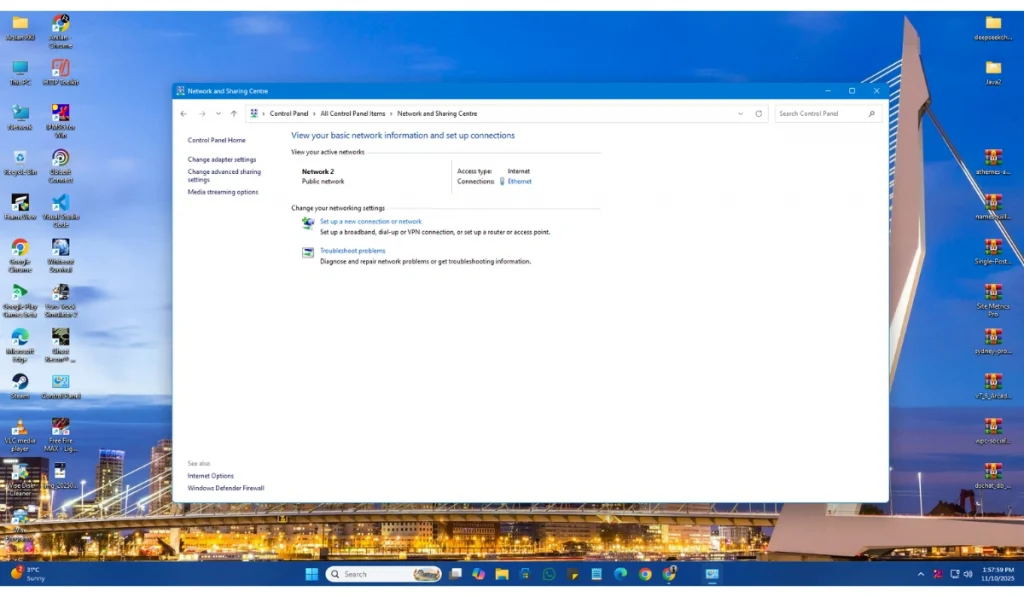
DNS tells your device where YouTube’s servers are. Wrong DNS routing stops the video player setup.
Perform the following steps carefully to update DNS:
- Open network settings
- Change DNS to Google 8.8.8.8 or Cloudflare 1.1.1.1
- Save the settings
- Restart your device
- Try the video again
Fix 10: Turn Off Hardware Acceleration on Browser
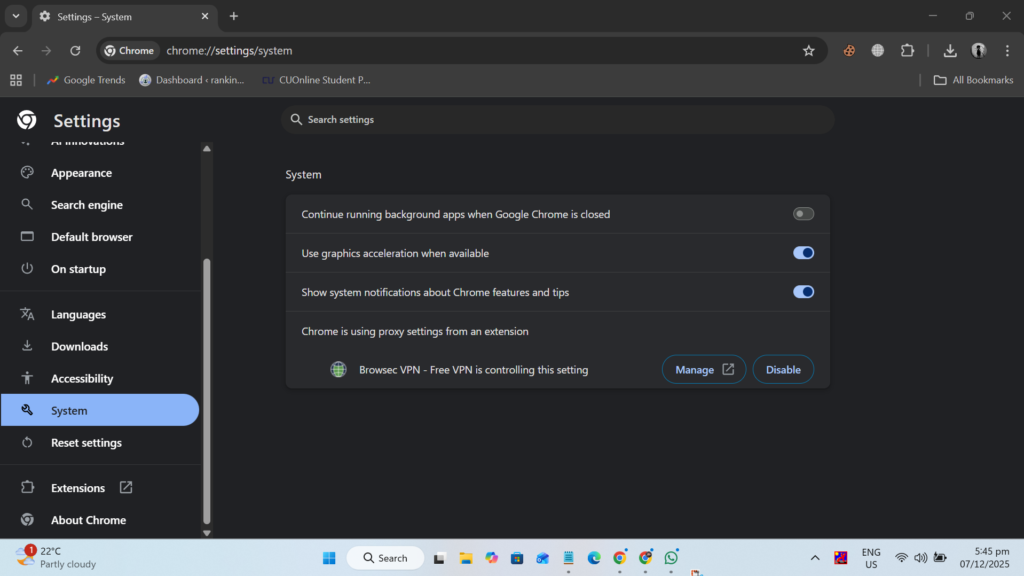
Some GPUs or drivers conflict with the YouTube video renderer. Turning off hardware acceleration forces your browser to use a simpler path.
Below are the steps that will guide you to turn it off:
- Open browser settings
- Search for hardware acceleration
- Switch it off
- Restart the browser
- Try YouTube again
Fix 11: Update Your Graphics Driver
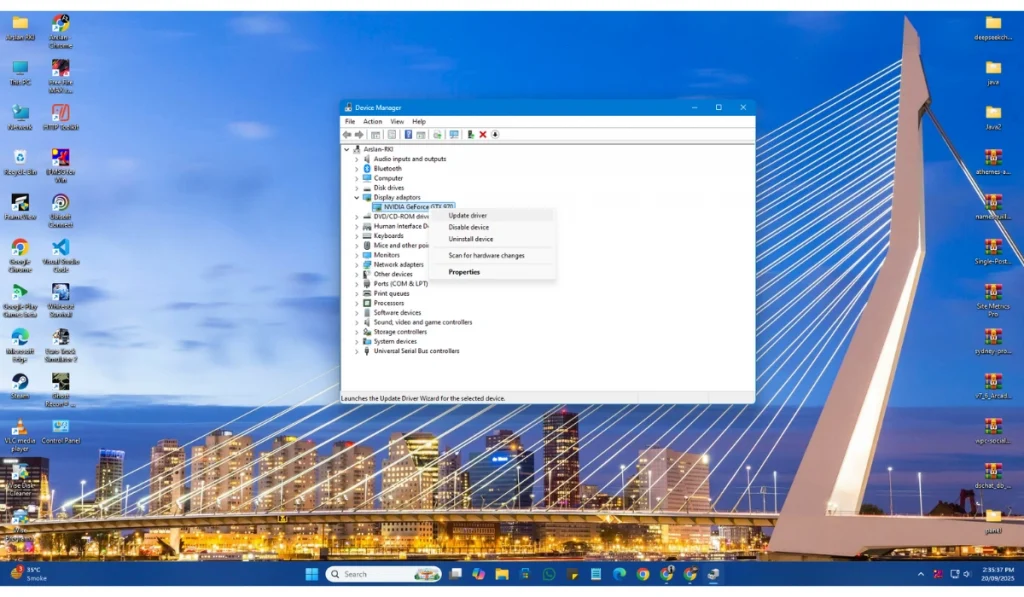
If your graphics driver is old or damaged, the video renderer may fail. Updating the driver resets the GPU path and helps the HTML5 player load cleanly. Go to your device manager or your GPU maker’s site and install the latest version.
Fix 12: Check YouTube Server Status or Wait
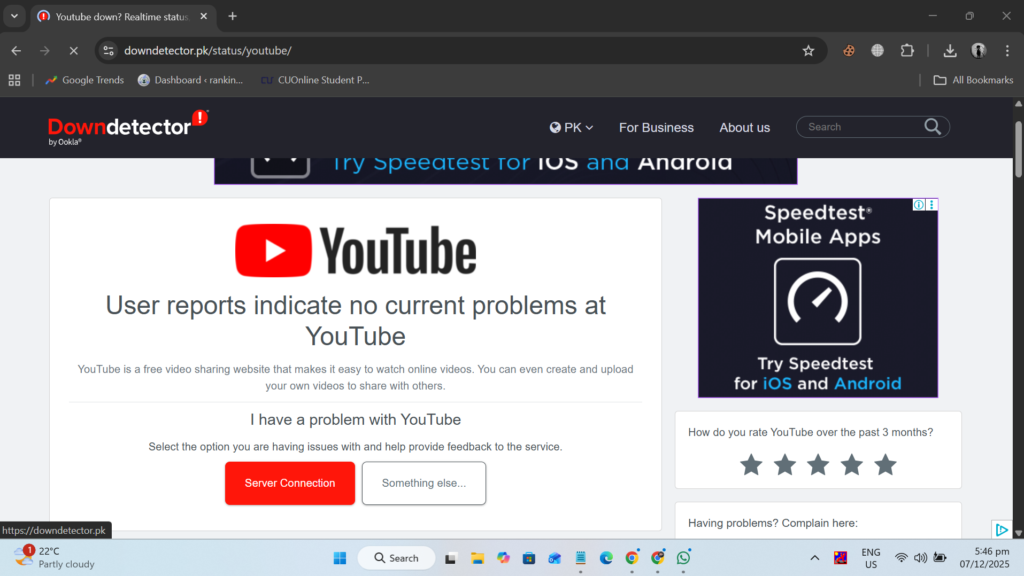
Sometimes the issue is on YouTube’s side. If the YouTube CDN is slow, busy, or under maintenance, the player cannot load its setup. Waiting a few minutes or checking Google’s service status page can help you see if the problem is outside your device.
Fix 13: Update the YouTube App
If you use YouTube on your phone, tablet, smart TV, or streaming device, the app may be out of date. When the app falls behind, the video player cannot load the right settings. Updating the app gives you the newest playback engine, video codecs, and bug fixes.
Here are the following steps that help you update the YouTube app:
- Open your device’s app store
- Search for YouTube
- Tap update if the button appears
- Wait for the download
- Open YouTube again and try the video
You can do this on Android, iPhone, iPad, smart TVs, or devices like Roku and Fire TV.
Fix 14: Uninstall and Reinstall the YouTube App
Sometimes the app files get corrupted. This breaks the video configuration system and triggers error 153. A clean reinstall resets everything. It gives you fresh app data, clean settings, and a new link to the YouTube servers.
Perform the following steps carefully to reinstall the YouTube app:
- Delete the YouTube app from your device
- Restart your device
- Visit your app store
- Download the YouTube app again
- Sign in with your Google Account
- Try playing the video
This fix often works on phones, tablets, and smart TVs when all other fixes fail.
Prevention Tips To Avoid Errors on YouTube
It helps to stop the problem before it shows up again. These steps keep your playback smooth.
- Keep your browser updated
- Restart your router once a week
- Avoid heavy extensions that block scripts
- Keep JavaScript allowed
- Clear the browser cache sometimes
- Update your graphics drivers
- Use stable DNS settings
Conclusion
In short, error 153 shows up when the YouTube video player cannot load the settings it needs to run. It often stems from browser issues, network problems, blocked scripts, or device driver issues.
Try the fixes and tips above. Most of them work quickly and prevent the error from recurring. If the problem persists, you should reach out to Google Support or check whether YouTube is experiencing a service issue. And if this guide helped you, feel free to comment or share it with someone who may be stuck on the same problem.