When Netflix throws the NW-2-5 error in the middle of your movie night, it feels annoying and confusing. This error message matters because it blocks your stream, wastes time, and usually points to a real problem between your device and the Netflix service. In this guide, you will see what Netflix Error Code NW-2-5 means, where it shows up, what usually causes it, how you can prevent it, and when to seek help from Netflix support.
What Is Netflix Error Code NW-2-5?
Netflix Error Code NW-2-5 is a network connectivity error. It tells you that your device tried to reach the Netflix servers but either took too long or could not create a stable connection through your current internet setup. According to the official Netflix Help Center, NW-2-5 usually points to a problem in your home network or device connection, not a random bug in the app. This means the route between your smart TV, streaming box, game console, or set-top box and Netflix is blocked, slow, or misconfigured.
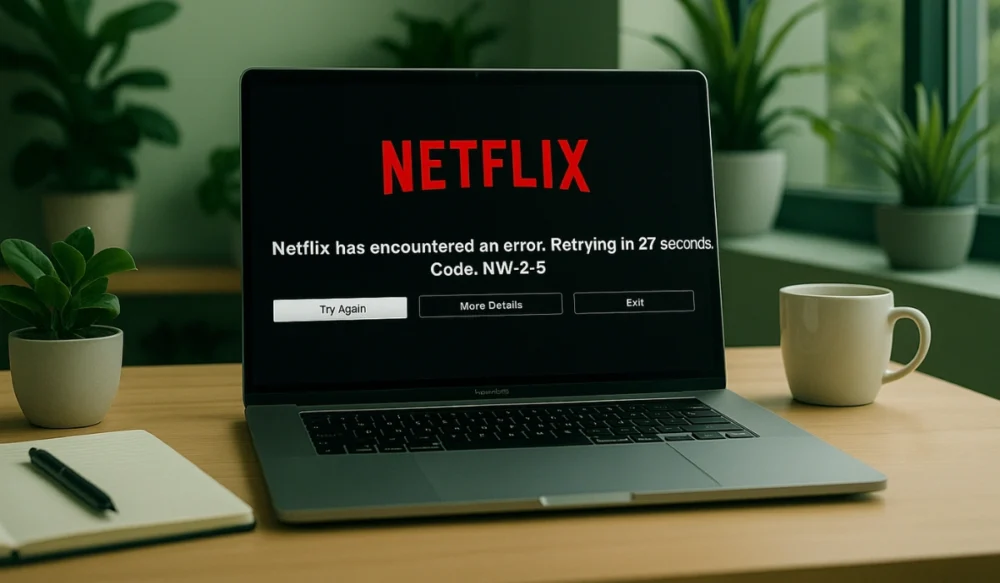
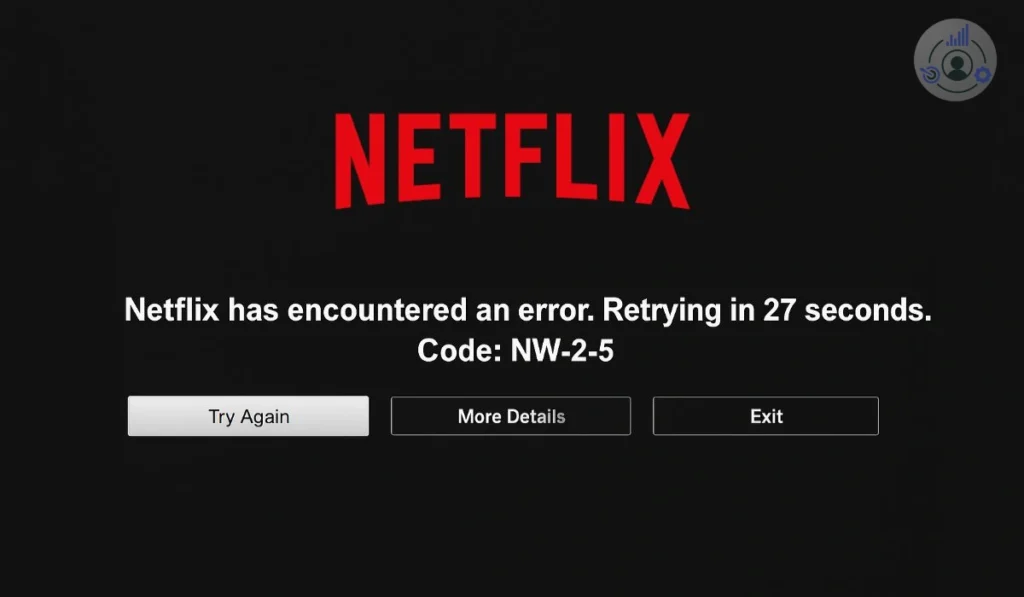
You normally see NW-2-5 on the Netflix screen while using devices like smart TVs, Blu-ray players, Roku, Amazon Fire TV, PlayStation, Xbox, or other streaming media players. The message often appears when you open the Netflix app, run a network test, or try to start a show from the Netflix home screen. Sometimes it appears with the line “Netflix has encountered an error. Retrying in [X] seconds. Code: NW-2-5,” which confirms the problem is tied to the network path between your device, your router or modem, and your Internet Service Provider (ISP).
Common Causes of Netflix Error Code NW-2-5
This error can happen for several reasons, depending on your device and settings. Below are common, specific triggers:
- Weak or unstable Wi-Fi signal between your streaming device and router,which breaks the link to Netflix servers.
- Incorrect or custom DNS server settings that stop Netflix domains from resolving correctly at network level.
- Outdated router firmware or misconfigured router settings that block traffic or cause timeouts.
- Active VPN or proxy configuration that hides your real IP and conflicts with Netflix regional content rules.
- Corrupted Netflix app data or cached network settings on the smart TV, console, or streaming player.
- ISP routing issues, temporary internet outage, or content filtering that interrupts access to Netflix infrastructure.
- Device software or firmware that is old, buggy, or not fully compatible with the latest Netflix app requirements.
These causes connect to key entities like router, modem, ISP, DNS server, Wi-Fi network, smart TV operating system, VPN client, and the Netflix application, which helps both users and search engines understand the full context of NW-2-5.
How to Fix Netflix Error Code NW-2-5?
When Netflix shows the NW-2-5 error, it means your device can’t reach Netflix’s servers. It usually comes from a network, DNS, or app issue, but you can fix it yourself in minutes. Try these 11 practical fixes whichnormally work for many users:
Fix #1: Restart Your Device and Internet Equipment
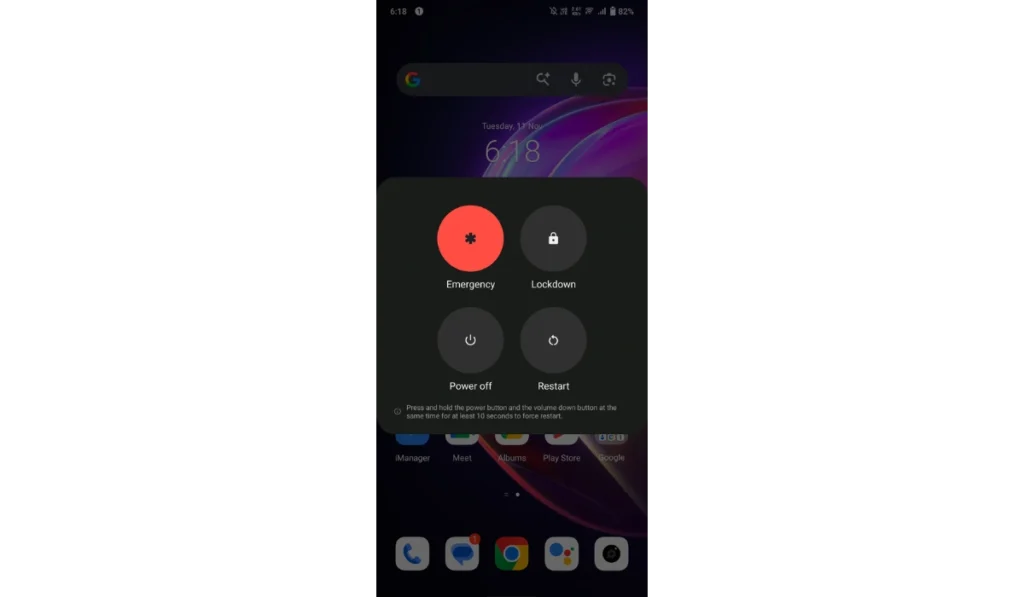
A quick restart refreshes your connection with your Internet Service Provider (ISP) and Netflix’s servers. It clears hidden errors in your router or device memory.
Follow these steps to restart correctly:
- Turn off your smart TV, console, or streaming stick.
- Unplug your router and modem for 30 seconds.
- Plug them back in and wait for all lights to stabilize.
- Turn your device back on.
- Open Netflix and check if it works.
Fix #2: Check Your Internet Connection
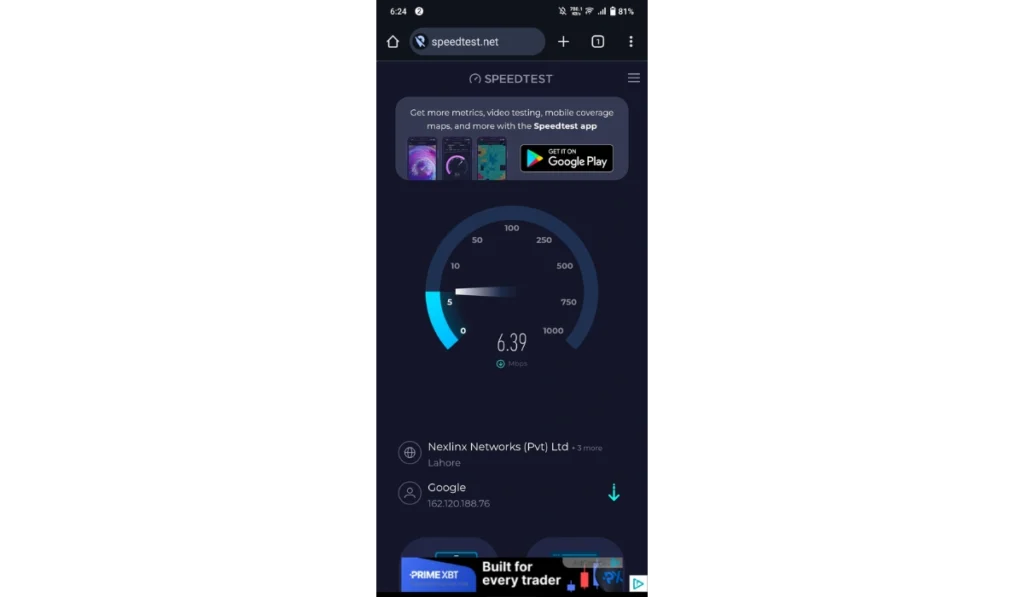
Netflix depends on a stable connection. Weak or unstable Wi-Fi can cause NW-2-5 to appear repeatedly.
Try these quick checks:
- Open another app or website to test internet speed.
- If it’s slow, restart your router.
- Move closer to your Wi-Fi router or use Ethernet.
- Pause downloads or other streaming on the same network.
- Run a speed test, Netflix needs at least 5 Mbps for HD.
Fix #3: Turn Off VPN or Proxy
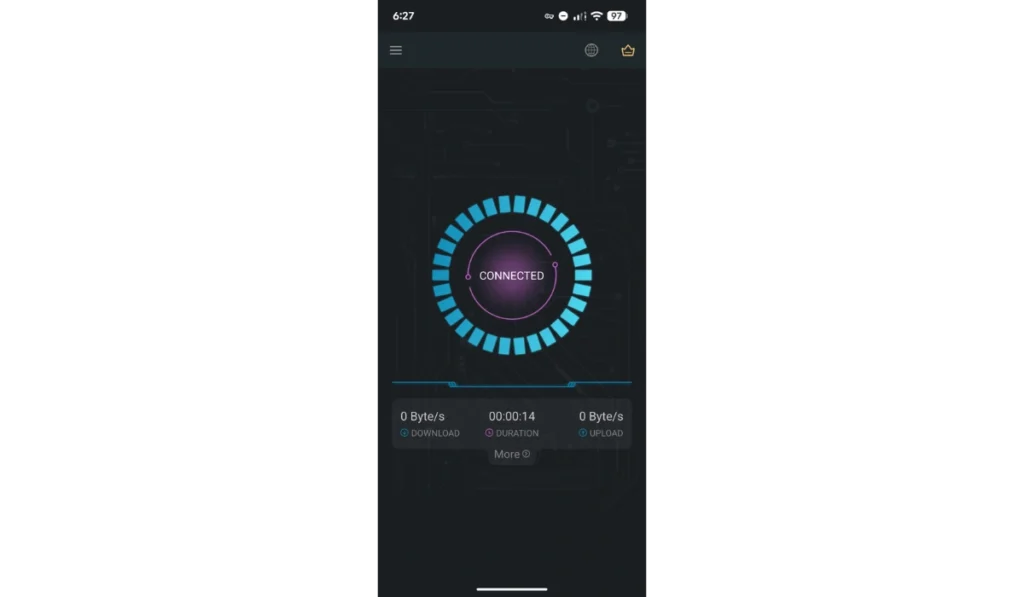
If you’re using a VPN or proxy, Netflix may block it. These tools hide your IP and can confuse Netflix’s location systems.
Go into your network or VPN settings and switch them off. Then reconnect to your normal Wi-Fi and open Netflix again.
Fix #4: Check Netflix Service Status
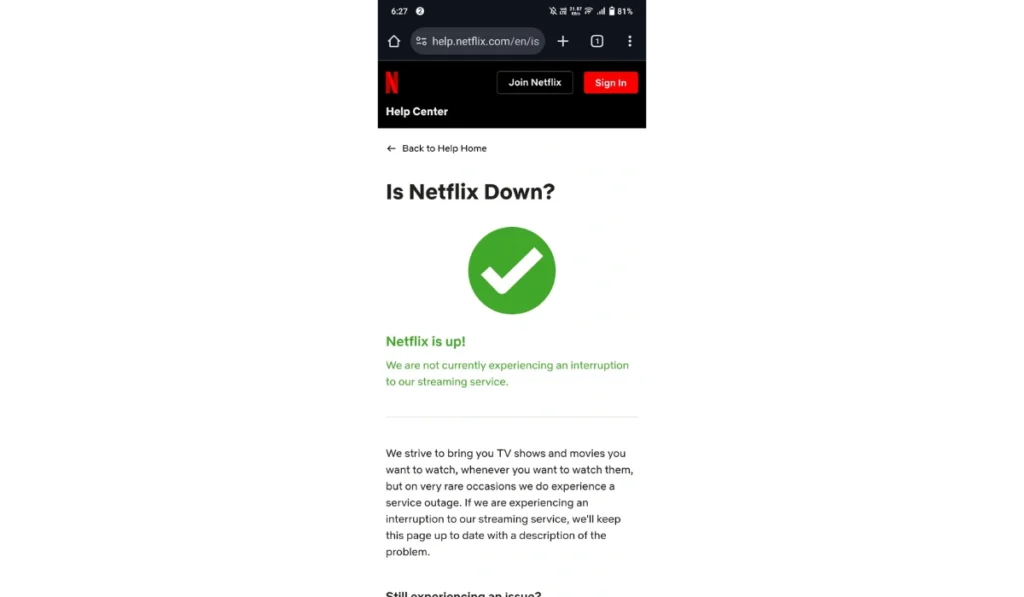
Sometimes, Netflix is temporarily down. This happens when servers are under maintenance or facing technical problems.
Go to help.netflix.com or visit Downdetector.com to see if other users are reporting issues. If Netflix is down, you’ll just need to wait a short time until it’s fixed.
Fix #5: Update the Netflix App
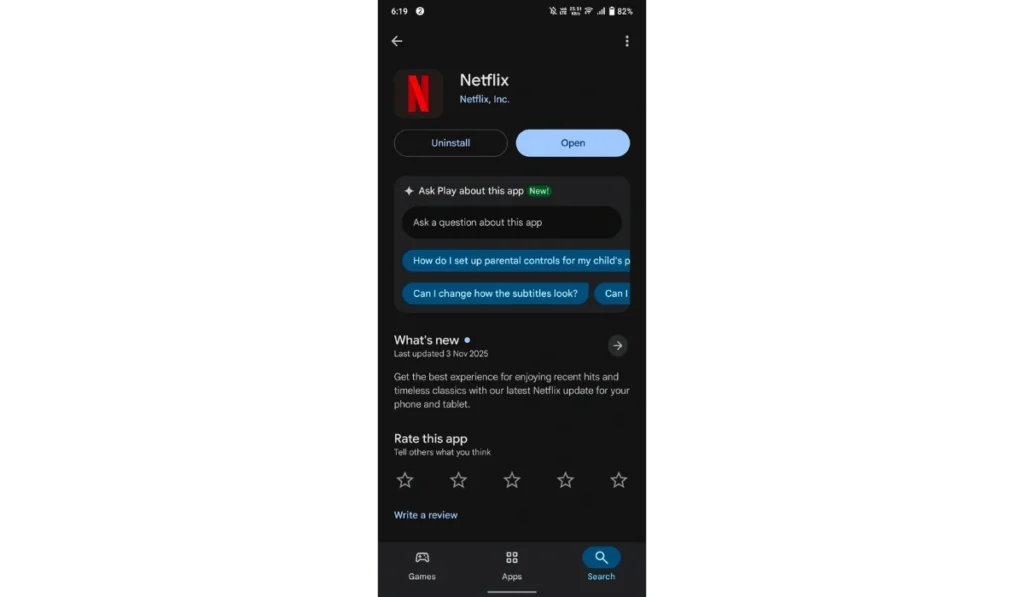
Outdated app versions often lose connection with Netflix servers. Updating restores compatibility.
Here’s how you can update the app quickly:
- Open your TV or device’s app store.
- Search for Netflix.
- If an update is available, select “Update.”
- Wait for the process to finish, then relaunch Netflix.
Fix #6: Update Your System Software
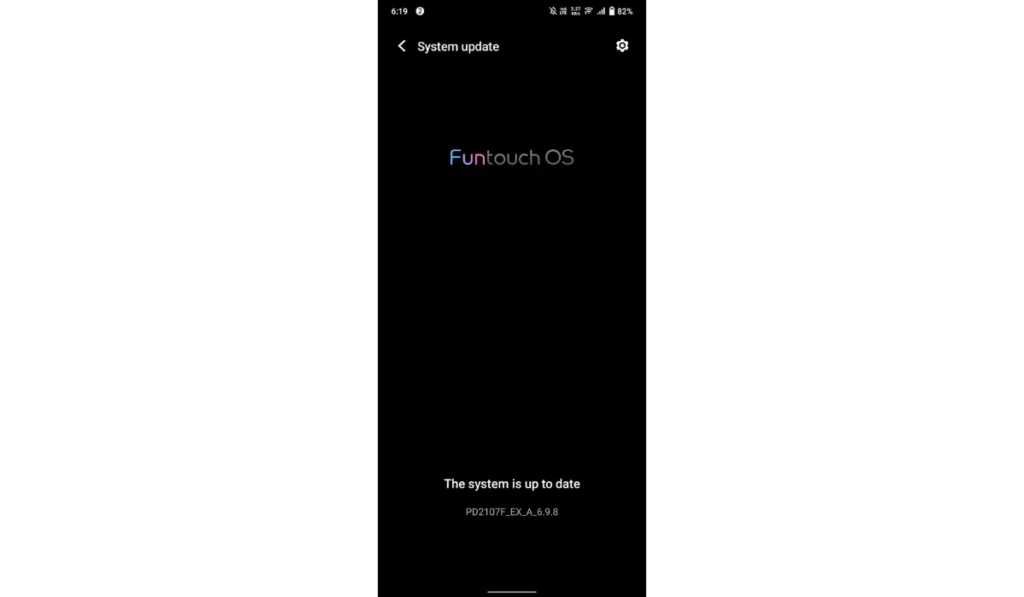
An outdated operating system can interrupt how your device connects to Netflix. Updating it ensures compatibility and fixes hidden bugs.
Follow the steps below to update your system:
- Open your device’s settings or system menu.
- Find “Software Update” or “System Update.”
- If an update is available, download and install it.
- After installation, restart your device.
- Open Netflix again and check if it works.
Fix #7: Clear Netflix App Cache
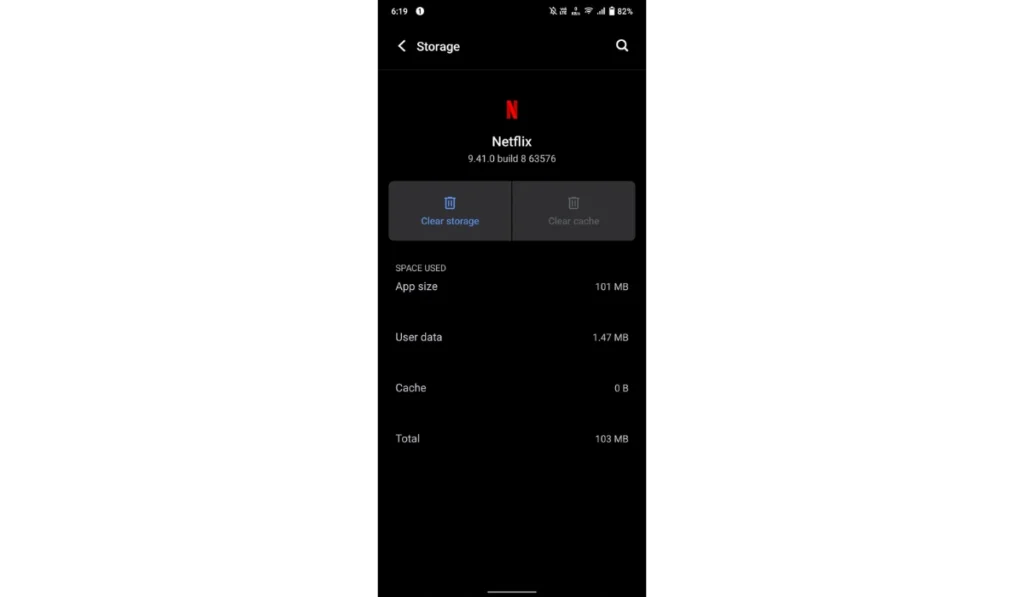
Over time, app cache builds up and may block new data from loading correctly. Clearing it can remove small software bugs.
Perform these steps carefully:
- Open Settings on your smart TV, console, or streaming stick.
- Go to “Apps” or “Application Manager.”
- Select Netflix.
- Tap “Clear Cache” or “Clear Temporary Data.”
- Restart your device and try Netflix again.
Fix #8: Uninstall and Reinstall Netflix
If clearing the cache doesn’t help, reinstalling gives the app a fresh start and rebuilds the link to Netflix’s servers.
Follow these easy steps:
- Go to your device’s Apps or Storage section.
- Select Netflix and choose “Uninstall.”
- Restart your device once.
- Reinstall Netflix from the official app store.
- Sign in and test streaming.
Fix #9: Reset or Update DNS Settings
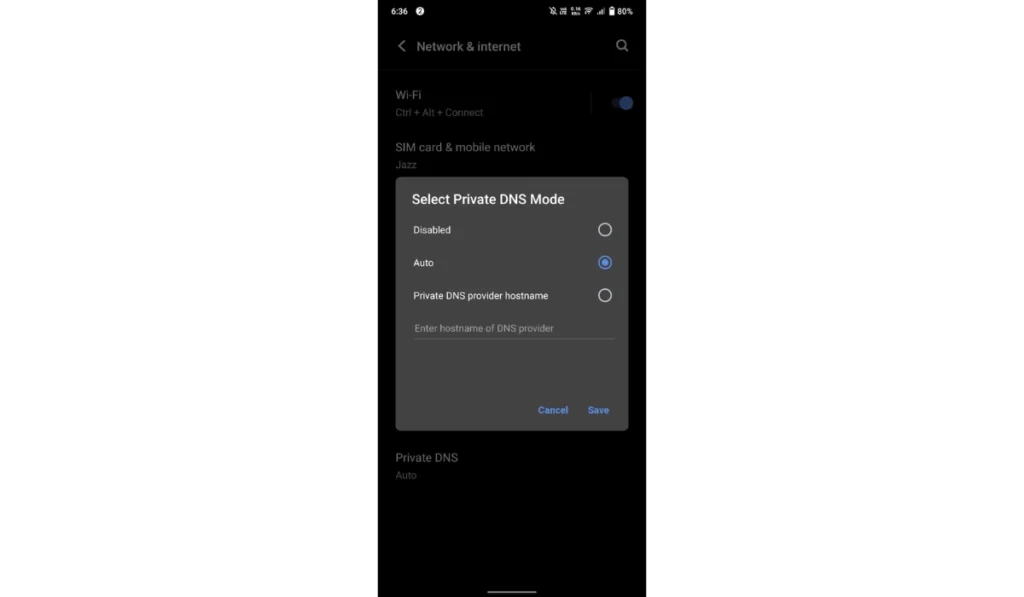
Incorrect DNS settings stop your device from locating Netflix servers. Resetting to automatic or using public DNS can fix this.
The following steps will help you adjust DNS settings:
- Open your device’s network settings.
- Select “DNS Setup” or “Advanced Network.”
- Choose “Automatic,” or enter Google DNS (8.8.8.8 and 8.8.4.4).
- Save changes and reconnect to your Wi-Fi.
- Launch Netflix to test it.
Fix #10: Check Router and Network Configuration
Some router settings block streaming by mistake. Checking them ensures Netflix traffic isn’t being filtered.
You can perform these steps:
- Log in to your router’s admin page (type 192.168.1.1 in your browser).
- Check Firewall or Parental Controls sections.
- Turn off any filters or streaming restrictions.
- Update router firmware if available.
- Save and restart your router.
Fix #11: Contact Netflix Support
If none of these fixes work, the issue may need direct help from Netflix. Their support team can check your account, region, and connection logs.
Visit help.netflix.com/contactus and choose the chat or call option. Explain that you’re getting error code NW-2-5, mention your device type, and share what you’ve already tried. They’ll guide you through advanced troubleshooting.
Prevention Tips to Avoid Netflix NW-2-5 Error
If someone keeps running into NW-2-5, simple habits help reduce future problems. These tips focus on network stability, clean software, and trusted settings:
- Restart the router and modem on a regular schedule to clear old sessions and keep the home network stable.
- Keep the Netflix app, smart TV firmware, streaming stick OS, and game console software updated from official sources.
- Use a wired Ethernet connection for main streaming devices when possible, especially for 4K or shared households.
- Avoid VPN and proxy tools with Netflix, unless they are off and not routing traffic during streaming.
- Use reliable DNS servers, such as the ones from your ISP or well known public DNS providers, and avoid random or untrusted entries.
- Place the Wi-Fi router in an open, central spot to reduce walls, signal loss, and interference from other devices.
- Check with your ISP if streaming often buffers or fails, and confirm your plan and routing support stable video traffic to Netflix.
These steps build a cleaner path between your device and Netflix servers, which helps prevent NW-2-5 and related Netflix network errors such as NW-1-19 or NW-2-4.
Conclusion
In short, Netflix Error Code NW-2-5 is a signal of a connection problem between your device, your home network equipment, and the Netflix platform.It usually ties back to Wi-Fi quality, DNS settings, router configuration, VPN or proxy use, outdated software, or limits from the ISP side.Knowing these core causes gives readers a clear way to think about the issue instead of guessing.
If this error keeps coming back, users should review their network setup, confirm their hardware and software are trusted and updated, and then reach out to Netflix Support or their Internet Service Provider for deeper checks.Official support can run tests based on the device type, region, and connection route to confirm if the problem sits in the app, the network, or the provider. Readers can share their experience, ask questions, or comment with their device model and setup details so others can learn from real cases.