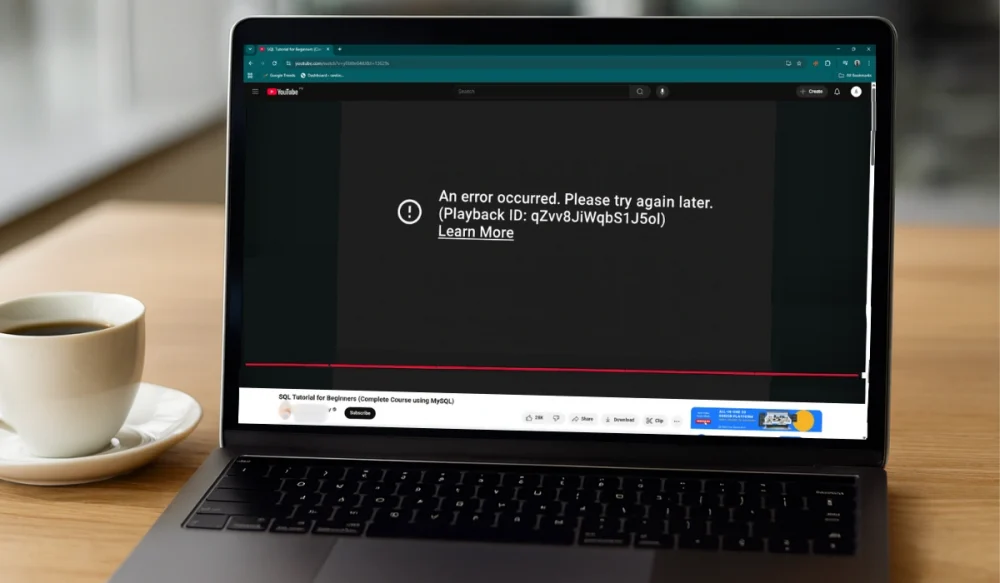
You open YouTube to watch a video, but instead of the video starting, you see a message that says“An error occurred. Please try again later. (Playback ID: XXXXX)”. This error prevents videos from loading, disrupting your streaming time. It can happen on Chrome, Firefox, Safari, or even on the YouTube app. I know you’re frustrated right now; you want to freshen your mind on YouTube, but this error completely distracts you.
In this guide, you’ll learn what this playback ID error means, why it happens, how to fix it, and how to stop it from coming back. The fixes are simple, short, and easy to follow.
What is the “An Error Occurred Playback ID” Error on YouTube?
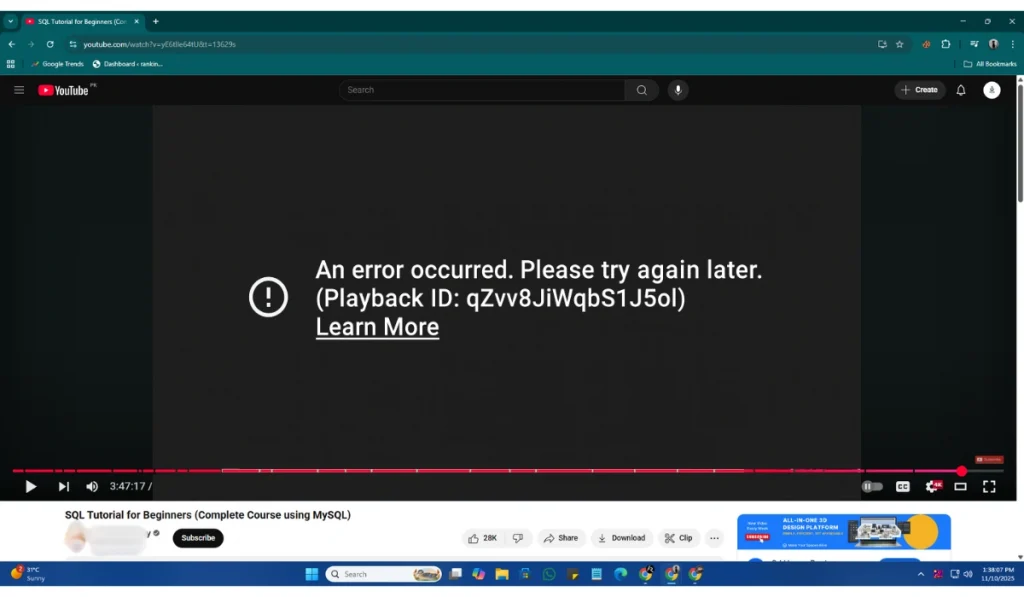
The YouTube playback ID error message shows up when your browser or app cannot connect properly to the YouTube server. The error usually pops up with an error message “Playback ID: XXXXX“, which helps YouTube identify the issue in their system. It usually happens when there’s a small break in communication between your device and the YouTube server.
This error can pop up on desktop browsers like Google Chrome, Mozilla Firefox, or Microsoft Edge, and on the YouTube app for Android or iPhone. On smart TVs or game consoles, the same message might appear when streaming videos from the built-in YouTube app. Sometimes, when switching between videos or when your network connection breaks.
Common Causes of the YouTube Playback ID Error
Before fixing this error, understand the reasons behind this error, because this will help you avoid mistakes in the future. Many things can cause the playback ID error. It’s not always YouTube’s fault; sometimes, it’s your browser or network setup.
Here are some common causes:
- Outdated browser version that doesn’t support the latest YouTube player.
- Broken or corrupted cache and cookies are blocking video loading.
- Incorrect DNS configuration or unstable IP address.
- A VPN or proxy connection is interfering with YouTube’s streaming servers.
- Temporary ISP issue or blocked YouTube data route.
- Conflicting browser extensions or ad blockers.
- Expired Google Account session or invalid YouTube cookies.
Each of these issues can stop the browser or app from communicating smoothly with YouTube’s content delivery network (CDN), where videos are hosted.
How to Fix the “An Error Occurred Playback ID” Error on YouTube?
When YouTube shows the message“An error occurred. Please try again later. (Playback ID: XXXXX)”, It means your browser or app couldn’t connect properly to YouTube’s servers. Below are some practical fixes to help you easily resolve this playback error. Try all these fixes one by one.
Fix #1: Refresh and Restart Your Browser or Device

Sometimes, a simple refresh on your app and browser can easily fix the issue. Your browser might lose its session with YouTube or stop loading scripts correctly. Closing and reopening it rebuilds a clean connection to YouTube servers. Close the YouTube tab or app that’s showing the error, and then open it again. If the issue persists, restart your browser or device completely and try again.
Fix #2: Clear Browser or App Cache and Cookies
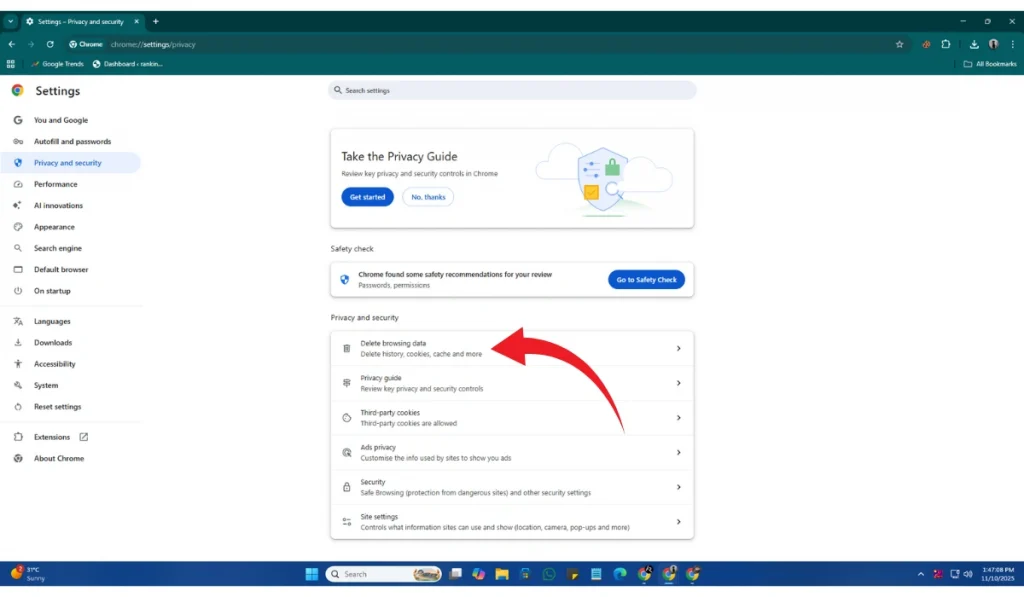
Old or damaged cache files often block YouTube from loading correctly. Cookies can store outdated session data that conflicts with playback—clearing both forces the browser or app to fetch new YouTube data, often fixing the issue.
Here are the simple steps you can follow to clear cache and cookies on Mobile and browser:
On Browser:
- Open Settings > Privacy and Security.
- Click Clear browsing data.
- Select Cookies and Cached images.
- Click Clear data and restart your browser.
On Mobile:
- Click on the YouTube app icon for at least 3 to 4 seconds.
- Click on App Info
- Choose Storage and cache
- Click Clear cache and restart your device.
Fix #3: Update Your Browser or Operating System
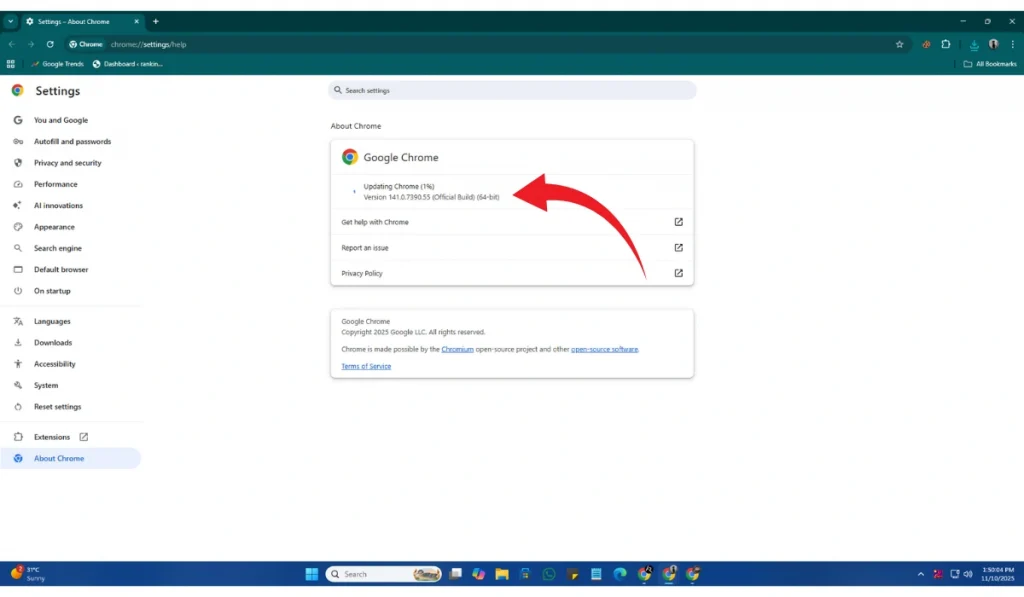
An outdated browser or OS might not support YouTube’s current HTML5 player or video codecs. Updating both ensures you have the latest compatibility fixes and security patches.
On Browser:
- Go to Help
- Click on About [Your Browser]
- And let it check for updates.
- Once done, restart and test YouTube again.
On Mobile:
- Go to Mobile Settings
- Click on System Updates
- If Updates Available is done, it
- Restart your device and try again.
Fix #4: Disable Browser Extensions
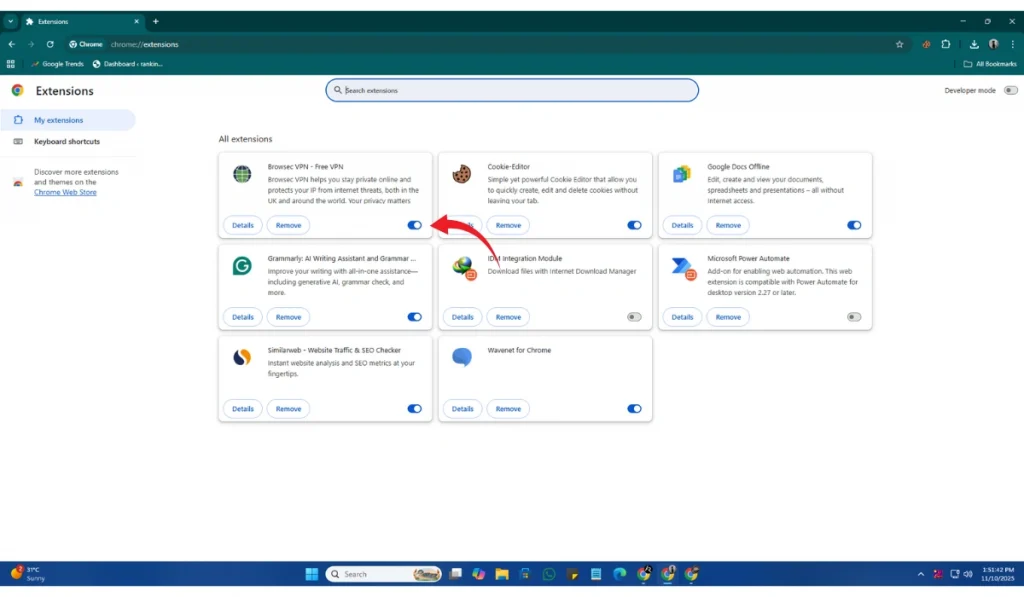
Some extensions, such as ad blockers or script managers, can interfere with how YouTube loads videos. Turning them off can quickly show if one is the problem.
Follow these steps to turn off extensions:
- Open chrome://extensions/.
- Turn off all add-ons.
- Refresh YouTube.
- Re-enable one by one to find the cause.
Fix #5: Flush DNS Cache
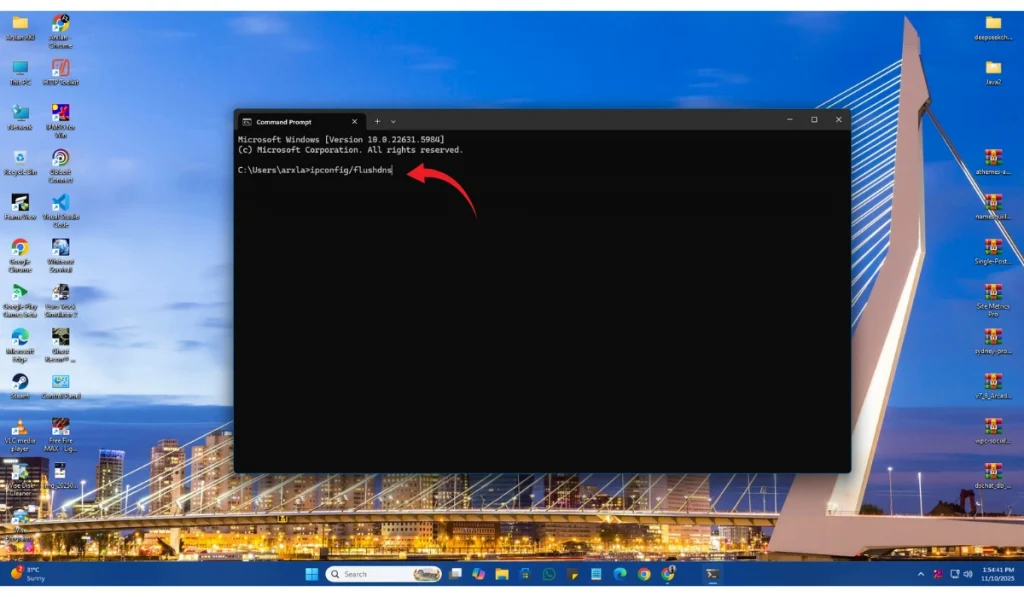
The DNS cache stores old network data, which can sometimes cause it to send your requests to outdated YouTube servers. Flushing the cache clears those records and forces your device to reconnect properly.
Follow these steps to flush DNS:
- Open Command Prompt.
- Type ipconfig /flushdns.
- Press Enter.
- Restart your browser and test YouTube.
Fix #6: Change DNS Server to Google or Cloudflare
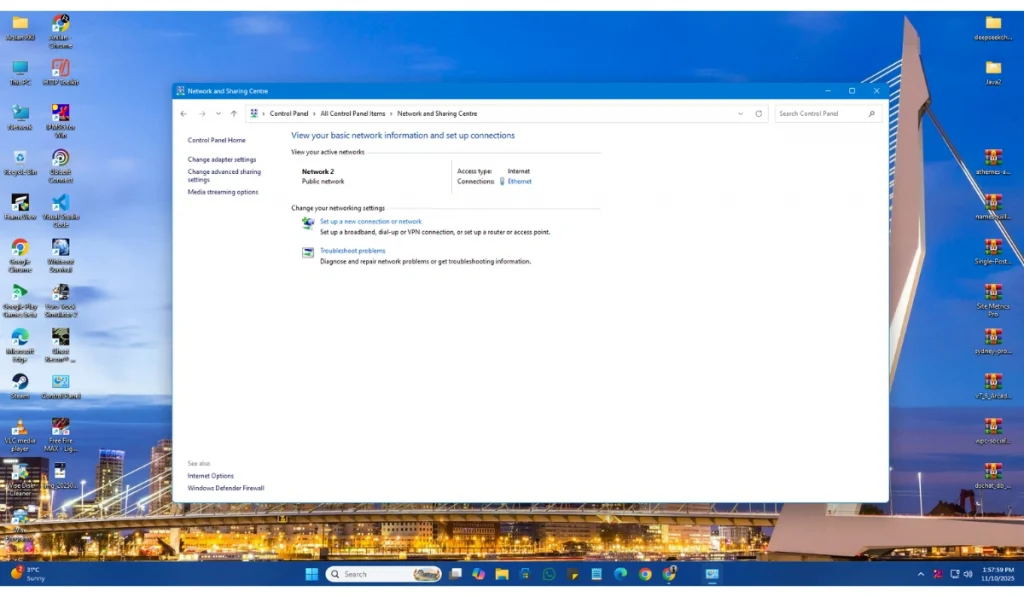
If your current DNS provider is slow or unstable, YouTube might time out before loading the video. Switching to Google DNS or Cloudflare can improve speed and reliability.
Follow the given steps to change DNS:
- Open Control Panel > Network and Internet > Network Connections.
- Right-click your active network and select Properties.
- Click Internet Protocol Version 4 (TCP/IPv4).
- Choose Use the following DNS server addresses and enter:
- Preferred: 8.8.8.8
- Alternate: 8.8.4.4
- (For Cloudflare, use 1.1.1.1 and 1.0.0.1)
- Click OK and restart your system.
Fix #7: Disable VPN or Proxy

VPNs and proxies can reroute traffic through remote servers, which sometimes delays or blocks YouTube data. Turn them off temporarily and reload YouTube. If the video plays normally, the VPN or proxy was the cause. It’s best to use YouTube directly without rerouted connections for smooth playback.
Fix #8: Sign Out and Sign Back In to Your Google Account
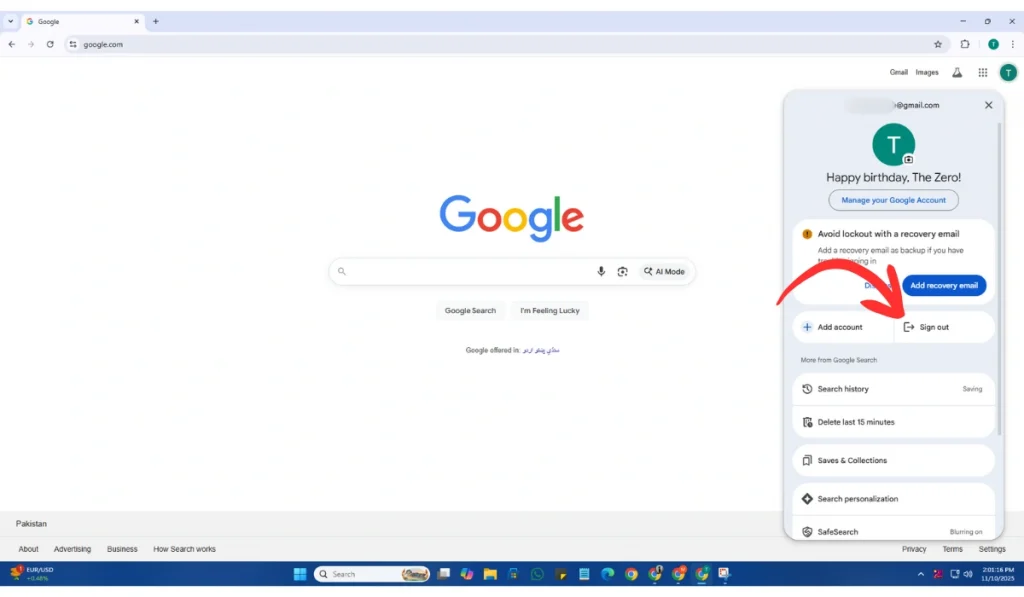
Your Google session can expire or become corrupted, interrupting playback. Signing out and back in resets your account connection with YouTube. Click your profile icon on YouTube, select Sign out, close your browser, reopen it, and then log in again. This refreshes your YouTube cookies and fixes most session-related issues.
Fix #9: Reset Network Settings

A broken or outdated network setup can block YouTube from loading correctly. Resetting network settings restores default configurations and clears hidden issues.
Follow these steps to reset network settings (Windows):
By using Command Prompt:
- Open Command Prompt as Administrator.
- Enter these commands one by one:
- netsh winsock reset
- netsh int ip reset
- ipconfig /release
- ipconfig /renew
- ipconfig /flushdns
- Press Enter after each command.
- Restart your computer.
By Using Window Settings
- Right-click on the Internet Icon
- Go to Network Settings
- Find Advanced Settings
- Choose Rest Network Settings
- Reset and try again
Fix #10: Reinstall or Update the YouTube App (Mobile)
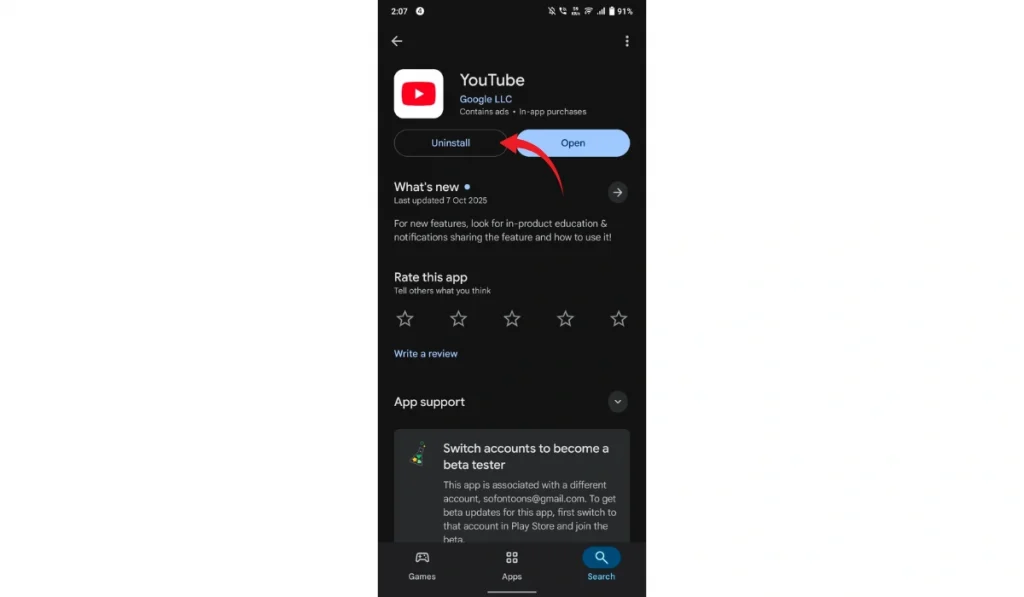
If you’re using a phone or tablet, the app itself might be outdated or have corrupted data. Reinstalling gives you a clean version and reconnects your account correctly.
Open your Play Store or App Store, search forYouTube, tap Uninstall, and then Install again. Once done, open the app, log in, and test playback.
Fix #11: Check Firewall or Antivirus Settings
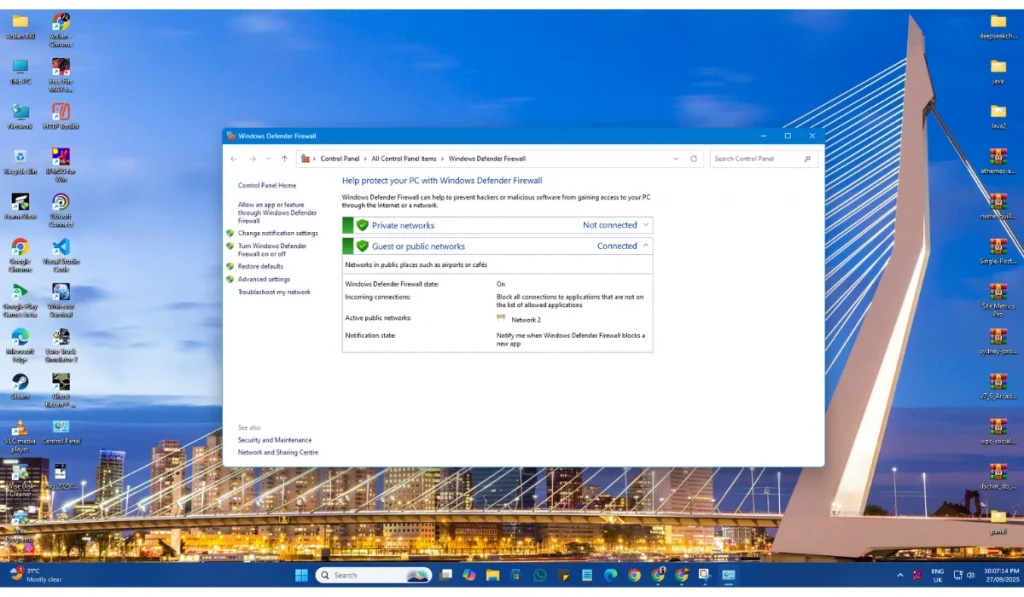
Sometimes, security software accidentally blocks YouTube’s connections or video scripts. You can test this quickly by temporarily turning off your antivirus or firewall (Riskable). If YouTube starts working, add YouTube and your browser to the allowed list, then turn your security tools back on.
Fix #12: Try a Different Browser or Device
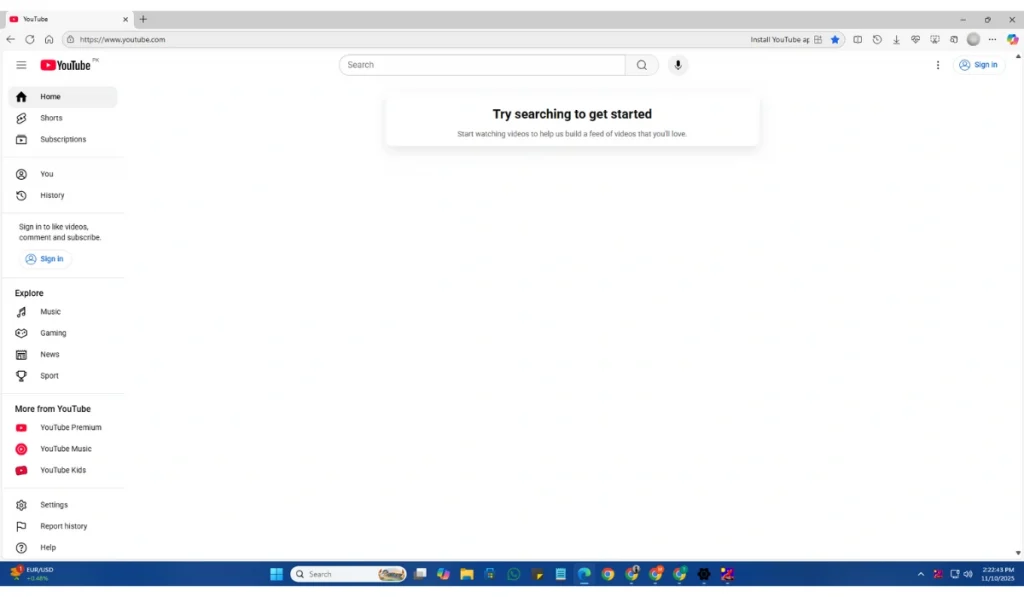
If you’ve tried everything and nothing works, the issue might be specific to your browser or the device. Testing YouTube on a different browser or device helps you determine if the problem lies with your device or the YouTube server. Try Firefox, or Edge if you’re using Chrome, or check the same video on your phone or tablet.
Fix #13: Contact YouTube Support
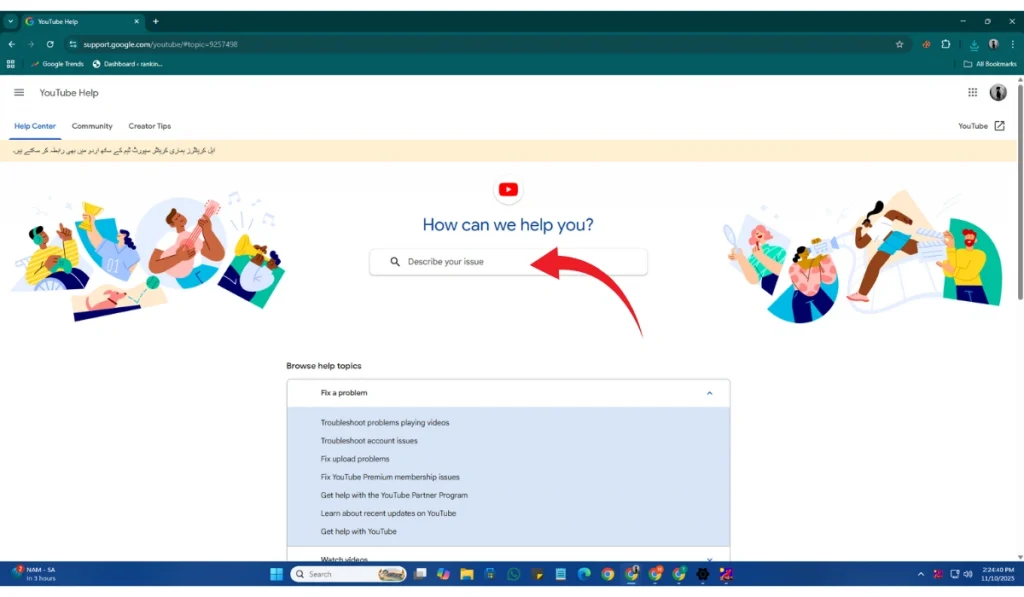
If none of these solutions help, the issue could be on YouTube’s end. There may be a temporary server problem or a playback bug affecting certain accounts or regions. Visit the YouTube Help Center, click Report a Problem, and describe what’s happening. Include your device type, browser, and a screenshot if possible.
Prevention Tips to Avoid YouTube Errors in the Future
Now that you’ve fixed the playback ID error, keeping your browser and system clean can help you stop it from happening again.
Here are some simple tips you can follow:
- Always keep your browser updated to the latest version.
- Clear cache and cookies every few weeks.
- Don’t use VPNs or proxies unless you need them.
- Restart your router once a week to refresh your network connection.
- Keep your YouTube app updated on Android or iOS devices.
- Use reliable DNS servers like Google DNS (8.8.8.8) or Cloudflare (1.1.1.1).
- Sign out and back into your Google Account if playback issues return.
These small steps keep your browser and internet connection healthy, reducing the chance of playback errors.
Conclusion
The “An Error Occurred Playback ID” message on YouTube indicates that your device was unable to connect correctly with the YouTube servers. It’s usually a local issue with your browser, cache, or network setup, not a major system problem.
If the error persists after following the steps above, it’s best to visit the YouTube Help Center or Google Support for more detailed troubleshooting. Stay updated, keep your system clean, and you’ll enjoy smoother YouTube streaming.
If you found this guide helpful, share it with others or drop a comment about what worked best for you.